Notion Calendar: What It Is, What It Costs, and How It Fits a Planner
Notion Calendar is a free app that sits beside Notion, not inside it. See what it does, which calendars it connects, where it stops, and when to skip it.
By Ultimate Notion Planner by Cosmo Suite · Editorial policy
Published · 8 min read
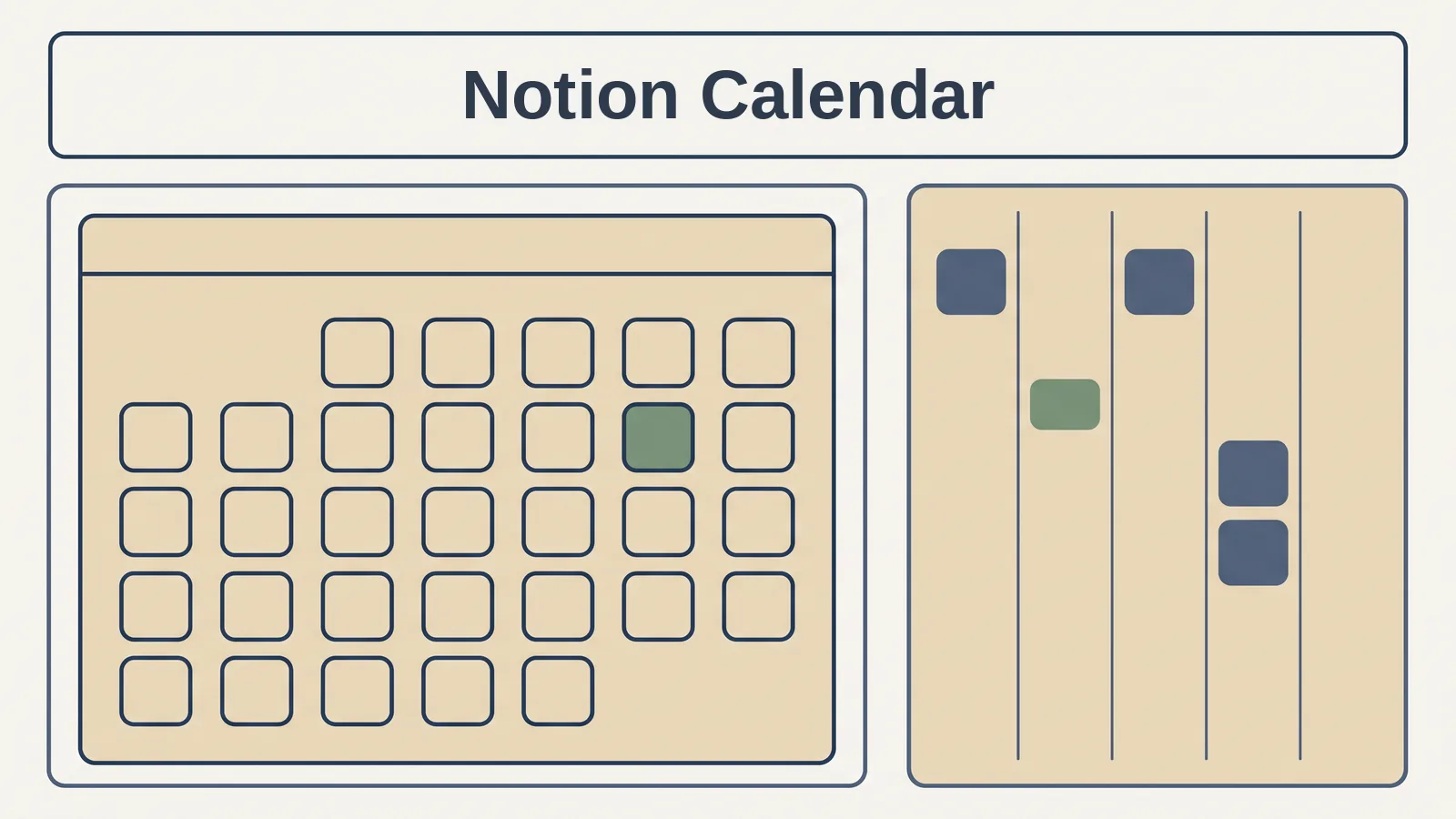
You open Notion to plan your week, and someone tells you to "just use Notion Calendar." Is that a view inside your workspace, a template, or a different app? It is a different app. Notion Calendar is a free calendar app from Notion that shows your Google, iCloud or Outlook events and can add dates from Notion databases beside them.
For most planners, the verdict is simple. You don't need it to plan a week in Notion. A calendar view inside Notion does that job. Notion Calendar helps when meetings and planner dates should share one timeline. A ready-made Notion planner with month, week and day pages already gives you the first part.
Quick Answer
- What it is: a separate app for Mac, Windows, iOS, Android and the web, not a page in your workspace.
- What it costs: Notion's help center calls it free to use.
- What it connects: Google, iCloud and Outlook calendars, plus Notion databases that have a date property.
- Who needs it: people who want meetings and planner dates in one timeline.
What Notion Calendar Is and Isn't
Notion Calendar is a calendar client: a free app that reads the calendars you already have and shows them in a different layout. Your events stay in Google Calendar, iCloud or Outlook, and the app reads them and draws them in a clean day and week layout. Notion's product page (checked November 23, 2026) lists scheduling links, time zone columns, a menu bar for joining meetings and keyboard shortcuts as its main features.
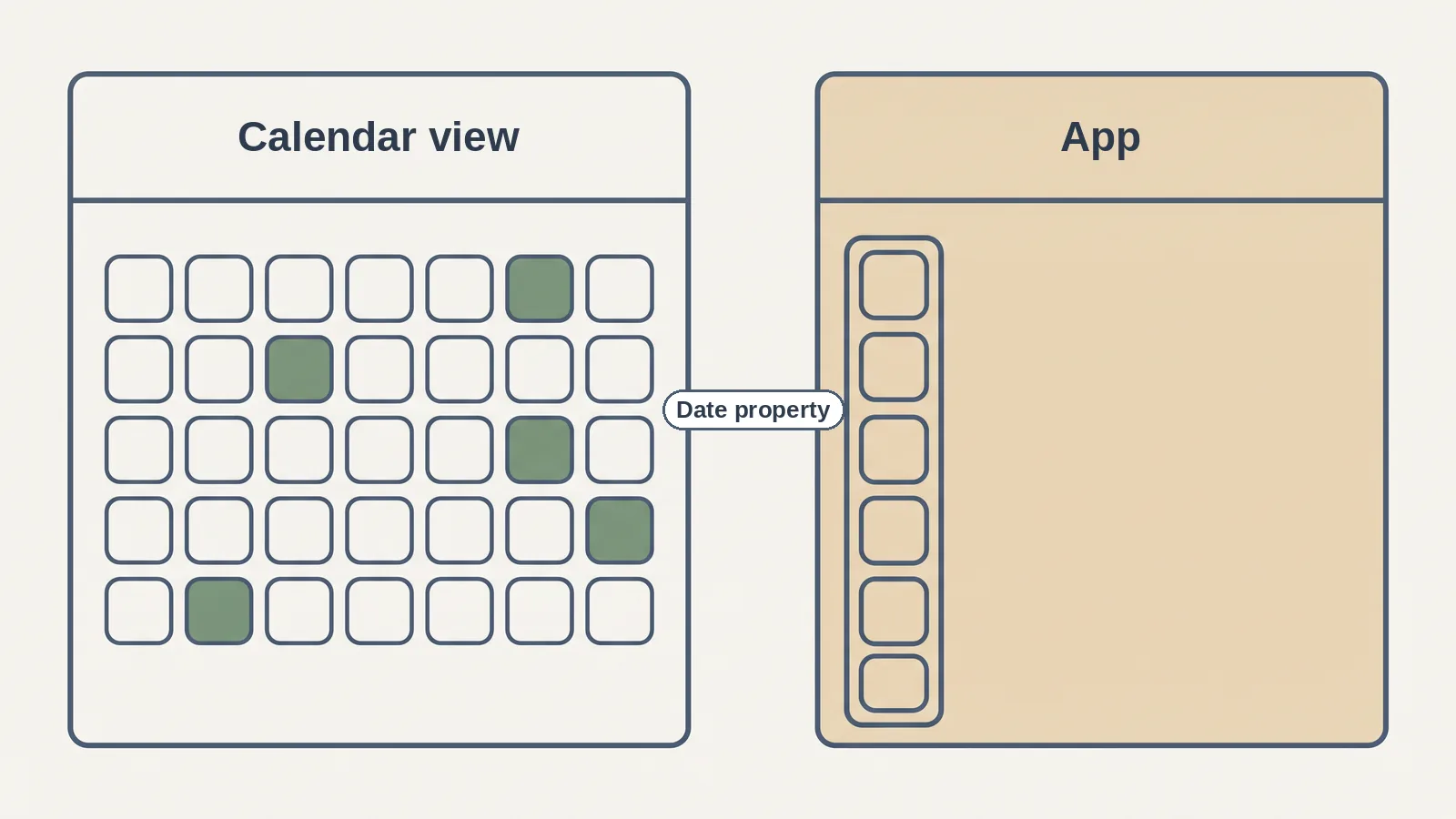
It does not store your calendar inside Notion. Notion also has calendar views, and because the two share a name, people regularly mix them up. A calendar view is one way to display a database, as Notion's calendar view help explains: it needs a Date property and shows items on the day or days they are scheduled. It lives on a page in your workspace. Notion Calendar is its own app with its own sign-in.
The link between them is a database. When a Notion database has a date property, you can connect it, and its items show up as events in the app. Nothing else connects the two. Your Google events do not turn into Notion pages, and your Notion pages do not turn into Google events unless you copy them across yourself.
Which One, for Whom
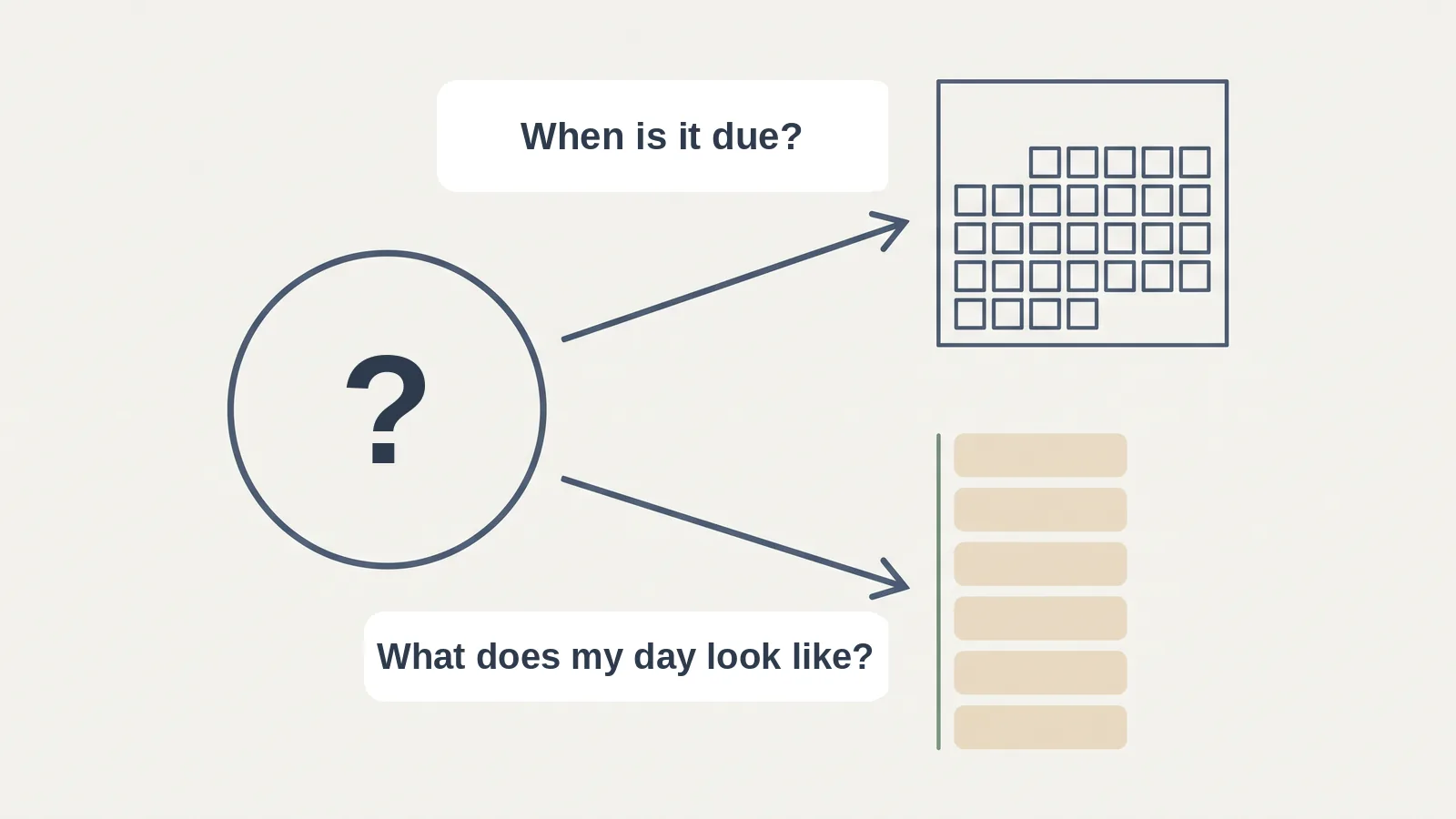
Choose by the question you are asking. If it is "when is this task due," a calendar view inside Notion answers it. If it is "what does my Tuesday look like with meetings and tasks together," the application answers it.
| You want | Notion Calendar app | Calendar view in Notion | Better fit |
|---|---|---|---|
| See meetings and tasks in one day | Yes, after you connect a database | Tasks only | App |
| Plan a week inside your planner | Not needed | Yes, needs a Date property | View |
| Share open time for booking | Scheduling links | No | App |
| Check a due date on your phone | Apps for iOS and Android | Notion mobile app | Either |
| Keep everything in one workspace | Separate app | Yes | View |
The takeaway is that the view is the base and the app is a layer on top, so most people can start with the view and add the app later, if they decide they need it. If you are weighing it against other tools, our comparison of calendar apps for planning a week covers the field.
Connect Your Calendars and One Database in 5 Steps
Setup is short. However, the order matters: calendars first, database last. The times below are our estimate for a first try, not a measured result.
- Download the app (2 minutes). Use the Mac or Windows app. Notion's setup guide begins with the desktop app, and Notion's apps page also lists iOS, Android and the web.
- Sign in (1 minute). Use your Notion account. Notion's account page says the app creates one from your email if you have none.
- Connect your calendars (2 minutes). Add Google, iCloud or Outlook. You can add more than one.
- Connect your workspace (1 minute). The app asks which Notion workspace to link.
- Add a database (2 minutes). In the sidebar, hover over the workspace name, choose the three-dot menu, then "Add Notion database," and pick one. If it has several date properties, you choose one as the main date.
In total, about eight minutes. The same guide says items need a start and end time if you want to block time on them.
What Syncs and What Doesn't
Notion's help page on using the app with Notion sets clear limits. A database must have a date property to connect. You can connect up to 20 databases. You can add them from desktop or web, not from mobile. You can edit properties such as title, date, status and checkboxes from the calendar.
Here is the part that confuses people. Notion's pages on connecting databases describe showing database dates in the app. They don't describe copying your Google events into a database. So don't build a plan that depends on calendar events turning into Notion pages on their own.
If you want new events from the app to land in a database, you can set that database as your default calendar. After that, new events you create in the app are added there. Check which calendar is the default before you add an event.
Notion Calendar or Google Calendar
Both are free, and they are not rivals in the way people expect. Notion Calendar sits on top of Google Calendar if you connect it. So the real choice is which screen you want to look at all day.
Use Google Calendar alone if you have simple meetings and no Notion tasks. Add Notion Calendar if tasks with dates in Notion keep missing your meeting view. If you want a simple system for Google events first, our guide to color coding Google Calendar is a good start.
Scheduling Links, Time Zones and Shortcuts
Beyond the database link, the app has three features people mention most. First, scheduling links. Notion's setup guide says you can share your availability as a recurring or one-off link, turn on a setting that avoids conflicts, and let the other person reschedule or cancel from the link. That is the closest thing to a booking page, which a Notion calendar view does not offer.
Second, time zones. The product page says you can view your day across several time zones, which helps if you coordinate with people in another country. Third, the command menu and keyboard shortcuts, which make moving and creating events considerably faster.
None of these three features changes how a planner works. They change how efficiently you handle meetings. For example, a person with five calls a week across two time zones gets more from the app than someone with a dentist visit and a gym slot.
A Tuesday, Planned Both Ways
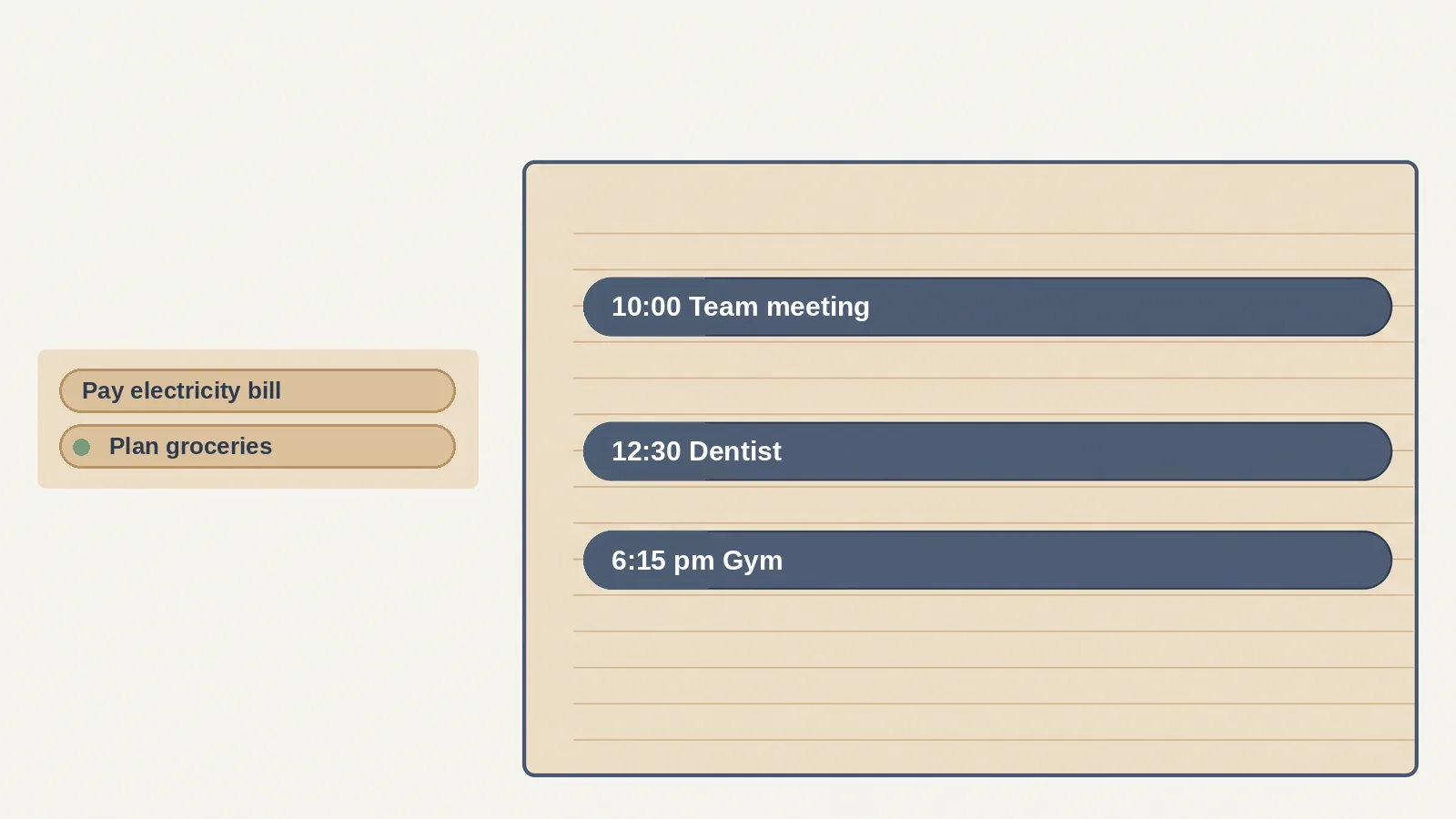
Here is an example day, built for illustration. You work 9:00 to 5:00. Your team meeting is at 10:00. A dentist visit is at 12:30. Gym is at 6:15 pm. You also have two tasks in Notion: pay the electricity bill and plan groceries.
In a Notion calendar view: you see the two tasks on Tuesday's square, along with anything else you gave a date. The meeting and the dentist are missing, unless you add them as database items yourself.
In the Notion Calendar app: you see the 10:00 meeting and 12:30 dentist from Google, with the two tasks on the same day. If you gave the tasks times, they become blocks you can drag.
In your planner's day page: you see the list you work from, and you tick items off. The app is for seeing the day, and the planner is for running it.
The app shows the full day more clearly, while the view suits working through the tasks.
When You Can Skip Notion Calendar
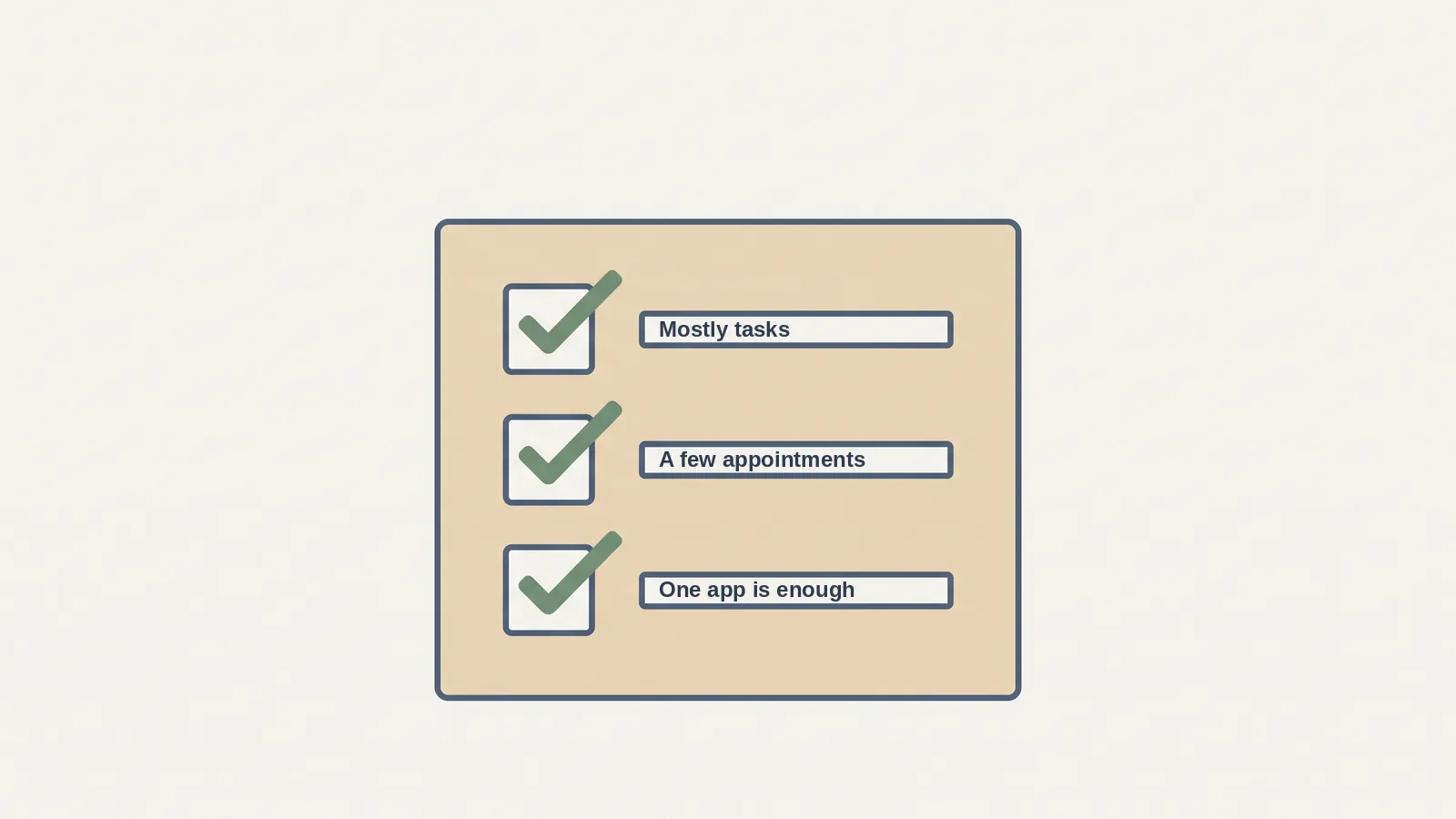
Skip it when your week is mostly tasks and a few appointments, because a Notion calendar view and a Google Calendar link can cover that. Skip it as well if you mostly use Notion on a phone, since the help page says databases can't be added from mobile. Our Notion mobile app planner setup shows what works there.
Skip it if you want a single app, because a second calendar app means one more place to look, which is a real cost even though the app is free. A planner template built from Notion views keeps your dates in one workspace. If you are still deciding what Notion costs overall, see what the free Notion plan covers.
Add it later if a week shows you the same pain twice, such as a task placed on the wrong day because you didn't see a meeting. By then the extra layer has earned its place.
Why Trust This Article
We are the Cosmo Suite team that makes the Ultimate Notion Planner, so we have a stake in how people plan in Notion. We kept the Notion Calendar facts to what Notion's own pages say, and we opened each of them on November 23, 2026: the product page and five help pages, listed under the post's sources. Our editorial policy says how we write and fact-check, and the about us page says who we are. We did not run a speed or accuracy test of the app. The 8-minute setup time and the Tuesday plan are our own estimate and example. Verify prices, platforms and limits on Notion's pages before you act, since they can change, and use our contact page if you spot a mistake.
How the Ultimate Notion Planner Fits In
The planning problem behind this question is usually straightforward: you want to see your whole week in one place and start organizing tonight. The Ultimate Notion Planner's pages share one master calendar, with Notion views synced across the planner pages and a manual Google Calendar link. That covers the planner side without a second app.
It does not connect to Notion Calendar by itself. The Google Calendar link is manual and not a two-way sync. If you want the app too, you can connect a Notion database that has a date property, as Notion's help page describes. We haven't tested the app against the planner, so treat that as something to try, not a promise.
For a first evening, start with the Ultimate Notion Planner's month, week and day pages. Read our guide to setting up a Notion planner tonight for the order that works. Add a widget later if you want one; our Notion widgets guide covers the options. Add Notion Calendar when a week shows you need it.
Frequently asked questions
Is Notion Calendar free?
Yes. Notion's help center describes Notion Calendar as a free-to-use tool. You still need a Notion account to sign in, and the app will create one from your email address if you don't have one. Prices can change, so check Notion's page before you rely on this.
Is Notion Calendar the same as a calendar view in Notion?
No. A calendar view is a layout for a Notion database, and it lives inside Notion. Notion Calendar is a separate app that shows your Google, iCloud or Outlook events and can also display dates from Notion databases you connect.
Does Notion Calendar work with Outlook and iCloud?
Yes. Notion's help center lists Google, iCloud and Microsoft Outlook calendars. It does not list other calendar services. You can connect more than one account, and all of them sit under a single Notion account.
Can I use Notion Calendar on my phone?
Yes. Notion lists apps for iOS and Android, plus the web and desktop apps for Mac and Windows. One limit: its help page says you can add Notion databases only from desktop or web, not from mobile.
Do I need Notion Calendar to run a Notion planner?
No. A planner works with Notion's own calendar views. Notion Calendar is an optional extra for people who want their meetings and their planner dates in one timeline.
Can Notion Calendar replace Google Calendar?
Only partly. Notion Calendar works on top of your Google, iCloud or Outlook account, so your events still live there. It changes how you see and edit them. If you stop using Google Calendar, you lose the source of those events.
Sources
Keep reading
Calendar and Scheduling
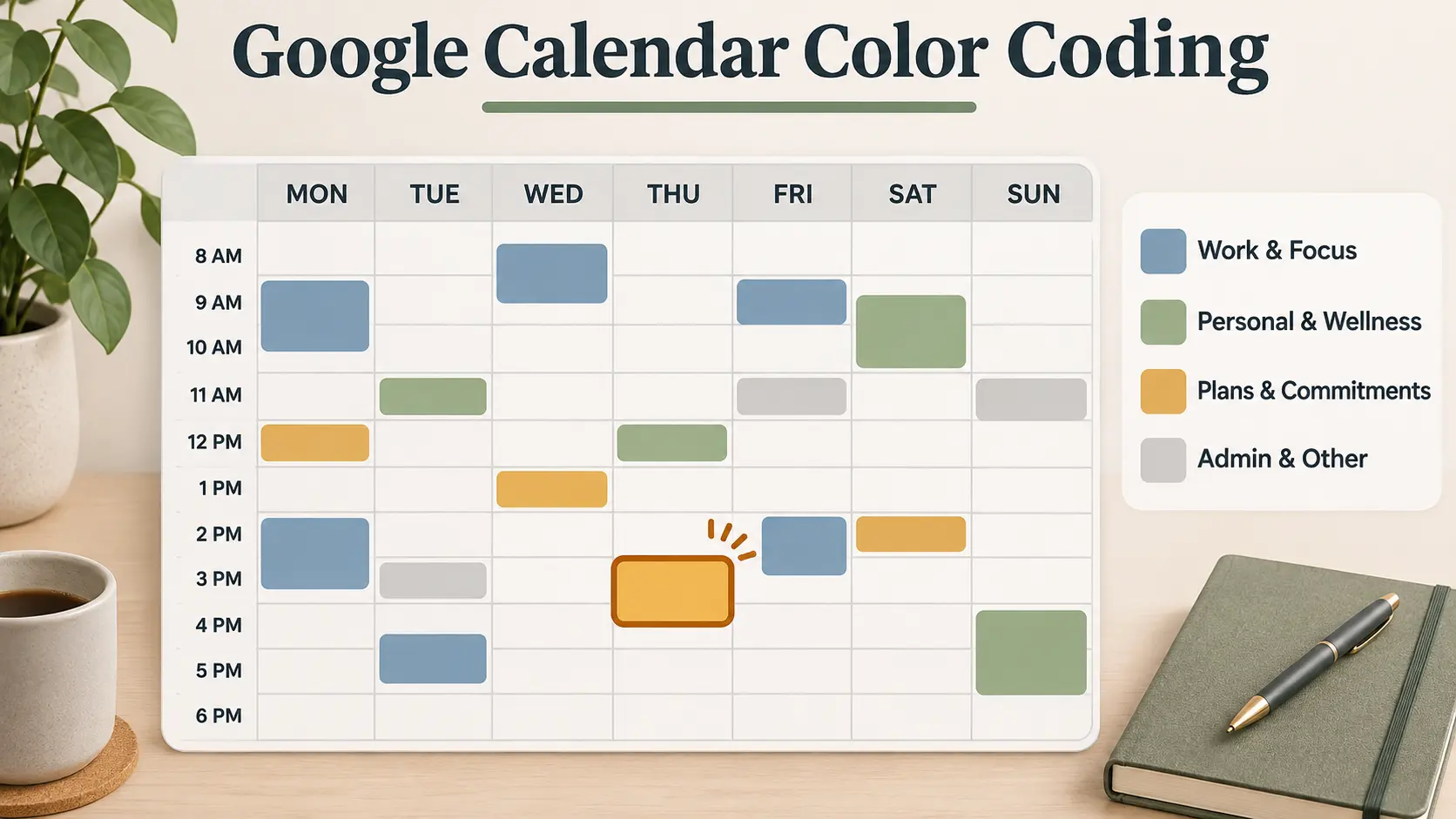
Google Calendar Color Coding: A Simple System That Stays Useful
Google Calendar color coding works best when each color has one job. Set a small, readable system for work, personal plans, and events that need action.
· 7 min read

Calendar and Scheduling
Subscription Fatigue: Which Planning Apps Are Worth Paying For?
Subscription fatigue can make planning apps feel like a pile of renewals. Compare current prices, find overlapping jobs, and keep only tools your week uses.
· 7 min read