Notion Mobile App: Set Up a Planner You Can Use on Your Phone
Notion mobile app: set up your planner, pin the right page, and check what works on a phone before you rely on Notion for your full week.
By Ultimate Notion Planner by Cosmo Suite · Editorial policy
Published · 7 min read
A weekly plan helps on your phone when you can reach today's page in a few taps. The Notion mobile app lets you read, edit, and comment on your workspace, but its layout is not a smaller copy of the desktop app. Columns collapse, some controls move, and a few account actions still need a computer.
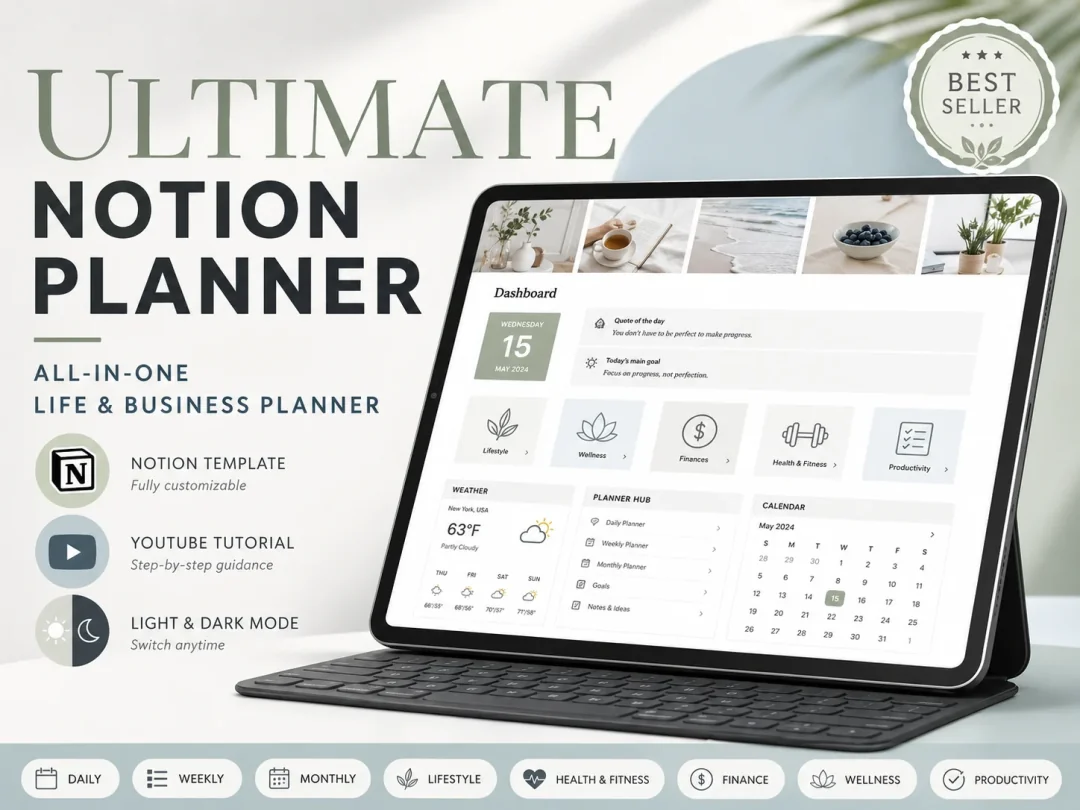
For a week that changes while you are away from your desk, use the phone for quick checks and small edits. Keep the main setup on desktop, pin the page you need, and test your actual calendar and task views before depending on them outside the house. If you would rather start from an existing layout, a weekly Notion planner you can duplicate gives you connected day, week, and month pages to check on your phone.
What the Notion Mobile App Can Do
The Notion mobile app is Notion’s iOS and Android app for reading, editing, and commenting on workspace pages. That makes it useful for opening your weekly plan, checking a schedule, or updating a task away from your computer. The official mobile guide lists what the app can do and which actions still need desktop or web.
The screen changes how the page reads. Notion says page columns collapse into one column on mobile. That can make a wide desktop dashboard longer to scroll, even when all the same sections are there. Menus also use visible ••• and + controls instead of desktop hover actions.
The change matters when your first screen is crowded. Put the next appointment, today's tasks, and the link to your calendar near the top. Move reference pages and monthly notes lower. You want to answer “what is next?” before scrolling through the rest of the workspace.
The app does not support every admin task. Notion lists importing data, selecting multiple blocks, changing account details, leaving workspaces, and changing billing or security settings as actions that require a desktop app or browser. Treat the phone as the place to use the plan, not to rebuild it.
Set It Up Tonight
You can make a Notion planner usable on a phone in about 15 minutes. The time is a practical estimate, not a Notion requirement.
| Step | What to do | Check before moving on |
|---|---|---|
| 1. Sign in | Install Notion from the iOS App Store or Google Play and open your workspace | You can see the same pages as on desktop |
| 2. Find the main page | Open the dashboard or weekly planner you use most | It loads without searching through the sidebar |
| 3. Pin a shortcut | Add a Notion page or favorites widget to your phone's home screen | The shortcut opens the intended page |
| 4. Test one edit | Check off a task or add a note in the app | The change appears on your other device |
| 5. Save a needed page offline | Use the page menu and select Available offline | The page appears as downloaded before you disconnect |
Before installing, check whether your device meets Notion's current requirements. As of November 6, 2026, Notion lists iOS 17 or later and Android 8 or later in its mobile system requirements.
A small home-screen shortcut is more useful than putting the whole workspace on the first screen. Start with one page, such as today's plan. If you regularly switch between a calendar and a task list, add only the second shortcut after the first one proves useful.
The exact setup differs by phone. On iPhone, long-press an empty area of the home screen, tap the plus button, choose Notion, and add a widget. Then edit it and select the workspace or page. On Android, long-press the Notion app icon, choose Widgets, then drag a Notion widget to the home screen and choose its page. The official widget guide linked above has the exact controls for both systems.
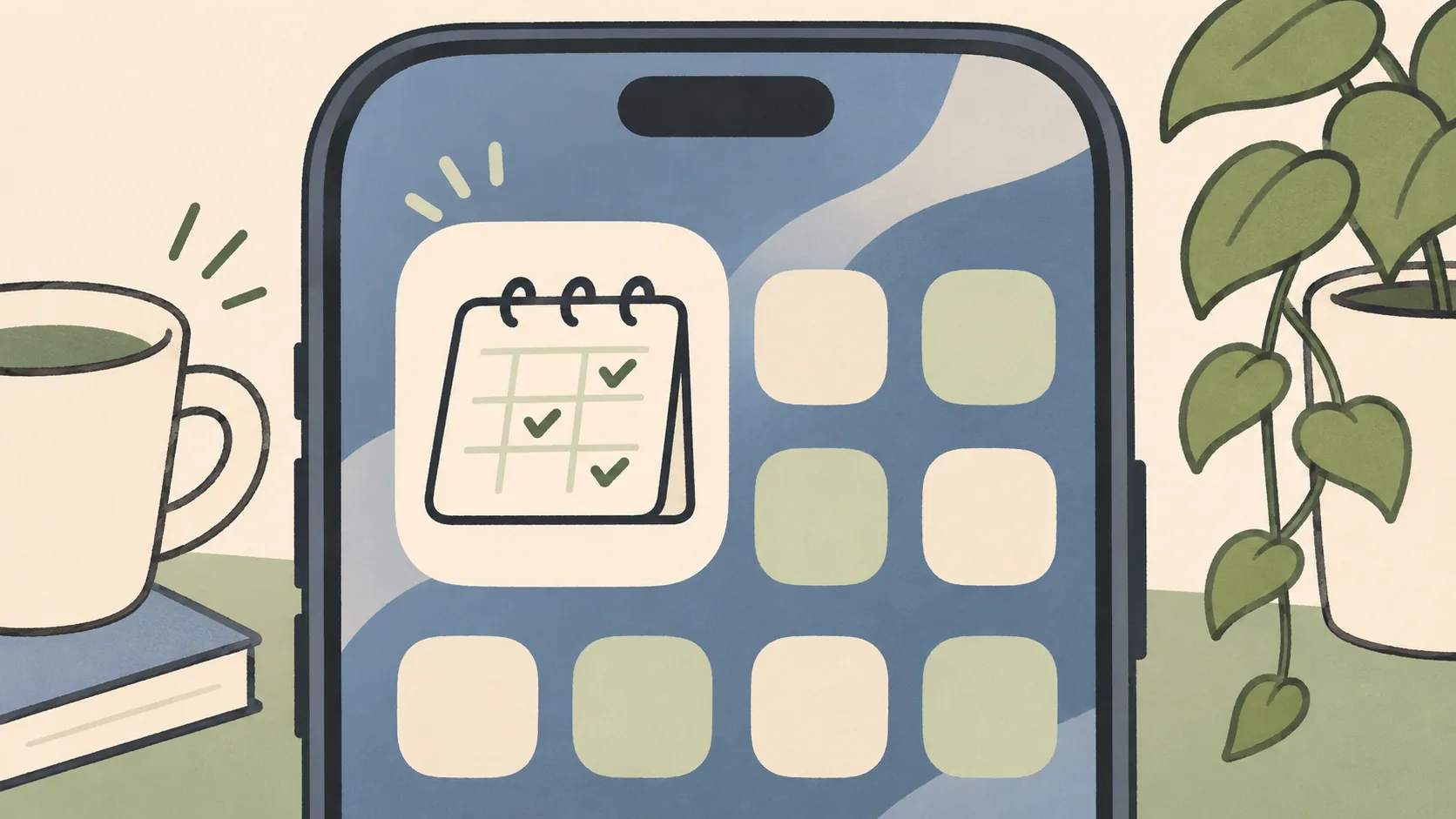
A Notion mobile widget is a home-screen shortcut that opens a specific page or database, favorites, or recent pages. Notion’s widget guide shows the iPhone and Android setup steps. You can choose the page when configuring the widget. The widget is an entry point, not a live view of every block on your dashboard. For exact setup steps on iPhone and Android, see Notion's mobile widgets guide.
Make a Planner Fit a Phone Screen
A phone-friendly planner answers one question at a time. For example, if you open it while waiting for an appointment, the next event and one task should be visible before you scroll. Put the day's date and next action at the top. Keep a calendar link close by, then place the longer weekly review and monthly view below it.
If your desktop page uses side-by-side columns, check where those sections land after Notion stacks them. A meeting time can end up far above the task list that belongs with it. Reorder the page for a vertical scan instead of trying to preserve a desktop layout that no longer fits.
Try this quick test with a normal day:
- Open the planner from your home screen.
- Find the next event without using search.
- Mark one task complete.
- Add a short note or appointment.
- Confirm the change appears on your other device.
If any step takes several taps or leaves you unsure where the change went, simplify the page. Keep the phone view for today's actions and use desktop for planning the week.
A useful phone page can be plain: a date, the next fixed appointment, two or three tasks, and a short note area. Put the event time before the task list if you need to leave at a set hour. Put the first task near the top if the day has no fixed appointments. This small ordering choice saves scrolling without forcing the desktop page into a new shape.
Our Notion planner setup guide explains how a month, week, and day can share one calendar view.
What Works Offline and What Needs a Connection
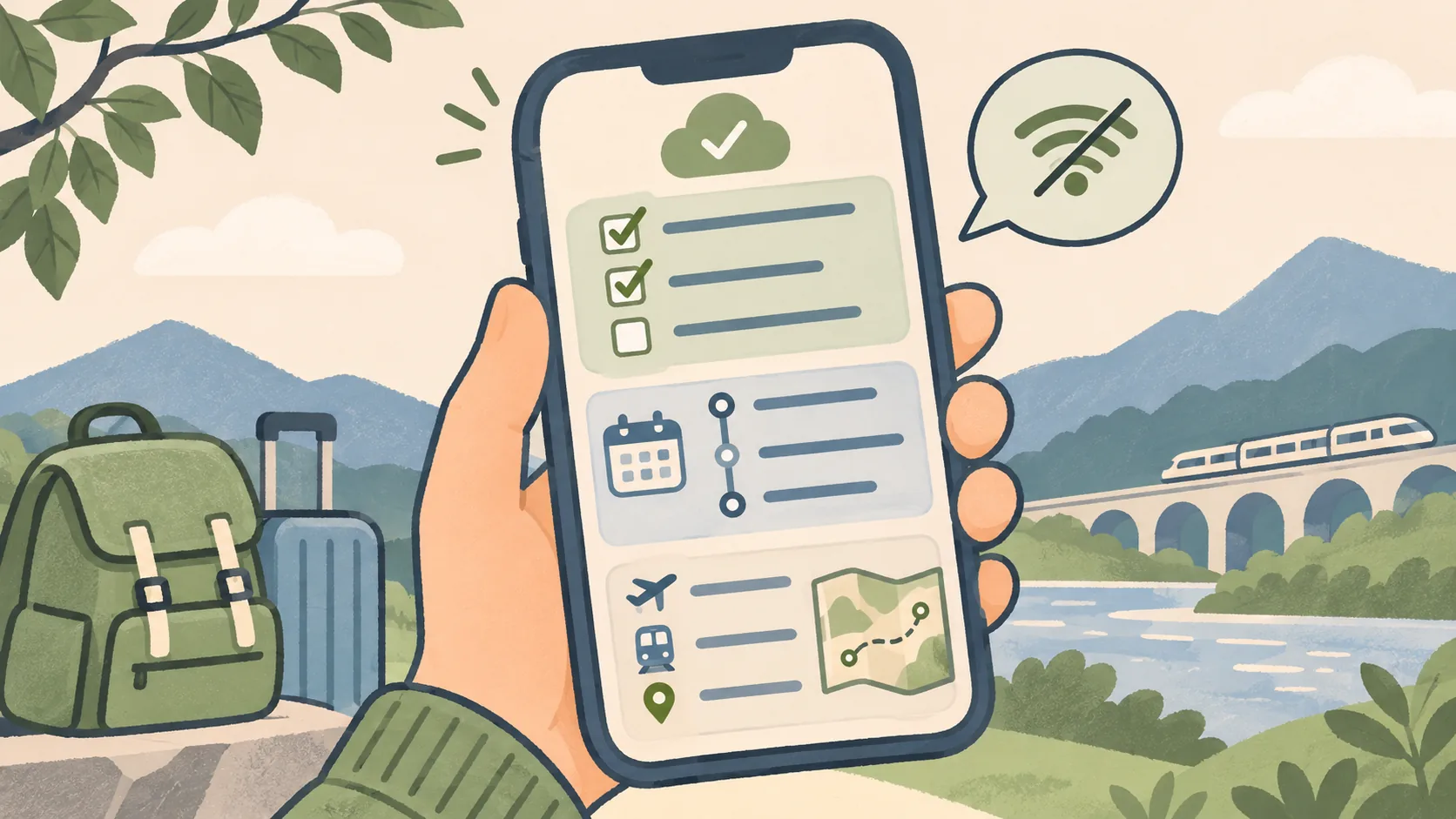
Notion lets you mark individual pages as available offline in its desktop and mobile apps. Open the page menu and enable Available offline before travelling or entering a place with unreliable reception. Its offline page instructions explain how to manage saved pages from the Offline area in settings.
Do not assume every page is ready just because it opened earlier. Download the specific pages you expect to need, then test them while your device is disconnected. Online databases, embeds, and updates from other people may not behave like a downloaded page. Reconnect later so your edits can sync.
A simple offline set could include today's schedule, a packing list, and the address or instructions you need. Avoid saving an entire workspace by default if only a few pages matter. That makes the list easier to check before you leave.
Offline downloads are tied to the device where you save them. Notion says a page downloaded on your phone will not automatically be available offline on your laptop. If you plan to switch devices during a trip, save the same page on each device and check its Offline list. This is separate from the normal online workspace, where your pages are available after you sign in.
Notion's offline steps and plan options can change, so check its current help page when setting this up.
What Syncs and What Does Not
Your Notion pages are available in the app after you sign in to the same workspace, but a Notion planner's calendar connection is not automatically two-way Google Calendar sync. A link can open Google Calendar, while Notion's own month, week, and day pages can show views of the planner's shared calendar.
A calendar link can look like a sync on a phone, even though it only opens the other app. A calendar link may switch you to another app or browser. It does not mean a new Google event will appear as a Notion task, or that editing a Notion date will change a Google event. If you need that behavior, use a calendar tool or integration designed to connect the two.
Notion Calendar is a separate app from the Notion mobile app. Choose the tool based on the task: use Notion to update the planner page, and use your calendar app to confirm the appointment itself. Our Notion shortcuts for weekly planning covers quick ways to reach common page actions on desktop and phone.
Why Trust This Article
Cosmo Suite sells the Ultimate Notion Planner. We checked the app behavior against Notion's mobile help pages on November 6, 2026. The setup time above is an editorial estimate. It is not a measured product result. App features and system requirements can change, so use Notion's official help pages for current instructions.
How the Ultimate Notion Planner Fits In
The Ultimate Notion Planner includes a central dashboard, daily, weekly, and monthly planning pages, a master calendar, light and dark themes, and a setup guide with a YouTube tutorial. Its Google Calendar connection is a manual link, while its planner pages use synced Notion views. It does not provide two-way Google Calendar sync.
If you already use Notion, the template gives you a starting structure to duplicate and adapt. You can see the one-time Notion planner template and decide whether a connected dashboard is easier than building each page yourself. Its layout still needs a quick phone check, because Notion collapses columns on small screens.
Frequently asked questions
Can I use Notion as a planner on my phone?
Yes. The Notion mobile app lets you read, edit, and comment on your pages. Pin your main planning page and test the views you use most before relying on them away from your computer.
Does Notion work on iPhone and Android?
Yes. Notion offers apps for iOS and Android. Download the app from your device's app store, sign in, and open the same workspace you use on the web or desktop.
Can I edit a Notion page on my phone?
Yes. You can read, edit, and comment on Notion content in the mobile app. Some workspace and bulk actions still require a desktop browser or app.
Does the Notion mobile app work offline?
You can mark individual pages as available offline in the mobile app. Open a page's menu and choose Available offline. Check that the page has downloaded before you lose your connection.
Can I use Notion widgets on my phone?
Yes. Notion's home-screen widgets can open a page, database, favorites, or recent pages. They are shortcuts into Notion, not a replacement for the app's page layout.
Does Google Calendar sync with a Notion planner on mobile?
A planner template can link to Google Calendar and show its own Notion views, but that is not two-way calendar sync. Use Notion Calendar or a separate integration if you need events to move between services.
Sources
Keep reading
Notion Basics
Notion Shortcuts for Planning a Week
Notion shortcuts for finding pages, formatting a weekly plan on Mac and Windows, plus the phone controls to use when a keyboard is not handy.
· 9 min read
Notion Basics
Notion Widgets: Pick the Right One and Embed It
notion widget: add a clock, weather panel, countdown, or calendar to your page, then check mobile loading and privacy before you rely on it.
· 8 min read
Notion Basics
Is Notion Free? What You Can Do on the Free Plan
is notion free: see what one person gets, the limits on files and shared workspaces, and when paying for Notion or a planner makes sense.
· 9 min read