Notion Shortcuts for Planning a Week
Notion shortcuts for finding pages, formatting a weekly plan on Mac and Windows, plus the phone controls to use when a keyboard is not handy.
By Ultimate Notion Planner by Cosmo Suite · Editorial policy
Published · 9 min read
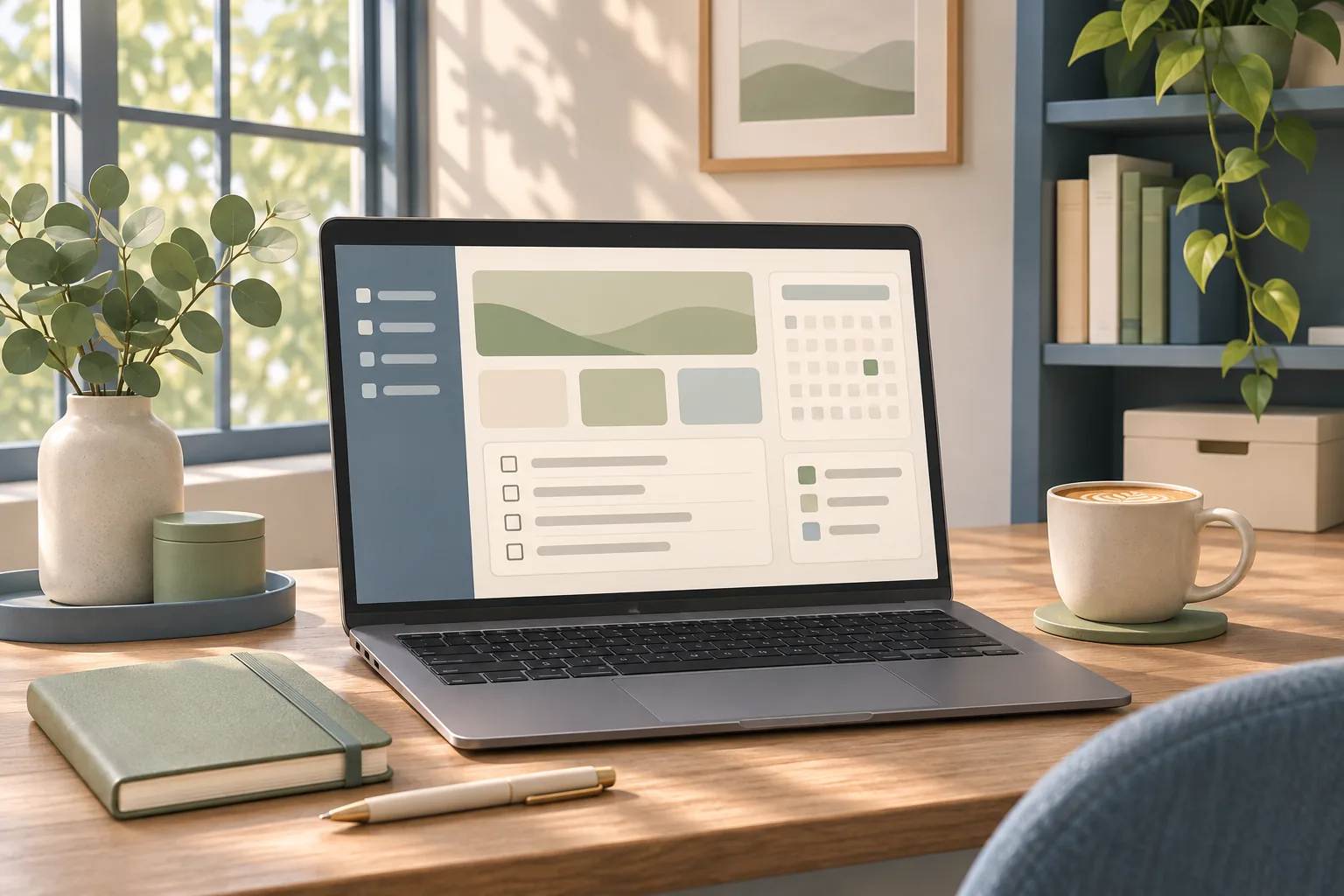
If your week lives across a calendar, task list, and a few scattered pages, a handful of Notion shortcuts can make the daily check-in easier. The desktop commands are useful for finding a page, making a new one, and formatting a short plan. On a phone, Notion's mobile guides show touch controls such as Search and New page instead of keyboard chords.
For a weekly planner, learn search first, then page creation and the slash menu. You can use Command on Mac or Control on Windows and Linux for many commands. The exact combination can vary by action, so keep Notion's official keyboard shortcut list nearby.
Quick Answer: Press
Cmd/Ctrl + Pto search or jump to a recent page. PressCmd/Ctrl + Nto create a page. Type/to open the block menu, or type[]and press Space to make a checkbox. On your phone, tap Search or New page in the bottom bar.
The Shortcuts Worth Learning First
Start with commands that help you reach the page or update the plan you already use. A Notion shortcut is a keyboard combination that triggers an action; slash and Markdown commands are typed into a page. Notion documents the common keyboard shortcuts for desktop, web, and mobile use, with cmd/ctrl meaning Command on Mac and Control on Windows or Linux.
Search and page creation cover two common starts: find the week you planned, or make a new page for the one ahead. The slash menu helps when you need a block but do not remember its shortcut. Typing a slash and a word such as todo can take less thought than looking through a toolbar.
Notion's shortcut page says its instructions are for English/QWERTY keyboards. If you use another layout, a key may sit in a different place or a combination may not behave as expected. Use the visible menu as a fallback. There is no prize for memorizing a shortcut that refuses to work on your keyboard.
Practice three actions first: search for your weekly page, create a new page, and open the slash menu. Add the checkbox shortcut when those feel familiar. A few repeated clicks disappear without memorizing every command in Notion's reference.
Shortcut Map for a Planning Week
This short map covers common weekly planning actions on desktop and their closest phone equivalents. The mobile actions below follow Notion's mobile workspace navigation guide; they are taps, not keyboard shortcuts.
| Planning job | Mac | Windows/Linux | Phone |
|---|---|---|---|
| Search or jump to a recent page | Cmd + P or Cmd + K |
Ctrl + P or Ctrl + K |
Tap Search in the bottom bar |
| Create a page | Cmd + N |
Ctrl + N |
Tap New page in the bottom bar |
| Search within an open page | Cmd + F |
Ctrl + F |
Use the mobile search controls; the desktop shortcut is not listed for mobile |
| Add a block | Type /, then a block name |
Type /, then a block name |
Use the + control where it appears |
| Create a checkbox | Type [], then Space |
Type [], then Space |
Use the block menu |
| Toggle light or dark mode | Cmd + Shift + L |
Ctrl + Shift + L |
Change appearance in mobile Settings |
The Cmd or Ctrl labels are convenient shorthand, but not every shortcut uses the same pattern. For example, Notion documents content-style combinations as Cmd + Option on Mac and Ctrl + Shift on Windows and Linux. Check its keyboard reference for the exact action before trying a less familiar combination.
Set Up a Small Weekly Workflow
Use search, one weekly page, and a single source for dates. That is enough to get through a normal planning pass without turning the shortcut list into another project.
- Open the week you already use. Press
Cmd/Ctrl + Pand type a distinctive word from its title. You can also useCmd/Ctrl + Kto open search or jump to a recent page. The Notion search guide explains how workspace search and page search differ. Workspace search finds pages and content across your workspace; page search looks inside the open page. - Make a page when you need a fresh week. Press
Cmd/Ctrl + N, give the page a name you will recognize later, and add a link to the calendar or database that holds your dated plans. If you are building from scratch, this Notion planner setup guide walks through the calendar-first structure. - Add only the blocks you need today. Type
/and thentodo,heading, or another block name. A checkbox list can hold actions; a calendar view can hold appointments with dates. - Return to the page without hunting through the sidebar. Search by title again, or use the back and forward page shortcuts when you have just opened another page.
 {width=512}
Try that flow for a week before adding more commands. If you reach for the same page each morning, keep its title distinctive or add it to Favorites. A smaller set is easier to remember than a full page of shortcuts you never use.
If your planner needs a central place for daily, weekly, and monthly pages, the Ultimate Notion Planner template provides those pages around a dashboard and master calendar. You can also build the same route with regular Notion pages and database views.
Format a Planner Page with Slash and Markdown
The slash menu and Markdown-style input are quick ways to add structure while you type. They are separate from the Cmd and Ctrl keyboard combinations above.
At the beginning of a line, type - and Space for a bulleted list, 1. and Space for a numbered list, or [] and Space for a checkbox. Type #, ##, or ### and Space to create a heading. Notion also supports paired characters such as **bold** and *italic* while typing. These are handy for a short plan because they do not require you to leave the keyboard and choose a block from a menu. A slash command is text you type after / to find and insert a block from the menu.
For a longer page, type / and begin entering the block name. The menu includes basic blocks such as text, headings, bullets, to-dos, dividers, and quotes. It also has media and advanced choices. Notion's slash commands guide shows how to choose or type the block name. If you are unsure which block you need, pause after the slash and select it from the menu.
Use headings for the parts of the week you revisit, such as “Appointments” or “Next week.” A checkbox suits a task that can be completed. Keep calendar events in the date-bearing calendar or database you maintain, then link to that source from the weekly page. This keeps a meeting from appearing as three separately edited copies.
If you want a visual panel beside that plan, our guide to Notion widgets by job explains what an embedded widget can and cannot do. Use the page or calendar as the source you update; a widget is an extra view.
Move Around and Edit Blocks
Block shortcuts are most useful when you need to move or adjust a small part of the week. Press Esc to select the current block, then use the arrow keys to move selection. Hold Shift with the up or down arrow to expand the selection. Press Enter to edit the selected block.
To duplicate selected content, press Cmd/Ctrl + D. To move a selected block, use Cmd/Ctrl + Shift with the arrow keys. Notion also lists Cmd/Ctrl + Shift + U for moving up one page level. These commands can help when a weekly plan changes shape, but check what is selected before you move or duplicate it.
For example, if a “Friday” checklist belongs under the next week, select that block and move it where it belongs. If it is a recurring structure you want to keep, duplicate it first, then change the dates and tasks. Keep the original until you have checked the new page.
You can also press Cmd/Ctrl + / to open the block action menu for a selected block. If the keyboard shortcut is awkward, use the block handle or its menu. Notion shows different controls depending on whether you are using a mouse, trackpad, or touch screen.
Use Notion on a Phone
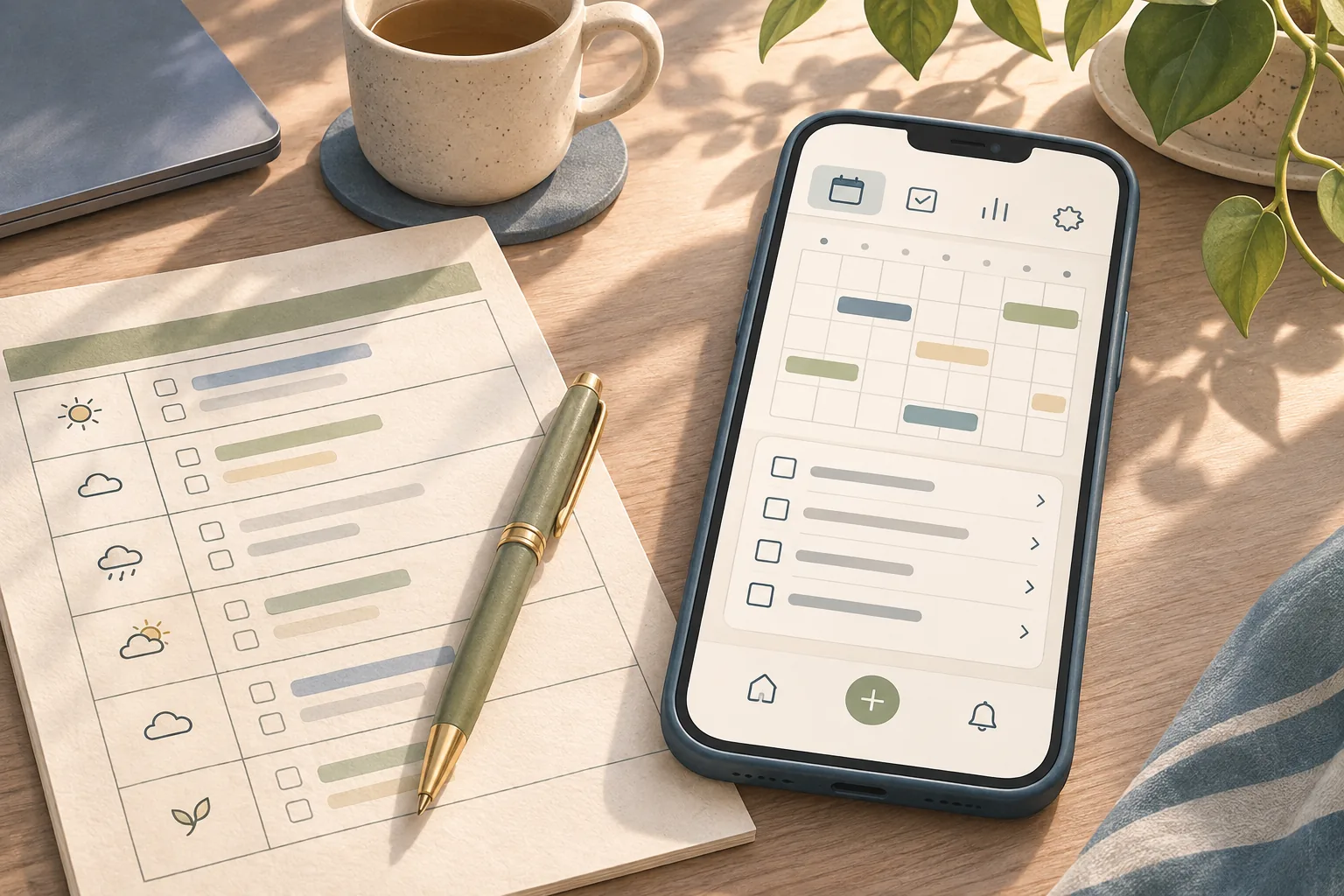
On a phone, use the navigation bar and page controls. Notion's mobile workspace guide lists Home, Search, Inbox, and New page along the bottom of the app. Tap Home to find Private, Shared, and Favorites. Tap a page's toggle to reveal nested pages, or open a database page and choose one of its views.
The mobile app also uses ••• and + controls where desktop shows some controls on hover. Notion says columns collapse into a single column on mobile. A page with several desktop columns may therefore take more scrolling on a phone. Put the link you need most near the top and keep secondary trackers farther down.
 {width=512}
Notion's mobile app guide covers what you can read, edit, and comment on from iOS and Android. It also lists actions that require desktop or a browser, such as selecting multiple blocks at once. When you use your phone for a quick check, tap Search to find a page, then use the page's visible controls to update it.
The Ultimate Notion Planner includes a dashboard hub and daily, weekly, and monthly pages, along with light and dark themes. Its manual Google Calendar link is a link; the planner's own Notion views are synced across its pages. It does not add keyboard shortcuts or two-way Google Calendar sync.
When a Shortcut Does Not Work
Check the key, focus, and keyboard layout before assuming the command is gone. Start with Notion's current help page, since shortcut details can change as the app changes.
- The wrong page or panel opens: try the other documented search key,
PorK, and make sure Notion has focus.Cmd/Ctrl + Fsearches inside a page; it is different from workspace search. - A formatting shortcut fails: use the slash menu or type the Markdown-style prefix at the start of a line. Notion's documented combinations may differ between Mac and Windows/Linux.
- The key is in a different place: the official instructions describe English/QWERTY keyboards. Use Notion's visible controls if your layout does not match.
- You are on a phone: use the bottom navigation,
•••, and+controls. The mobile guides explain these touch actions.
You can keep the official Notion shortcut reference bookmarked. The free Notion plan guide explains what a personal planner can use on Notion's free plan.
Why Trust This Article
Cosmo Suite sells the Ultimate Notion Planner, so this article identifies that relationship before describing the product. We reviewed Notion's official keyboard-shortcuts, search, and mobile-navigation documentation on 4 November 2026. The examples describe a generic weekly planning routine; we did not test every command on every keyboard layout or app version. Read our editorial policy or contact us with a correction.
How the Ultimate Notion Planner Fits In
The Ultimate Notion Planner is a Notion template with a central dashboard hub and master calendar, daily, weekly, and monthly planning pages, goal and habit tracking, finance and productivity trackers, light and dark themes, customizable widgets, a setup guide, and a YouTube tutorial.
If you want those pages ready to duplicate and customize, the Ultimate Notion Planner template gives you a prepared starting structure. You can use Notion's built-in shortcuts with any page or template, or build a simpler weekly page yourself.
Frequently asked questions
What is the most useful Notion shortcut for planning?
Start with Cmd/Ctrl + P to search or jump to a recent page. Use Cmd/Ctrl + N to create a page, then type / to add a block such as a heading or to-do list.
Are Notion shortcuts the same on Mac and Windows?
Many use Cmd on Mac and Ctrl on Windows or Linux. For content-creation shortcuts, Notion maps Cmd + Option on Mac to Ctrl + Shift on Windows and Linux.
Does Notion have keyboard shortcuts on mobile?
Notion's mobile guides describe touch controls such as Home, Search, Inbox, and New page. On a phone, tap these controls instead of using desktop shortcuts.
How do you make a to-do list quickly in Notion?
Type [] at the start of a new line and press Space to create a checkbox. You can also type /todo and choose a to-do list block.
How do you search a Notion workspace?
On desktop, press Cmd/Ctrl + P or Cmd/Ctrl + K to open search or jump to a recent page. On mobile, tap the Search icon in the bottom navigation.
Can I use Notion shortcuts with a non-QWERTY keyboard?
Notion's shortcut instructions currently describe English/QWERTY keyboards. If a key combination does not work on your layout, use the slash menu or the matching command in Notion's menus.
Sources
Keep reading
Notion Basics
Notion Widgets: Pick the Right One and Embed It
notion widget: add a clock, weather panel, countdown, or calendar to your page, then check mobile loading and privacy before you rely on it.
· 8 min read
Notion Basics
Is Notion Free? What You Can Do on the Free Plan
is notion free: see what one person gets, the limits on files and shared workspaces, and when paying for Notion or a planner makes sense.
· 9 min read