Notion Widgets: Pick the Right One and Embed It
notion widget: add a clock, weather panel, countdown, or calendar to your page, then check mobile loading and privacy before you rely on it.
By Ultimate Notion Planner by Cosmo Suite · Editorial policy
Published · 8 min read
If you keep opening the same Notion page to check the time, weather, or days until a trip, a widget can put that answer in view. A Notion widget is an embedded web block from another provider. It differs from Notion's own phone home-screen widget, which opens a page or database.
Pick a widget by the job it does. Add a clock if people in one workspace need a shared time reference. Add weather beside an outdoor plan. Use a countdown for a dated event. A calendar widget can help when you need a quick visual, but it will not automatically become your task system. If the information is already obvious on the page, skip the widget.
What a Notion Widget Does
A third-party Notion widget displays content from another service inside a Notion page. The provider hosts it, and Notion shows it in an embed block. Notion's help center says you can paste an embed URL into a page and choose the embed option. It also warns that some sites block embedding and that content requiring an external login will not work in its desktop or mobile apps.
Use a widget for the detail you want to glance at. A clock or weather panel is quick to scan. A calendar gives context. Keep tasks, appointments, and deadlines in the place where you update them; an embed may only display information from another service.
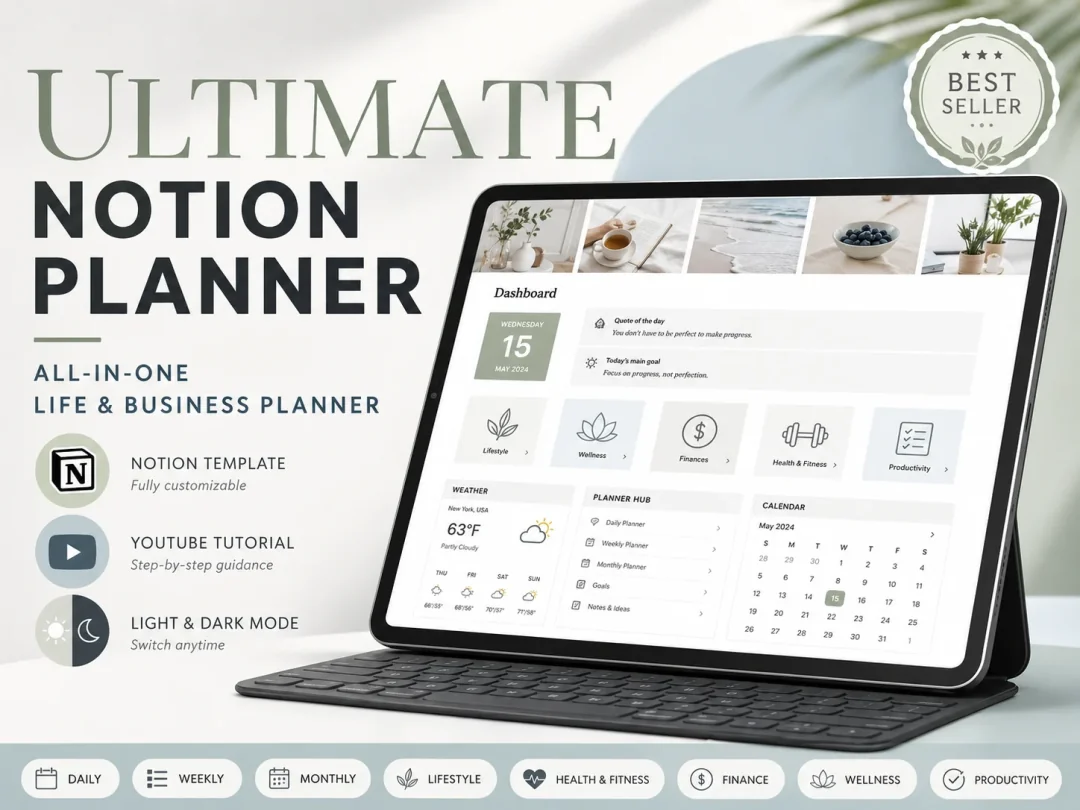
There are two meanings of “Notion widget.” The external kind lives inside a Notion page. Notion's own mobile widget lives on an iPhone or Android home screen and links to a workspace page, database, or favorites. The built-in option is a shortcut, not a weather or countdown panel. Notion documents those mobile shortcuts in its mobile widgets guide. If you want a calendar-first dashboard around those pages, the Ultimate Notion Planner template is one option; a free page you assemble yourself can work too.
Which Widget Fits Which Job
Choose the smallest widget that answers a question you ask often. Providers such as Indify and Apption offer examples; their catalogues and plan limits can change.
| Widget | Useful when | Check before adding |
|---|---|---|
| Clock | A shared page needs a time-zone reference | Whether the display shows the time zone you expect |
| Weather | The day includes an outdoor plan | Location accuracy and whether the embed loads on mobile |
| Countdown | You are preparing for a trip, deadline, or event | The date and time zone are correct |
| Calendar | You want a quick month or event view | Whether it is a display, a link, or a true connected calendar |
| Progress bar | You want a visible marker for a goal | What data it reads and how you update that data |
The table lists common jobs, not a promise that every provider includes each widget for free. Indify describes clocks, calendars, progress bars, countdowns, and weather widgets. Apption lists embeddable tools from multiple makers. Check a provider's current features, terms, and sharing controls before you depend on one.
Add a Widget in Four Steps
To add a widget, create it with a provider, copy its embed URL, and paste it into a Notion page. Notion's embed instructions cover the page steps; Indify has a separate widget embed guide.
- Choose one job. Decide what you need to see without opening another tab. For example, a countdown can show how many days remain before a trip.
- Create the widget with its provider. Set the location, date, display, or other options there. Copy the widget's share or embed URL, not the provider's dashboard URL.
- Paste it into Notion. Open the target page, add a block, paste the HTTPS URL, and select the embed option when Notion offers it. If the page offers a slash menu, you can also add an Embed block first.
- Check the result where you will use it. Resize and position it on desktop if needed. Then open the page on your phone and confirm that the key information remains visible.
If Notion shows a bookmark or plain link instead of the live widget, try the provider's dedicated embed URL and choose Embed from the paste menu. Some sites do not allow their pages to appear inside another service. Notion's help page calls out that restriction, so a failed embed may be a provider limitation rather than a broken Notion page.
What Breaks on Mobile
An embed that fits a wide monitor can crowd a phone screen. Notion's help center says most embeds can be resized with a mouse; on mobile they follow the page layout. Indify says its embeds can render in mobile apps, though some interactions work better on desktop. Check the widget you plan to use.
Login can stop an embed from loading. Notion says external embeds that require a login will not work in its desktop or mobile apps. A provider may block embedded pages, or require a public sharing setting. Before showing private calendar details, check what the provider can see and what its privacy terms allow.
Use this quick check before you keep the widget:
- Can you read its main value without scrolling sideways?
- Does it load in the Notion app you use?
- Does it still make sense if the embed is slow or unavailable?
- Is the source page public enough for the embed to work, without exposing information you meant to keep private?
- Can you remove it without losing a task, date, or note?
If a widget is blank, open its URL in a browser first. Then check that the URL is the widget's embed link, confirm any provider sharing setting, and remove and re-add the block. Indify's troubleshooting guide also recommends checking whether a network or browser setting blocks external embeds. Keep a plain text fallback for important dates and tasks.
Put Widgets Where They Help
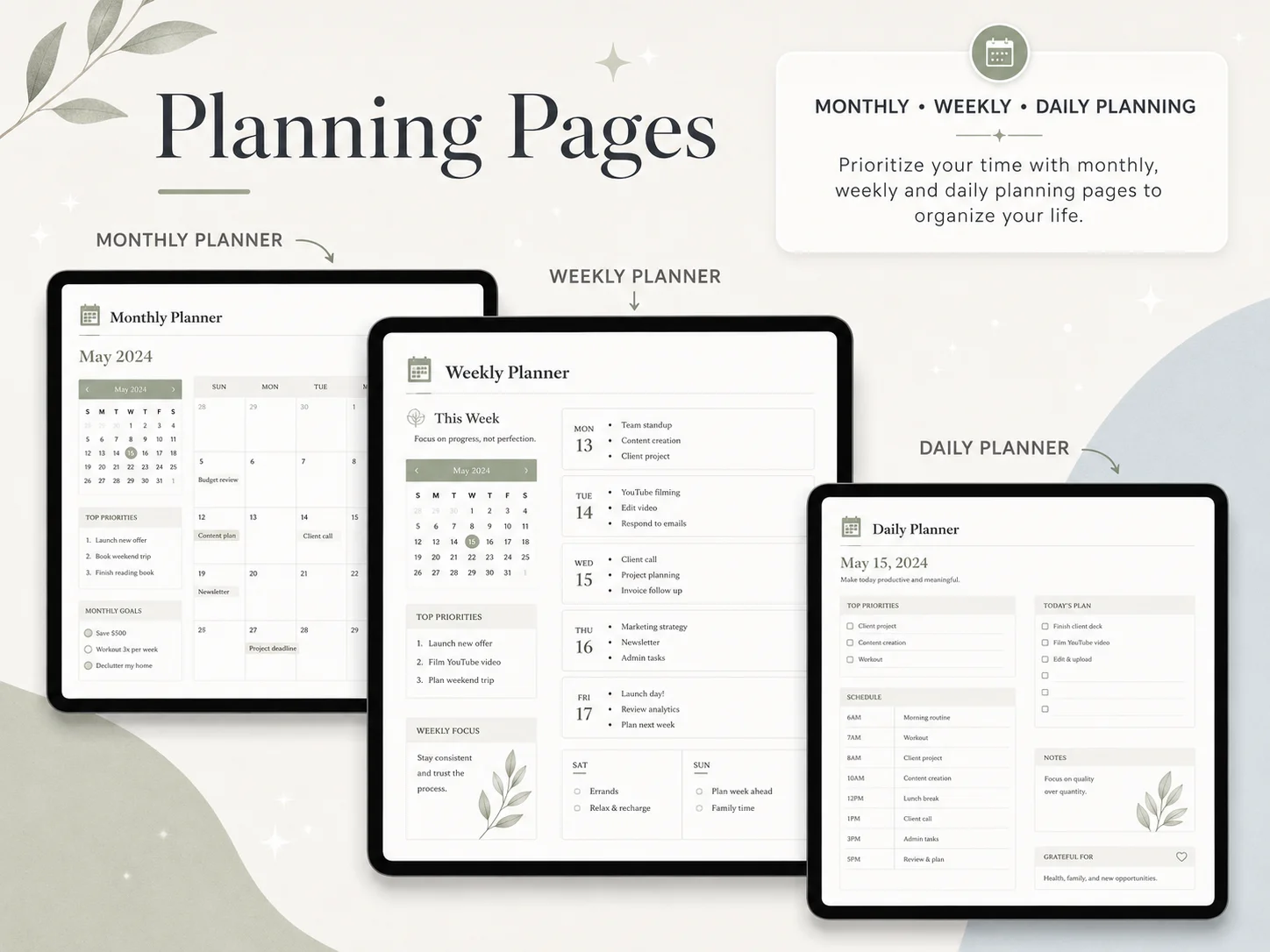
A widget belongs beside the decision it supports. Put weather near an outdoor plan, a countdown beside the event checklist, and a clock near shared work if time zones matter. A row of unrelated embeds only gives you more to scan. For another look at the planner's calendar structure, see how the Notion planner pages fit together.
For a weekly plan, keep appointments and tasks in the calendar or list you already maintain. A widget may summarize another service, but it can fail to load or leave you unable to edit an event. Notion's Google Calendar embed is view-only; you must make the calendar public in Google Calendar before embedding it. A calendar-first layout such as the Ultimate Notion Planner puts planning pages around one master calendar, with optional widgets beside them.
One way to avoid duplication is to write down what each element owns: the calendar stores appointments; the task list stores actions; the widget supplies a glanceable extra such as weather. If two parts show the same information, keep the one you actually check. That keeps monthly, weekly, and daily planning pages focused.
Why Trust This Article
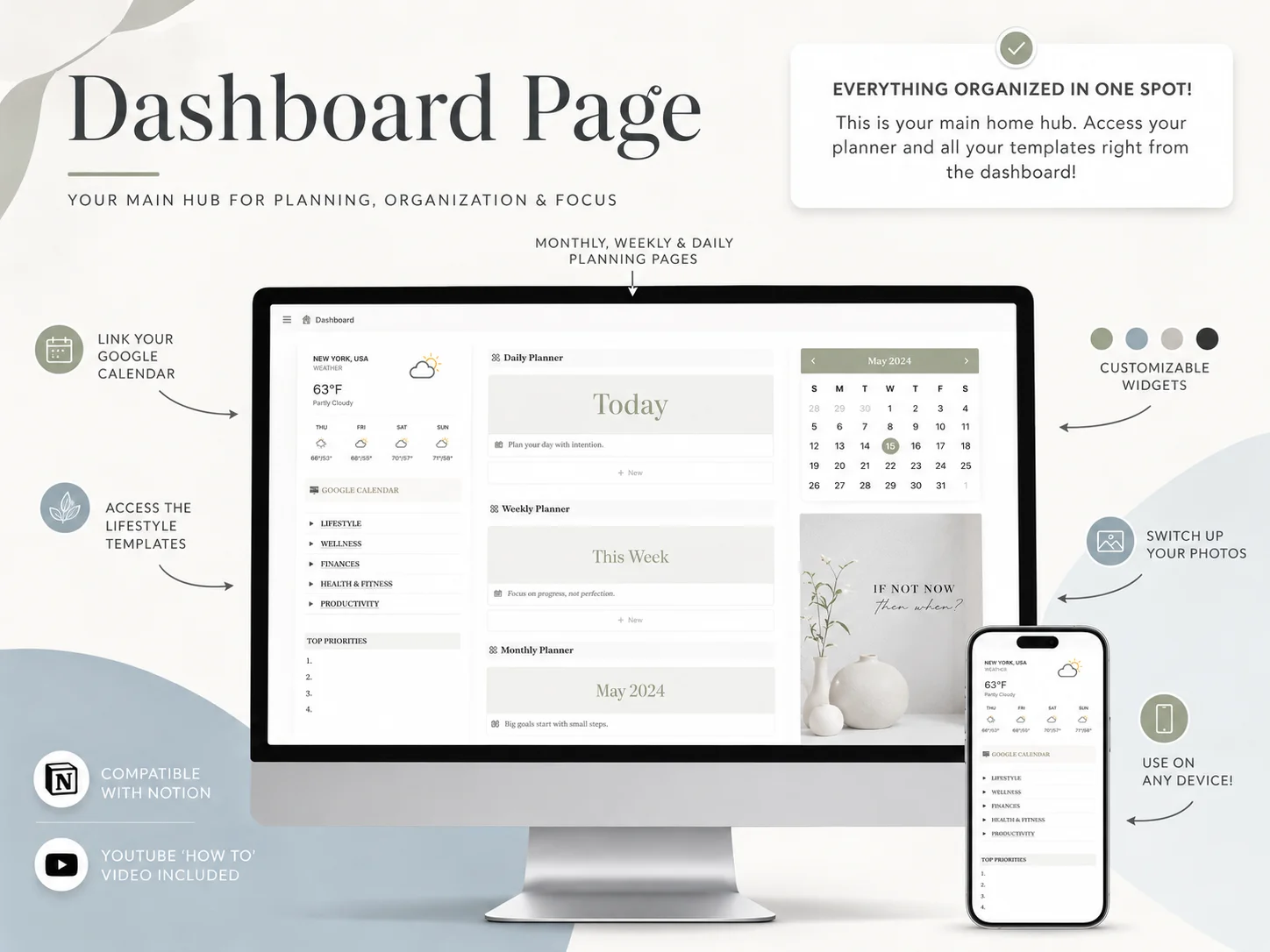
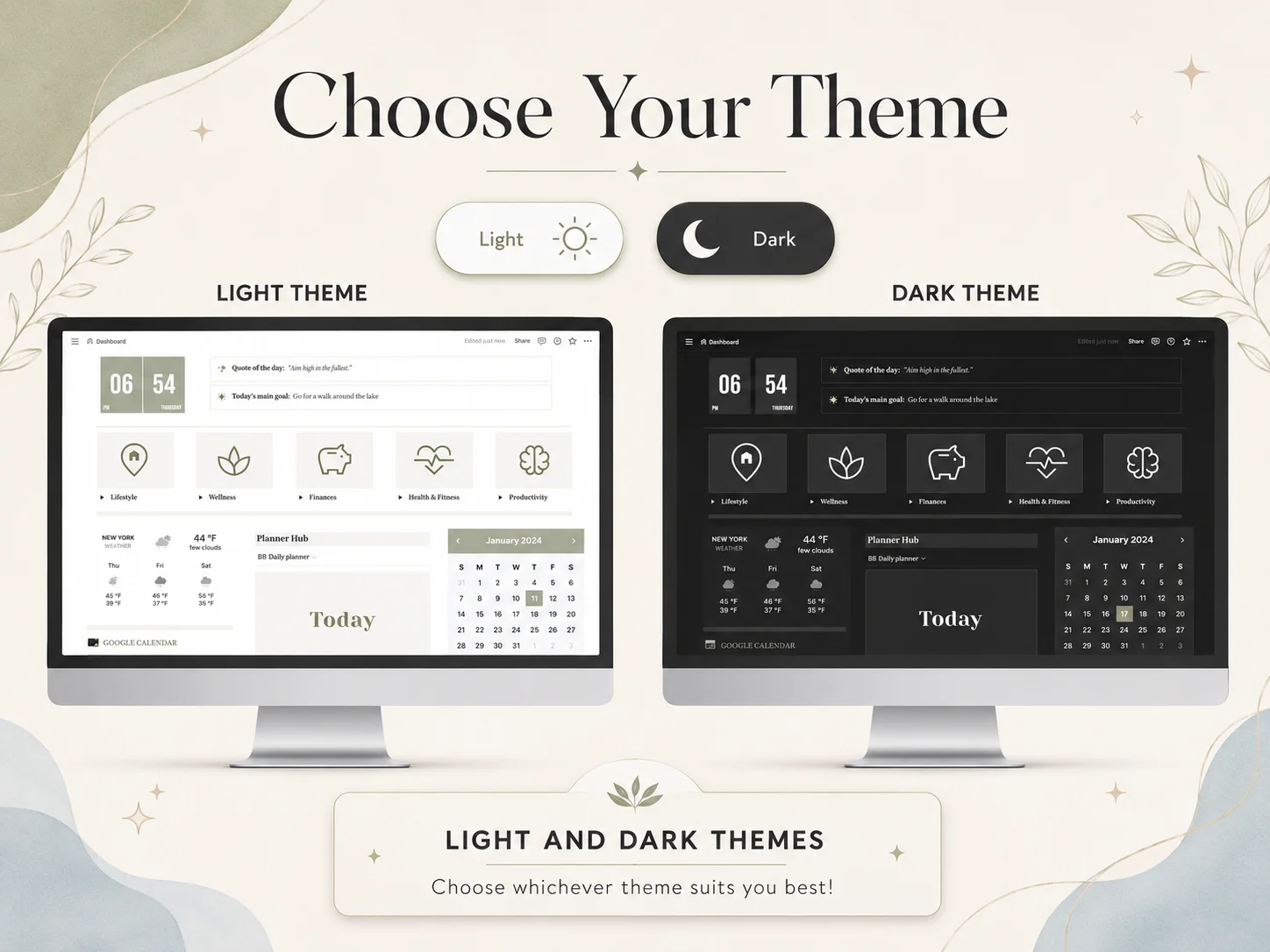
We checked Notion's embed and mobile widget documentation, plus the Indify and Apption provider pages, on 16 October 2026. Their features and terms can change. The screenshots come from the delivered Ultimate Notion Planner dashboard, where the widget area is part of the template. Cosmo Suite sells the Ultimate Notion Planner; this guide does not treat a third-party widget as a feature of Notion itself. Read our editorial policy or contact us with a correction. Confirm the provider's current behavior before building a routine around it.
How the Ultimate Notion Planner Fits In
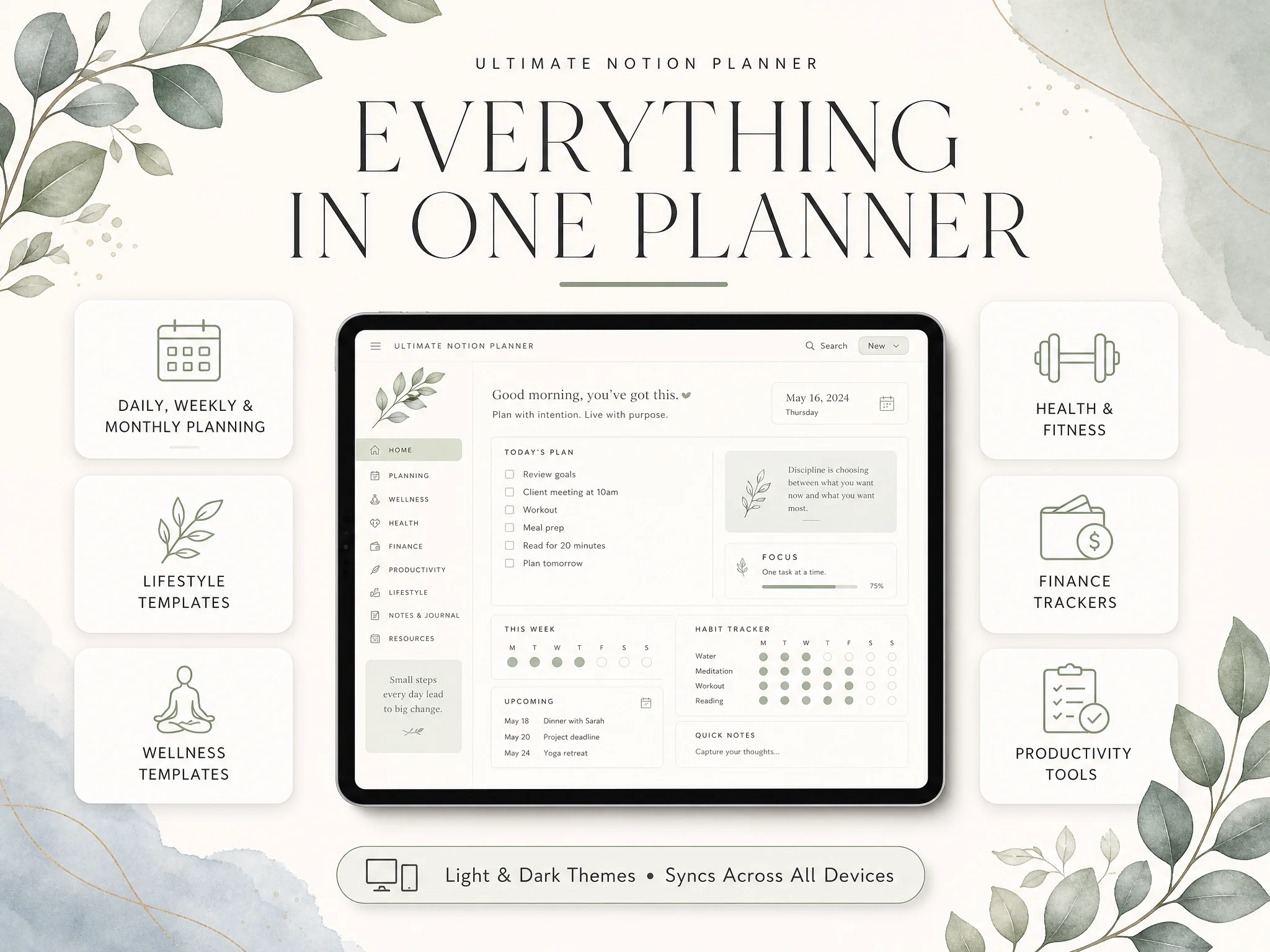
The Ultimate Notion Planner includes a central dashboard and master calendar, daily, weekly, and monthly planning pages, trackers, light and dark themes, customizable widgets, and a setup guide with a YouTube tutorial. Its Google Calendar item is a manual link, while the planner's Notion views share the master calendar. It is not a two-way Google Calendar sync tool. The distinction is useful if you want a ready-made layout while choosing any embedded widgets separately.
If you want a connected planning layout and prefer to add widgets only where they help, the Ultimate Notion Planner template gives you those pages in one place. You can also build a smaller layout yourself or start with a free Notion template. The product is a one-time template purchase; the Notion plan and any widget provider's paid features are separate decisions. For a quick check of Notion's own plan limits, see what the Notion Free plan includes.
Frequently Asked Questions
How do I add a widget to Notion?
Create the widget with a provider, copy its embed URL, paste it into a Notion page, and choose Embed. Test it on desktop and on your phone before arranging the rest of the page.
Are Notion widgets free?
Some providers offer free widgets or free tiers. Others charge for selected designs or features. Check the provider's current plan and terms before you rely on a paid feature.
Can I use Notion widgets on my phone?
Often, but layout and interaction can vary. Notion says external embeds that require a login will not work in its mobile apps. Open your actual page in the app and keep important information in a normal Notion block too.
What is the difference between a Notion widget and a Notion mobile widget?
A third-party widget is an embedded block inside a Notion page. A Notion mobile widget is a shortcut on your phone's home screen that opens a page, database, or favorites. The phone shortcut does not replace an embedded weather or countdown panel.
Why is my Notion widget blank?
Check that you copied the embed URL, the provider allows embeds, and any required public setting is enabled. Open the URL outside Notion, then replace the embed if the provider has changed it. A login wall or network blocker can also prevent it from loading.
Which Notion widgets are useful for planning?
Start with a clock, weather panel, countdown, or calendar only if it answers a question you check often. Place it beside the relevant plan, and keep tasks and appointments in the list or calendar where you update them.
Frequently asked questions
How do I add a widget to Notion?
Create the widget with a provider, copy its embed URL, and paste it into a Notion page. Choose Embed, then check the result on desktop and your phone.
Are Notion widgets free?
Some providers offer free widgets or free tiers. Others charge for selected styles or features, so check the current plan before you build around one.
Can I use Notion widgets on my phone?
Often, though the layout can change. Notion says external embeds that require a login will not work in its mobile apps. Check your widget on the phone and keep key information elsewhere on the page.
What is the difference between a Notion widget and a Notion mobile widget?
A third-party widget is an embedded block inside a Notion page. Notion's mobile widget is a phone home-screen shortcut to a page, database, or favorite. One sits in the page; the other opens it.
Why is my Notion widget blank?
The provider may block embedding, require a login, or have changed the URL. Open the widget link by itself, check sharing settings, then replace the Notion embed if needed.
Which Notion widgets are useful for planning?
Try a clock for shared work, a countdown for a dated event, weather for an outdoor plan, or a calendar for a quick visual check. Keep it only if you use the information.