How to Set Up a Notion Planner Tonight (Built Around One Calendar)
Notion planner setup in about 45 minutes: month, week and day pages on one calendar, what Google Calendar really syncs, and when the free plan is enough.
By Ultimate Notion Planner by Cosmo Suite · Editorial policy
Published · 9 min read
You work a full week. Google Calendar on your phone holds the dentist and the team meeting, a notes app holds the grocery list, and Notion gets opened twice a month when you remember it exists. You want one planner. You don't want to spend a weekend learning Notion to get it.
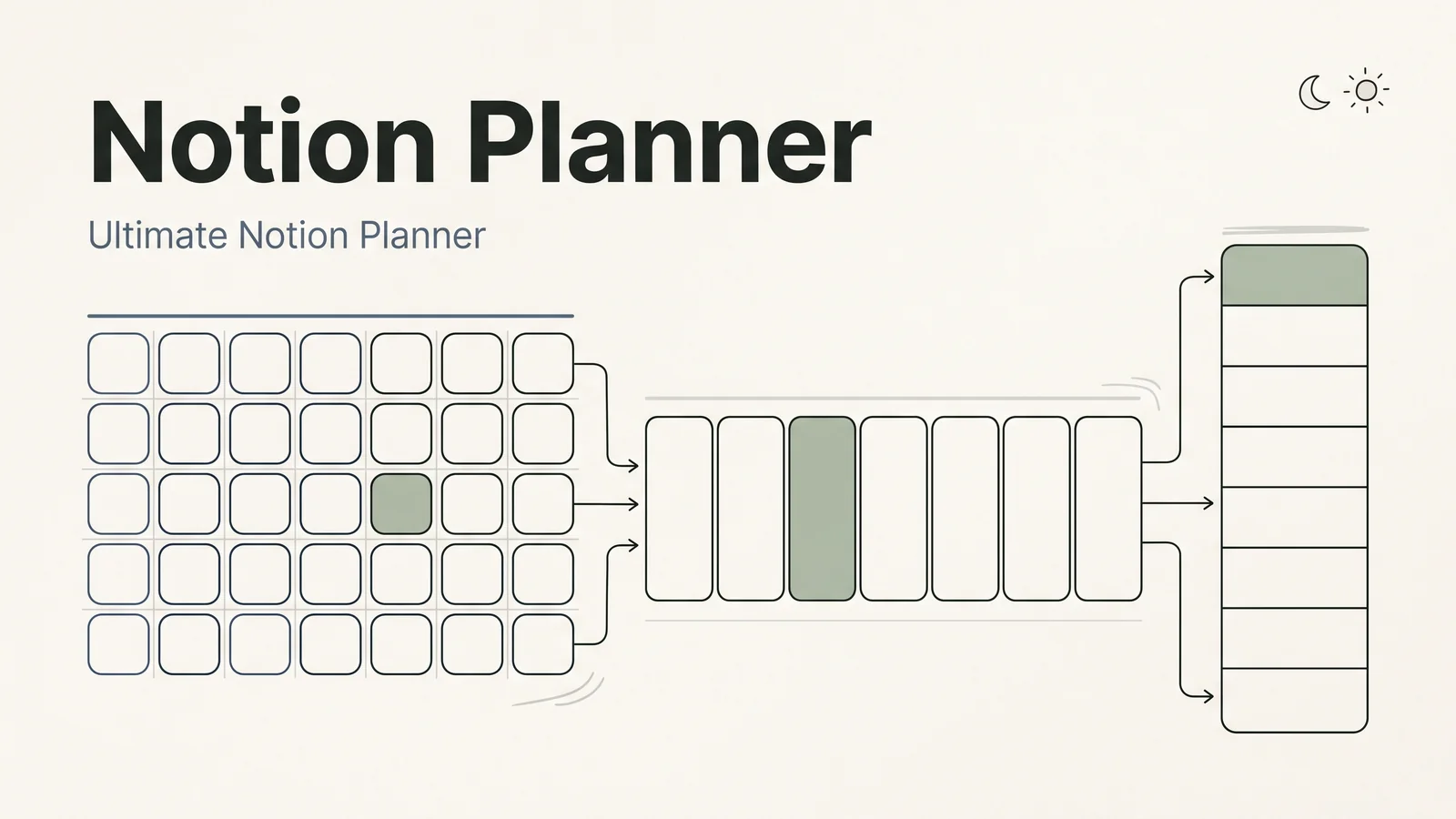
A Notion planner works when the month, week and day pages all read from one calendar, and it fails when they are three separate pages you copy things between. Set it up that way, or start from a Notion planner that already has the month, week and day pages on one calendar, and you can plan tomorrow tonight.
In brief: how the planner is structured, a timed setup, whether to build or buy, what Google Calendar really syncs, and whether the free plan is enough.
Quick Answer
- A Notion planner needs three levels (month, week, day) that are views of one dated list, so an entry made once shows up everywhere.
- From a template, setup takes about 45 minutes on Notion's Free plan; from a blank page, plan on a few evenings.
- Google Calendar does not sync both ways inside Notion. A link or a view-only embed shows it; the free Notion Calendar app is the two-way route.
What a Notion Planner Needs: Three Levels, One Calendar
A Notion planner is a set of linked Notion pages where you plan a month, a week and a day, usually with a task list and a calendar behind them. Whether you keep using it depends less on the layout than on one question: do those three levels share one source of dates?
Notion makes this possible through views. A calendar view is a way of showing a list of items on a month grid, and it needs each item to have a Date property (Notion Help Center). The same list can also appear as this week's board or today's checklist. Add the dentist once, on Tuesday at 12:30, and it appears on the month, the week and the day.
The usual way a homemade planner breaks is the opposite: a monthly page, a weekly page and a daily page, each typed by hand. By the second week, Tuesday's dentist is on the month but missing from the day, and you stop trusting the planner. The fix is structural. Keep one list of dated items and show it three ways.
So when you compare templates, ignore the covers and check one thing. If you add an event on the daily page, does it appear on the month without retyping?
Set It Up Tonight
From a template, a working Notion planner takes about 45 minutes, in five steps. The times below are our estimates for a person with a normal week, not a measured study.
| Step | What you do | Time |
|---|---|---|
| 1. Duplicate | Open the template link, click Duplicate, pick your workspace | 2 min |
| 2. Add fixed events | Work hours, standing appointments, the gym, bill dates | 10-15 min |
| 3. Link your calendar | Paste your Google Calendar link on the dashboard, or connect Notion Calendar | 5 min |
| 4. Set the month | Three goals for this month, one line each | 10 min |
| 5. Plan tomorrow | Today's page: fixed events first, then two or three tasks around them | 10 min |
Duplicating works the same for any public template, according to Notion's help page on duplicating public pages. Log in to Notion in a browser, click Duplicate in the top right and choose a workspace. The copy lands in the Private section of your sidebar. If a block shows "No access" after duplicating, delete it; it was not meant to come with the copy.
Step 2 is the one people skip and regret. A planner without your fixed events is a wish list. Add them first and every task you plan afterwards has to fit around real hours.
Build It, Use a Free Template or Buy One
All three routes end in a working planner. They differ in setup time and in whether the calendar is already wired.
Which One, for Whom
| Route | Setup time | Cost | Calendar wiring | Best for |
|---|---|---|---|---|
| Build from a blank page | A few evenings | $0 | You build the dated list and views | People who enjoy Notion and want every field their way |
| Free Marketplace template | 30-60 min | $0 | Varies; often a single page | One job, such as a daily to-do list or a habit grid |
| Paid all-in-one template | About 45 min | A one-time price | Month, week and day already on one calendar | People who want to start planning tonight |
Free options are real. Notion's own Marketplace offers more than 30,000 templates, and Notion keeps a collection of free personal planner templates there. If you only need one job done, for example a daily checklist, a free template is the sensible pick.
The gap shows up when you want everything connected: a dashboard, three planning levels, a task list and your calendar. Wiring those yourself means learning databases (lists with properties), relations (links between lists) and views. That is a fine hobby. It is a poor use of a Tuesday night if you just want next week planned.
Best for most beginners: a template whose month, week and day pages already share one calendar, so the first evening goes into your own events.
Link Google Calendar: What Syncs and What Doesn't
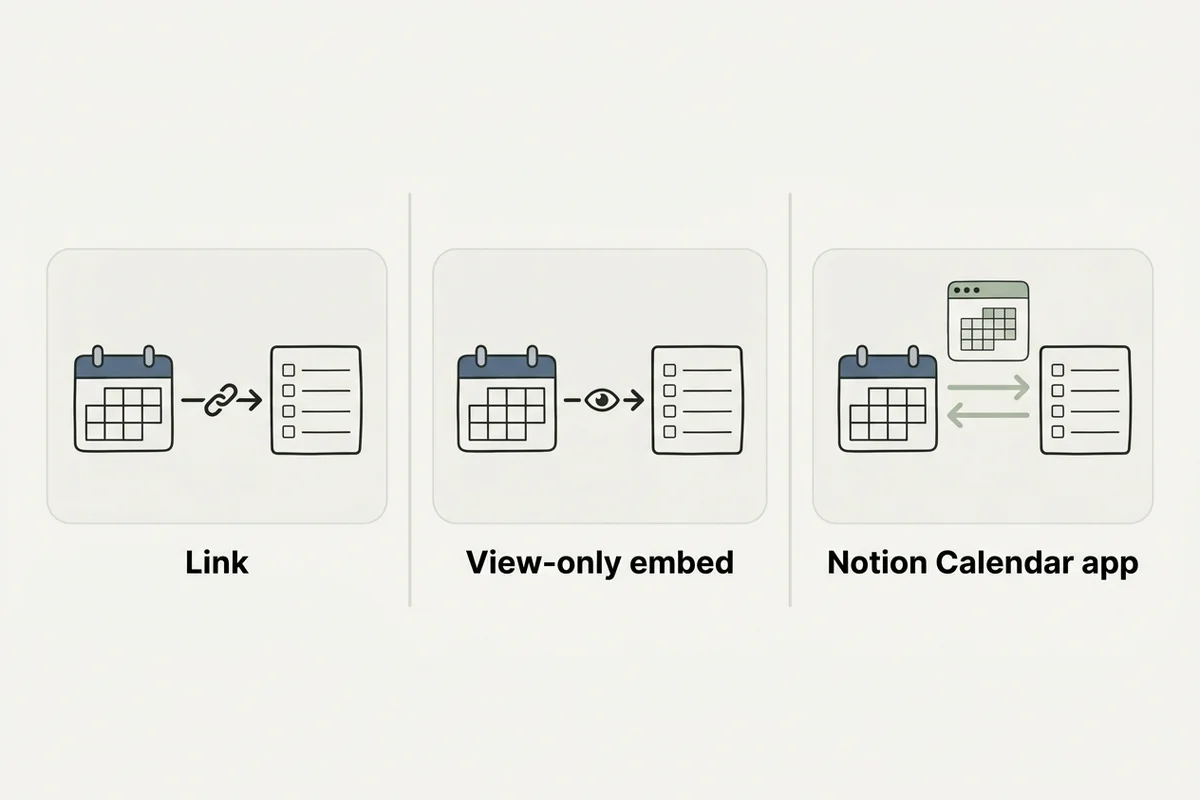
Google Calendar does not sync both ways with a Notion page by default. You have three ways to bring it in, and only one of them edits in both directions.
| Path | What you see in Notion | What syncs | Effort |
|---|---|---|---|
| A link on your dashboard | A button that opens Google Calendar | Nothing; it opens your real calendar | 1 min |
| View-only embed | Your calendar inside a Notion page | One way, read-only | 5 min, same email as your Notion account |
| Notion Calendar app | Google events next to Notion items with dates | Two ways for Notion items | 10 min, separate free app |
Notion supports a view-only Google Calendar embed when you embed it from the same email address you use for your Notion account, according to the same calendar help page. Google's embed help adds who can see it: a calendar is only visible to people you share it with, and only a public calendar is visible to everyone (Google Calendar Help). So a private calendar embedded in your planner is for your own eyes, and anyone else needs access through sharing. The embed is read-only, though, so a simple link is often the better choice when you want to add or move events: it opens your full calendar in one click.
Notion Calendar is Notion's separate calendar app. It is free, works with Google, Outlook and iCloud calendars, and runs on Mac, Windows, iPhone and Android (Notion). It can also show any Notion database that has a date property, up to 20 of them, and dragging an item to a new time updates the date in Notion (Notion Help Center).
For a calendar-heavy person, the honest setup is this: the planner holds goals, weeks, days and tasks, and Notion Calendar shows those dated tasks next to your Google events. None of it needs Zapier.
Plan One Tuesday From Month to Day
Here is one Tuesday planned from the top down, to show how the three levels feed each other.
Month: three goals. Get the car serviced, run twice a week, and clear the inbox at work by Friday each week.
Week: the Sunday reset turns those goals into dated items. Gym on Tuesday and Thursday at 7:00. Car service booked for Saturday morning. Dentist already on Tuesday.
Tuesday, as the day page shows it:
- 7:00 to 7:45, gym (from the month goal).
- 9:00 to 17:00, work, with the inbox block at 16:00.
- 12:30, dentist (fixed event, entered once in step 2).
- 17:45, groceries on the way home, with the list on the same page.
That is two fixed events (work and the dentist) and three planned blocks (gym, inbox, groceries). If the inbox block slips, you drag it to Wednesday, and the week and month update because they read the same item.
The rule that keeps this honest: anything not done by the end of the day rolls to tomorrow or gets deleted. Leaving it in yesterday is how a planner fills up with guilt.
Is Notion's Free Plan Enough for a Planner
Yes, for one person. Notion's Free plan includes unlimited pages and blocks for individuals, file uploads up to 5 MB and 7 days of page history (Notion pricing). A personal planner is text, dates and checkboxes, so it rarely comes near those limits.
You would pay for Notion Plus if you share the workspace with others, need longer page history or upload large files. On 4 October 2026 the US price table showed Plus at $12 a month billed monthly or $120 a year billed yearly on the same pricing page.
Three-year cost of a personal planner (one person)
| Setup | Year 1 | Over 3 years |
|---|---|---|
| Free plan, planner you build | $0 | $0 |
| Free plan, one-time template at $9 | $9 | $9 |
| Notion Plus, yearly billing | $120 | $360 |
For one person planning their own week, the free plan plus a planner you either build or buy once is the cheapest setup that still has everything connected.
Keep It Running With a 10-Minute Weekly Reset
A Notion planner keeps working when the weekly reset is short. Ten minutes on Sunday evening is enough if the structure does the copying for you.
- One inbox for tasks. Everything goes into the master to-do list first, with a date only when you know it.
- Fixed events before tasks. Look at next week's calendar before you plan anything else, so tasks land in hours that exist.
- Three goals, not ten. The month page holds three lines; each one should produce at least one dated item this week.
- A rollover rule. Unfinished tasks move to tomorrow or get deleted on the spot.
- A planner you will open at night. A dark theme sounds small, but it matters when your planning happens at 10 pm.
If you would rather not build that structure yourself, we'd suggest a calm Notion planner with light and dark themes and one master calendar, which has it in place before your first Sunday.
Why Trust This Article
This guide is written by the Cosmo Suite team, which sells the Ultimate Notion Planner, so read the product sections with that in mind. Methodology: every Notion and Google fact above comes from their own pricing and help pages, read on 4 October 2026 and linked where it is used. Setup times are our estimates from the template's steps, not a measured study. Prices and plan limits change, so verify them before you buy. How we write and fact-check posts is on our editorial policy page, who we are is on the about page, and corrections go through our contact page.
How the Ultimate Notion Planner Fits In
The hard part of a Notion planner is wiring month, week and day pages to one calendar before your motivation runs out.
The Ultimate Notion Planner is a Notion template you duplicate into your own free Notion account. It comes with:
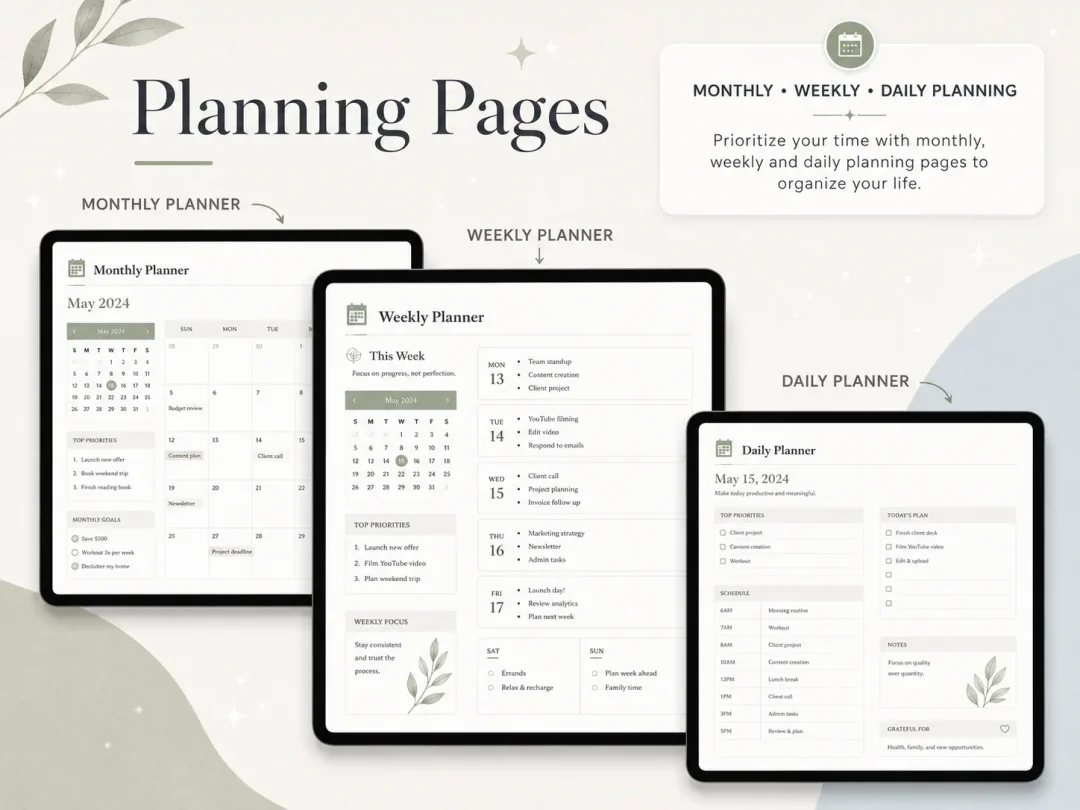
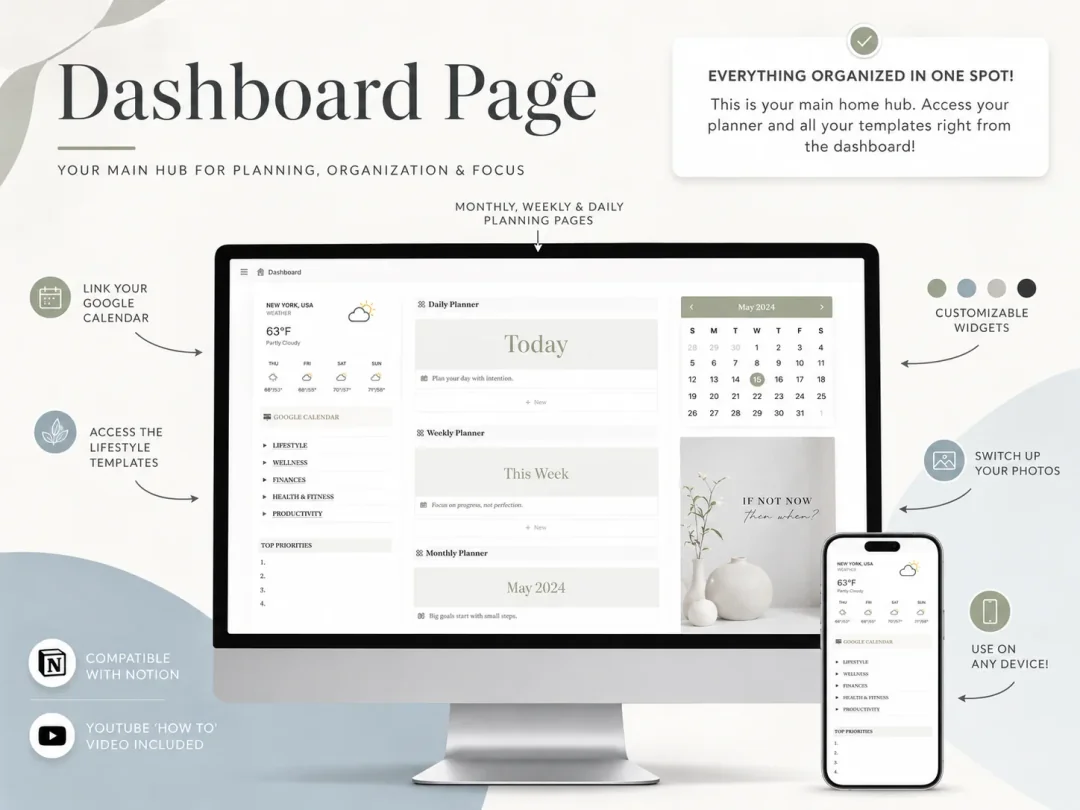
- A central dashboard hub with a monthly calendar, your top priorities and a weather widget.
- Daily, weekly and monthly planning pages, linked from the dashboard.
- A master to-do list, events and appointments, and a grocery list.
- Goal tracking, a weekly habit tracker and wellness pages.
- Finance and productivity trackers.
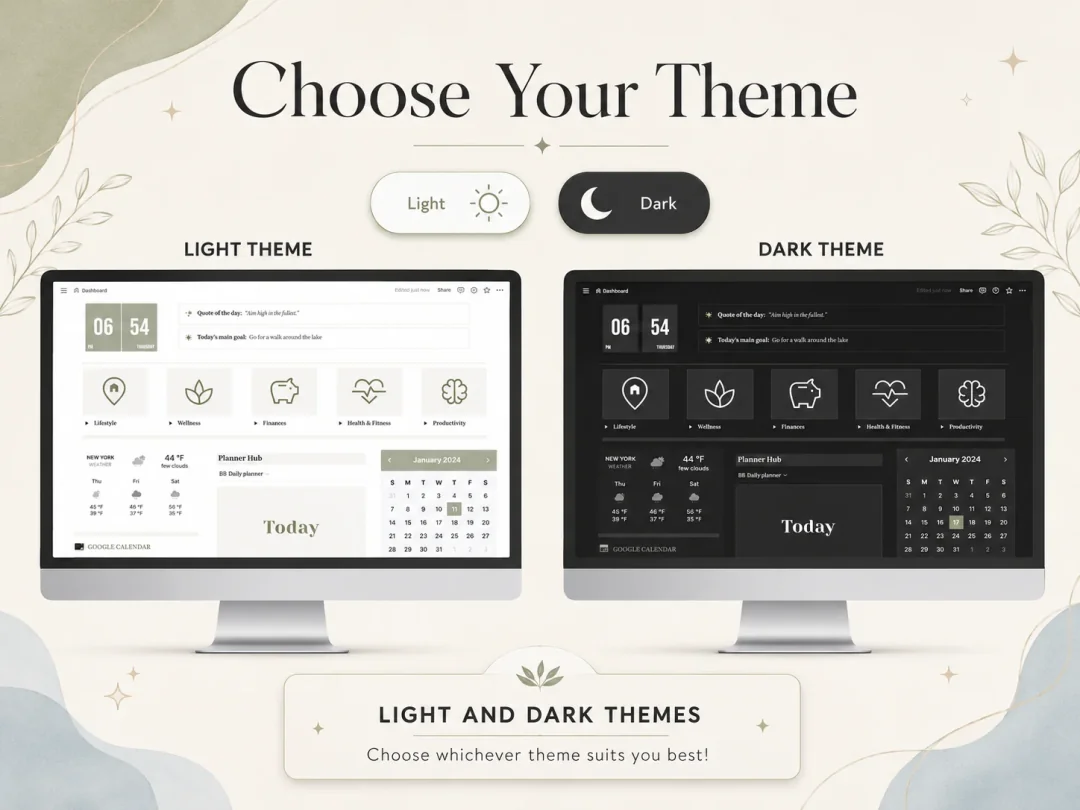
- Light and dark themes, plus a setup guide and a YouTube tutorial.
Your Google Calendar connects through a link on the dashboard, which opens your calendar next to your planner pages. It is a link, not a two-way sync; if you want two-way editing, add Notion Calendar as described above.
It costs $9 once, and you plan inside Notion's free plan. If you would rather spend tonight on next week than on building layouts, get the Notion planner with the calendar already wired.
Frequently asked questions
Is a Notion planner free?
Yes, if you build it yourself or start from a free template. Notion's Free plan gives one person unlimited pages and blocks, which is all a personal planner uses. You pay only if you buy a ready-made template, usually a one-time price, or if you later upgrade to Notion Plus at $12 a month or $120 a year.
Does a Notion planner sync with Google Calendar?
Not both ways on its own. Inside Notion you can add a link that opens Google Calendar or embed a view-only copy if you embed it from the same email address you use for Notion. A private calendar stays visible only to people you share it with. For real two-way editing, connect both to the free Notion Calendar app: it shows your Google events next to Notion databases that have a date, and dragging an item there updates Notion.
Can I use a Notion planner on my phone?
Yes. Notion has apps for iPhone, iPad and Android as well as Mac, Windows and the web, and a planner you duplicate into your account syncs across all of them. Phones are best for checking today's page and capturing tasks; weekly planning is easier on a larger screen.
How long does it take to set up a Notion planner?
About 45 minutes from a template, by our estimate: a couple of minutes to duplicate it, 10 to 15 to add recurring events, a few to link your calendar, and the rest to set this month's goals and plan tomorrow. Building one from a blank page usually takes a few evenings.
What is the difference between a Notion planner and Notion Calendar?
A Notion planner is a set of pages inside Notion for goals, weeks, days and tasks. Notion Calendar is a separate free app that shows your Google, Outlook or iCloud events. Many people use both: the planner for what to do, Notion Calendar for when meetings happen.
What is the fastest way to start a Notion planner?
Duplicate a planner that already has month, week and day pages tied to one calendar, then plan only tomorrow. In the Ultimate Notion Planner the dashboard links to all three planning pages and your Google Calendar, so the first evening goes into your own events instead of building layouts.
Sources
- Notion: Pricing
- Notion: Notion Calendar
- Notion Help Center: Calendar view databases
- Notion Help Center: Use Notion Calendar with Notion
- Notion Help Center: Duplicate public pages
- Notion: Templates (Marketplace)
- Notion: Top 10 Free Personal Planner Templates (Marketplace collection)
- Notion: Download (desktop and mobile apps)
- Google Calendar Help: Add a Google Calendar to your website
