Is Notion Free? What You Can Do on the Free Plan
is notion free: see what one person gets, the limits on files and shared workspaces, and when paying for Notion or a planner makes sense.
By Ultimate Notion Planner by Cosmo Suite · Editorial policy
Published · 9 min read
Notion's Free plan can handle a personal planner for one person. You get unlimited pages and blocks in a one-owner workspace, so a calendar, task list, and weekly pages do not need a paid plan. The catches are narrower: each file upload is limited to 5 MB, page history is shorter, and sharing with workspace members can trigger a block limit.
If you are choosing Notion because you want to plan your week, start with the Free plan. Pay only when a limit interrupts something you actually do. Here is what stays free, where the boundaries are, and how to tell whether your planner needs an upgrade.
What Notion Free Includes for One Person
For a one-person workspace, Notion's Free plan includes unlimited pages and blocks. A block is a piece of content, such as a line of text, a checkbox, a database row, or an image. That is enough room for a personal calendar, weekly plan, and task list. Notion confirms the unlimited individual workspace rule on its pricing page, which also lists 7 days of page history for Free and $10 per seat each month for Plus.
You can create pages, organize lists, use calendar views, and duplicate a template into your workspace. “Unlimited” here refers to pages and blocks for an individual. Other features still have limits, including the size of each uploaded file.
For a simple week, picture a page with the dentist appointment, two work deadlines, and a grocery list. Those entries are ordinary blocks. You can add more weeks and pages without counting each checkbox against a personal block allowance.
If you want to see how month, week, and day pages can share one calendar, start with this Notion planner setup guide. The same structure works in a free workspace you build yourself.
Notion Free Limits at a Glance
The Free plan works for many solo planners, but these are the limits to check before you build around it.
| What you use | Free plan boundary | When it matters |
|---|---|---|
| Pages and blocks | Unlimited for one workspace owner | A personal planner with tasks and dates can stay on Free |
| File uploads | Up to 5 MB per file | Large PDFs, videos, or original images may need another method |
| Page history | 7 days, per Notion's current plan comparison | You need to restore an older version after a week |
| Multiple workspace owners | 1,000 blocks in a Free workspace with 2 or more owners | You are building a shared workspace, not a solo planner |
| Guests on a page | Available, with guest and sharing rules | You want to share one page without making someone a member |
Notion's help page on block usage explains that the 1,000-block limit applies to Free workspaces with multiple owners. The pricing page says a one-person workspace can add as many pages and blocks as it needs. Notion also limits each Free-plan file upload to 5 MB, according to its media help page. Its plan-change guide covers what to check if you later change tiers.
The practical distinction is workspace type. A solo planner is different from a team workspace. If you share a whole workspace, check whether the person is being added as a member or invited as a guest to one page. Notion describes the roles and current plan rules in its help center, and those details can change.
Set Up a Personal Planner on the Free Plan
You can begin a personal planner on Free with one page and a short list of recurring needs. Keep the first version small so you can tell whether the layout helps.
- Create a page called “This Week.”
- Add fixed appointments and work hours first.
- Add a short list of tasks with dates only where a deadline matters.
- Create a calendar view if you want to see dated items on a month grid.
- Duplicate the page next week or use a template with a recurring weekly structure.
Notion's Free plan has room for a personal calendar and planner pages. You do not need to upgrade just because your system has a month view, daily notes, or several trackers. A planner is not automatically a team workspace because it has more than one page.
Widgets are optional additions to a calendar page. Keep your task list and dates usable even if you remove one.
When the Free Plan Starts to Get in the Way
Consider upgrading when you can name a limit that blocks work you already do. Common reasons include uploading files larger than 5 MB, needing a longer page history, or inviting people as workspace members in a shared workspace.
Large files: Notion's current help page says Free users can upload files up to 5 MB each. If you store large PDFs or video files, use a link to the file in cloud storage or compare paid plans. Do not upgrade just because one file is too large if a link solves the problem.
Older page versions: If you need to restore a change from beyond the Free plan's history window, check the current plan comparison. Page history is a specific feature, so paying for it can make sense when you regularly revise important pages. If you rarely need to undo old edits, the shorter history may be fine.
A shared workspace: Notion says Free workspaces with multiple owners have a 1,000-block limit. If you only need someone to see or edit one page, check guest sharing before inviting them as a workspace member. The choice affects both access and how the block limit applies.
Before upgrading, open Notion's pricing page and compare the feature you need with the cost shown for your account and billing period. Prices and plan details can vary by billing choice and may change. Subscribe when a plan limit blocks something you need to do.
Free Template, Paid Template, or Build It Yourself?
Personal pages do not add a recurring cost. A Notion subscription does, while a template may be a one-time purchase. You can use the Free plan and still pay a creator for a ready-made layout. You can also build your planner from a blank page or duplicate a free template from the Notion Marketplace.
| Route | Notion plan cost | Setup work | Fits when |
|---|---|---|---|
| Build your own | $0 | You create pages and views | You want control and do not mind setting up the structure |
| Free template | $0 | You remove parts you do not need | One simple job matters, such as a daily checklist |
| Paid template | Separate purchase | The pages and layout are already assembled | You want a connected planner without building each view |
A paid template is a set of pages you duplicate into your own workspace. Buying one does not change your Notion tier, so the Free plan's file, history, and collaboration limits remain. The planner setup guide explains how to choose a calendar structure before you copy anything. For many people, a free one-page template is enough. If you want daily, weekly, and monthly pages tied together, check that the template actually connects those views before buying.
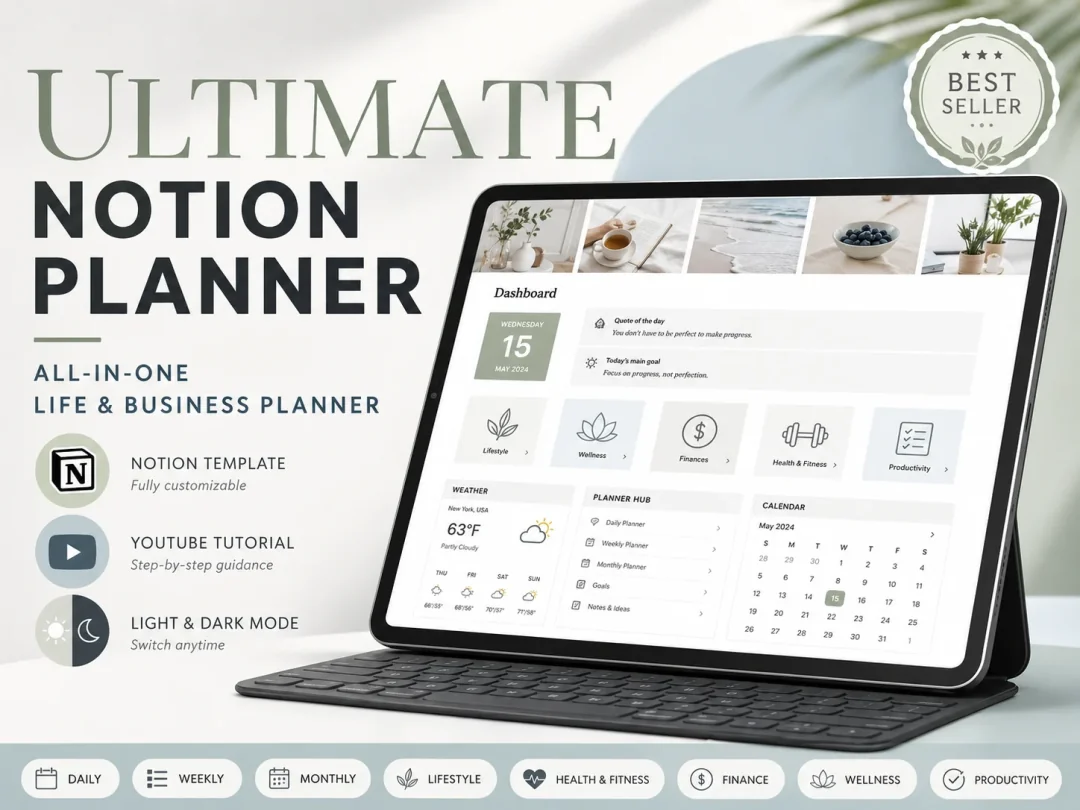
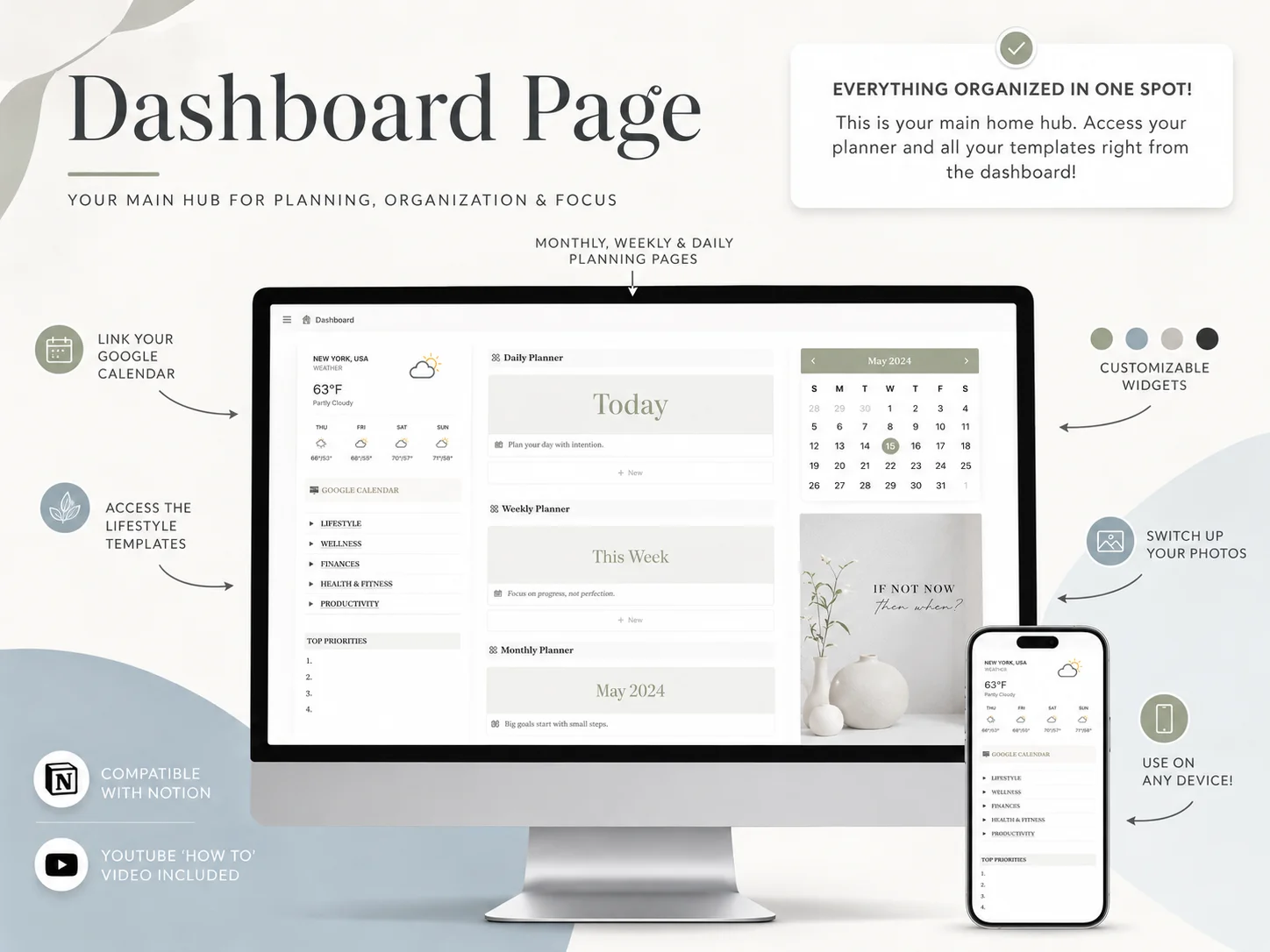
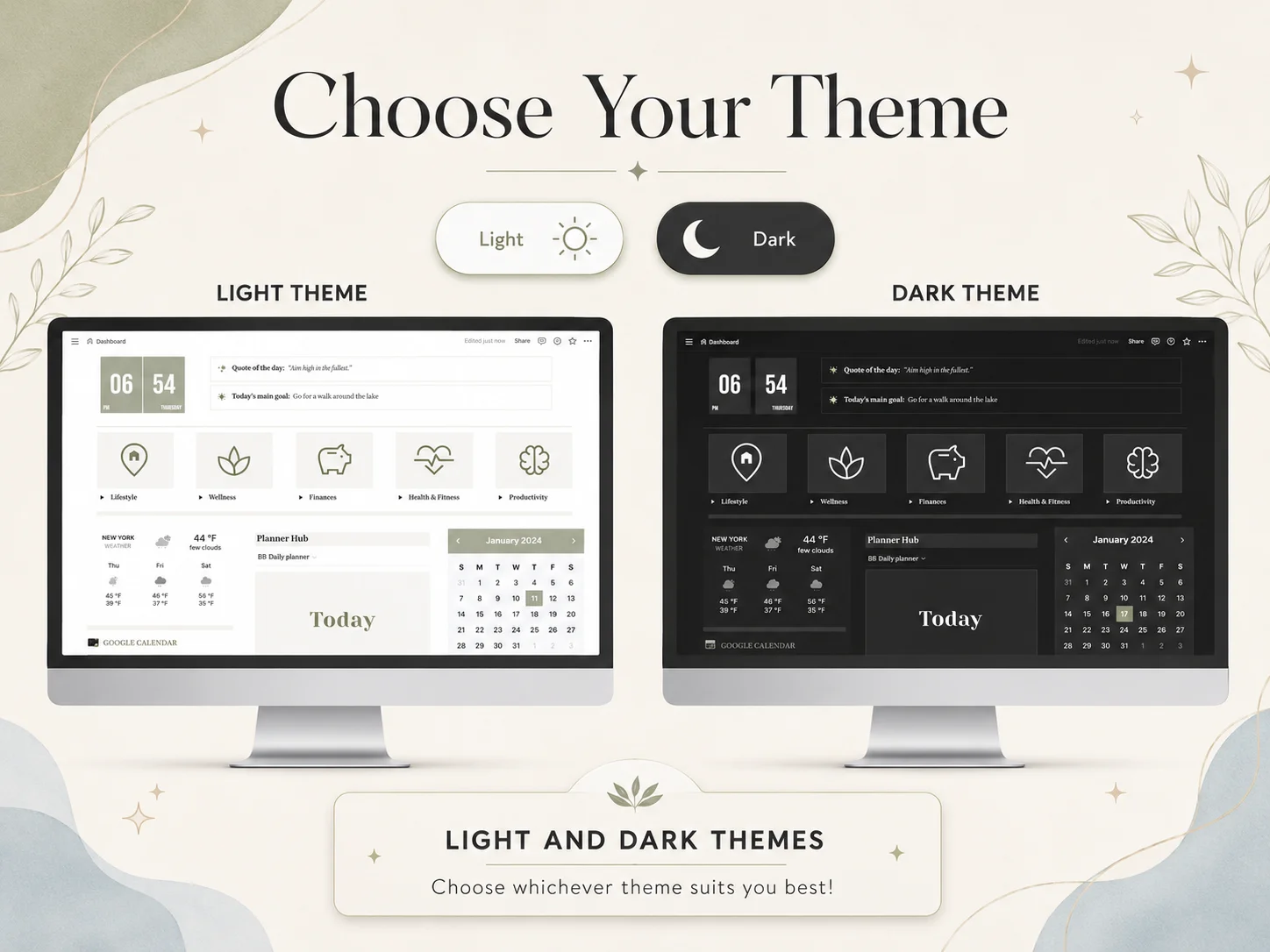
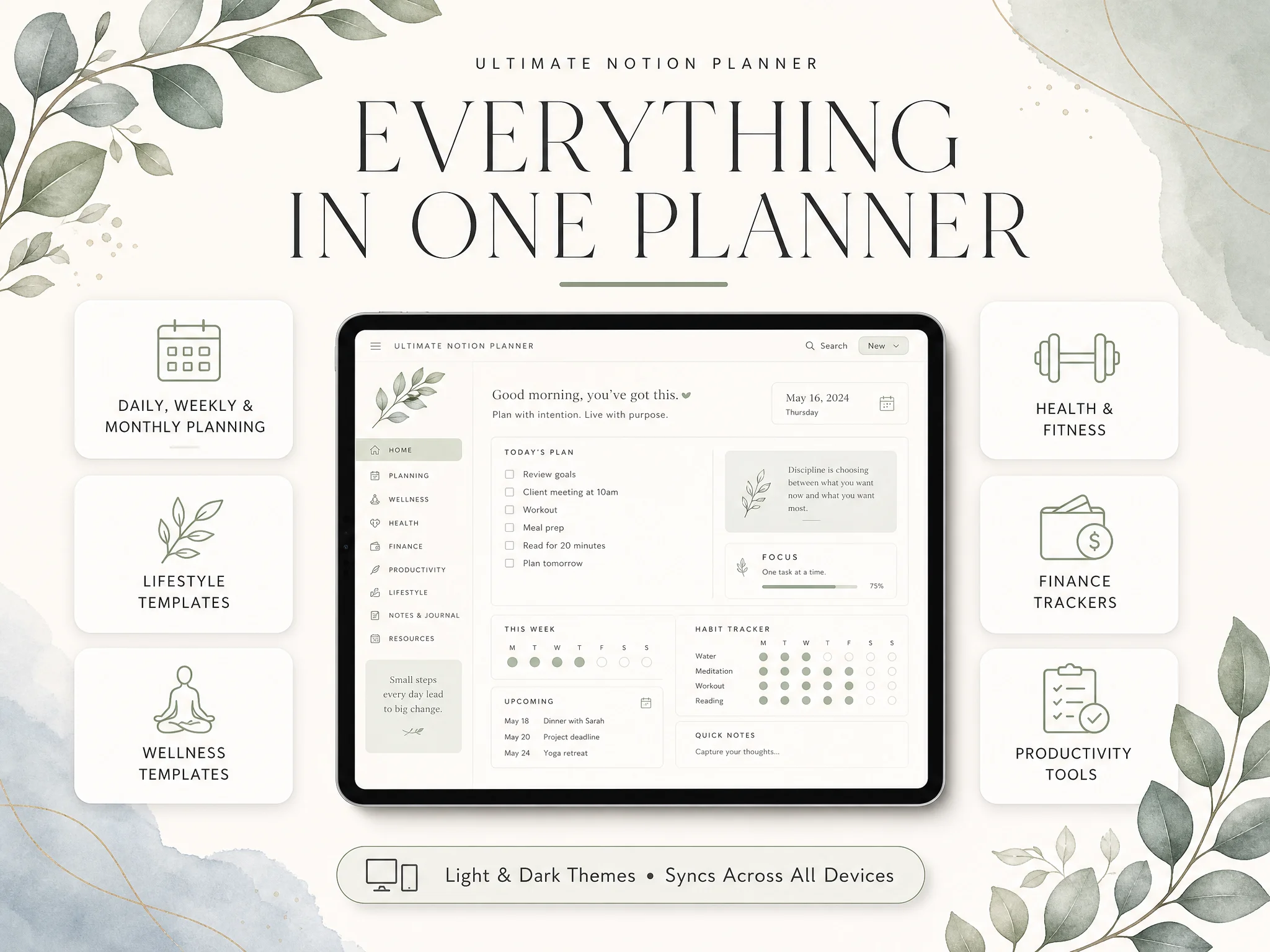
The Ultimate Notion Planner is one paid option for that second case. It includes a central dashboard, daily, weekly, and monthly planning pages, trackers, light and dark themes, customizable widgets, and a setup guide with a YouTube tutorial. It is a separate purchase, while the Notion workspace you duplicate it into can remain on Free. See how the Ultimate Notion Planner fits a free Notion setup.
At the price shown on Notion's pricing page on 14 October 2026, Plus is $10 per seat each month. Holding that listed monthly rate constant for 36 months gives $360 before taxes. The Ultimate Notion Planner is $9 once, and a free template costs $0. These are different purchases: the template is a layout; Plus is a Notion plan.
| Personal setup | Cost at start | Cost over 36 months | What you get |
|---|---|---|---|
| Build a planner on Notion Free | $0 | $0 | Your own pages and calendar views |
| Use a free template on Notion Free | $0 | $0 | A copied layout, if its creator offers it free |
| Ultimate Notion Planner on Notion Free | $9 once | $9 | The included planner pages and setup guide |
| Notion Plus at listed monthly rate | $10/month | $360 | Paid Notion plan features; no planner layout included |
This comparison applies the listed monthly price for 36 months. It excludes taxes and does not predict future prices or annual billing. Recheck Notion's price before subscribing. If a personal workspace's Free limits do not affect you, the paid plan is optional.
What Actually Changes the Cost of a Notion Planner
The recurring cost comes from the Notion plan you choose, not from having more personal pages. A template can add a one-time purchase, but it does not turn a Free workspace into a paid subscription.
- Start with the workspace type. If you plan alone, a one-owner Free workspace has unlimited pages and blocks. A team workspace has different rules.
- List the feature you need. A file upload limit or older page history is more specific than “I might need Plus someday.”
- Separate layout from access. A template changes the pages you copy. It does not change your plan or grant features that Notion reserves for paid tiers.
- Check the current billing total. Notion's price page is the source of truth for the plan and billing period shown to you.
A ready-made planner can save setup time without changing the subscription math. If the main job is putting appointments and tasks into one calendar, a planner with linked month, week, and day pages is an optional layout purchase. You can also make those pages yourself or begin with a free template.
Why Trust This Article
We checked Notion's public pricing and help pages on 14 October 2026. The workspace limits and file-size boundary in this guide come from those pages. We describe the Ultimate Notion Planner from its included contents and do not treat a template purchase as a Notion subscription. Read about us and our editorial policy for how we prepare articles. Use our contact page to report a correction. Plan terms and prices can change, so confirm them on Notion before you pay.
How the Ultimate Notion Planner Fits In
The Free plan covers a solo Notion workspace. Your remaining decision is how much of the planner you want to assemble. You can make the pages yourself, duplicate a free template, or choose a paid layout with the sections already arranged.
The Ultimate Notion Planner includes a central dashboard and master calendar, daily, weekly, and monthly planning pages, goal and habit tracking, finance and productivity trackers, light and dark themes, customizable widgets, and a setup guide with a YouTube tutorial. Its Google Calendar element is a manual link; it does not provide two-way Google Calendar sync.
You can duplicate it into your own Notion account and use it on the Free plan. If you want a ready-made structure rather than building each page, review the Ultimate Notion Planner details and compare the included pages with what you plan to use. If one free page does the job, stay with that.
Frequently Asked Questions
Does deleting blocks reset a Free workspace limit?
No. Notion says deleting blocks does not reduce the count in a Free workspace where the limit applies. A one-owner workspace has unlimited blocks, so this only matters when the workspace has multiple owners.
Can I use Notion Free on my phone?
Yes. Notion offers mobile apps, and a personal workspace is available across supported devices. A small screen is fine for checking today's tasks or adding an appointment. Building a large set of pages is usually easier on a computer.
Can I use a free Notion template without upgrading?
Yes. You can duplicate a free public template into a Free workspace. A template may contain features or linked pages that need adjustment, so check the copy after duplicating it and remove sections you will not use.
Do Free Notion workspaces have a block limit?
Only in the situation Notion specifies: a Free workspace with multiple owners has a 1,000-block limit. A one-owner Free workspace has unlimited blocks. A block is a piece of content, such as text or a checkbox.
Does a paid template include Notion Plus?
No. A template is content you copy into your Notion workspace. It does not include a Notion subscription or remove the plan's file, history, or collaboration limits.
What is the fastest way to decide whether I should pay?
Use the Free plan for a week with the pages you need. If you hit a specific plan limit, compare the current paid features and price. If you only want a more complete layout, decide whether a free template, a paid template, or building your own is worth the setup time.
Frequently asked questions
Can I keep using Notion Free forever?
Yes. Notion says a Free workspace with one owner can create as many pages and blocks as needed. You may still hit limits for individual file uploads or features that belong to paid plans, but the plan does not expire.
Does Notion charge for a personal planner template?
Notion does not charge you to create pages or use a template you find for free in its Marketplace. Some independent creators sell templates separately. Check whether a listing has a one-time price or a recurring charge before buying.
Can I invite someone to my free Notion workspace?
You can share individual pages with guests, but adding another workspace member changes how the Free plan's block limit works. Notion's help page says Free workspaces with multiple owners have a 1,000-block limit. Check the current sharing rules before inviting someone as a member.
Will my pages disappear if I reach a Notion Free limit?
No. Notion says you can still read, edit, and organize existing blocks after reaching a block limit. The workspace cannot add new blocks until you upgrade or remove additional members where that applies.
Is Notion Plus worth paying for if I plan alone?
Usually only if you need a Plus feature, such as longer page history, larger uploads, or a collaboration setup. If your planner is mostly text, dates, and checkboxes in a one-owner workspace, start on Free and review your needs before upgrading.
What is the quickest free way to start planning in Notion?
Pick one free template, duplicate it into your own workspace, and add tomorrow's fixed events and tasks. Keep only the pages you will use this week. You can add a month view or trackers after the daily page feels useful.