Notion Dashboard: What to Include in a Personal Planner
Notion dashboard setup for a busy week: put today’s plan and calendar first, then link to the pages you check less often, including trackers and life areas.
By Ultimate Notion Planner by Cosmo Suite · Editorial policy
Published · 8 min read
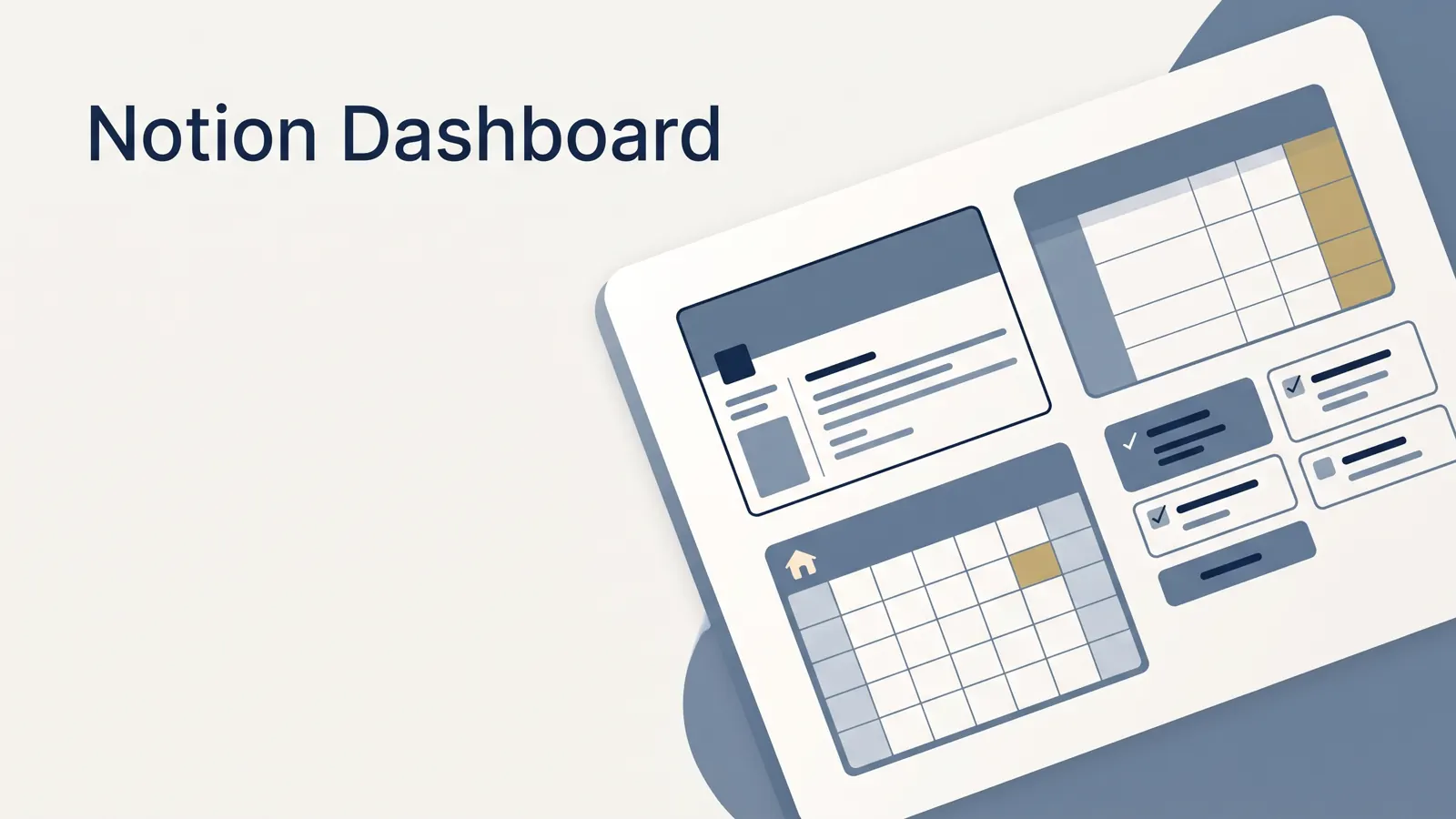
When every page, tracker, and idea sits on the opening screen, the dashboard becomes another thing to sort. Start with what you need today, then link to the weekly plan, calendar, and pages you check now and then. That is enough for a personal planner.
Quick Answer: Put today and this week first, with the calendar close by. Link to the life areas you open often and move detailed trackers one level down. A regular Notion page works as a hub; the separate database Dashboard view is for arranging database views as widgets.
What a Notion Dashboard Does in a Personal Planner
A Notion dashboard is a starting page that helps you choose where to go next. Use it to find the next action, weekly plan, calendar, or tracker. Put the answer to “What am I doing today?” near the top so you do not have to scan every area first.
For a simple setup, make a page and use headings, links, and a few useful blocks. You do not need to build a database dashboard to make a hub. A database Dashboard view is a separate Notion feature that arranges views from one or more databases as widgets. Notion's current Dashboard view guide lists a limit of 12 widgets, with up to four in a row. That may suit people who already use databases and want to compare several views at a glance.
If you are new to Notion, begin with a page hub and add complexity only when you know what is missing. Our Notion planner setup guide walks through day, week, and month planning on one calendar. A page hub is a regular page that groups links and planning blocks. It can stay much simpler than the pages behind it.
Set It Up Tonight: A Five-Zone Dashboard
A useful personal dashboard has five zones: today, this week or month, calendar, life areas, and secondary trackers. Start with the first three. Add the others as links so they do not crowd the tasks that need attention now.
| Zone | Put here | Keep it useful by | Best for |
|---|---|---|---|
| Today | Today's short task list and next appointment | Show only items that matter today | Starting the day |
| Week and month | Links to the weekly plan and monthly view | Keep planning details on those pages | Seeing what is coming |
| Calendar | The master calendar or calendar link | Choose one place to check appointment dates | Avoiding missed events |
| Life areas | Links such as health, home, money, and work | Use names you recognize | Finding a category quickly |
| Trackers | Habit, goal, or finance pages | Keep occasional checks below the main links | Reviewing progress when needed |
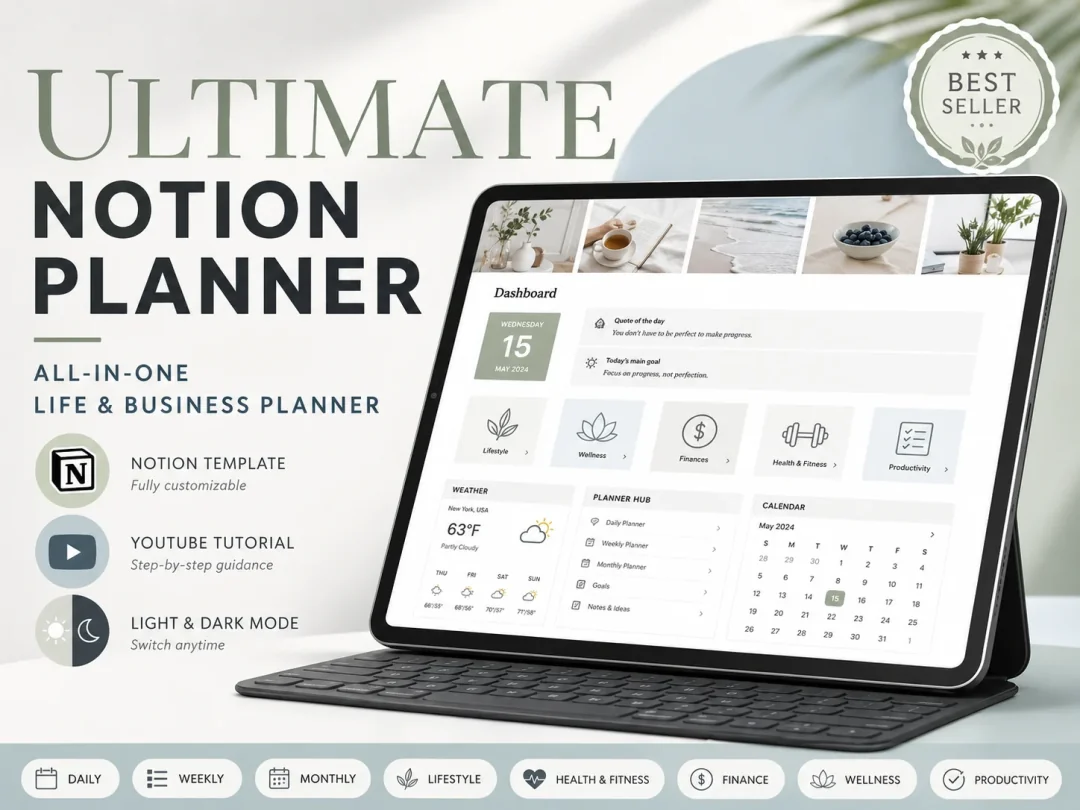
Think of these as five jobs, not a layout you have to copy. If you open a habit tracker every morning, link to it near the top. If you check it once a week, place it under a life area instead. The Ultimate Notion Planner uses a central dashboard hub, a master calendar, day/week/month planning pages, and separate trackers, so the first screen can point to deeper pages without displaying all of them at once.
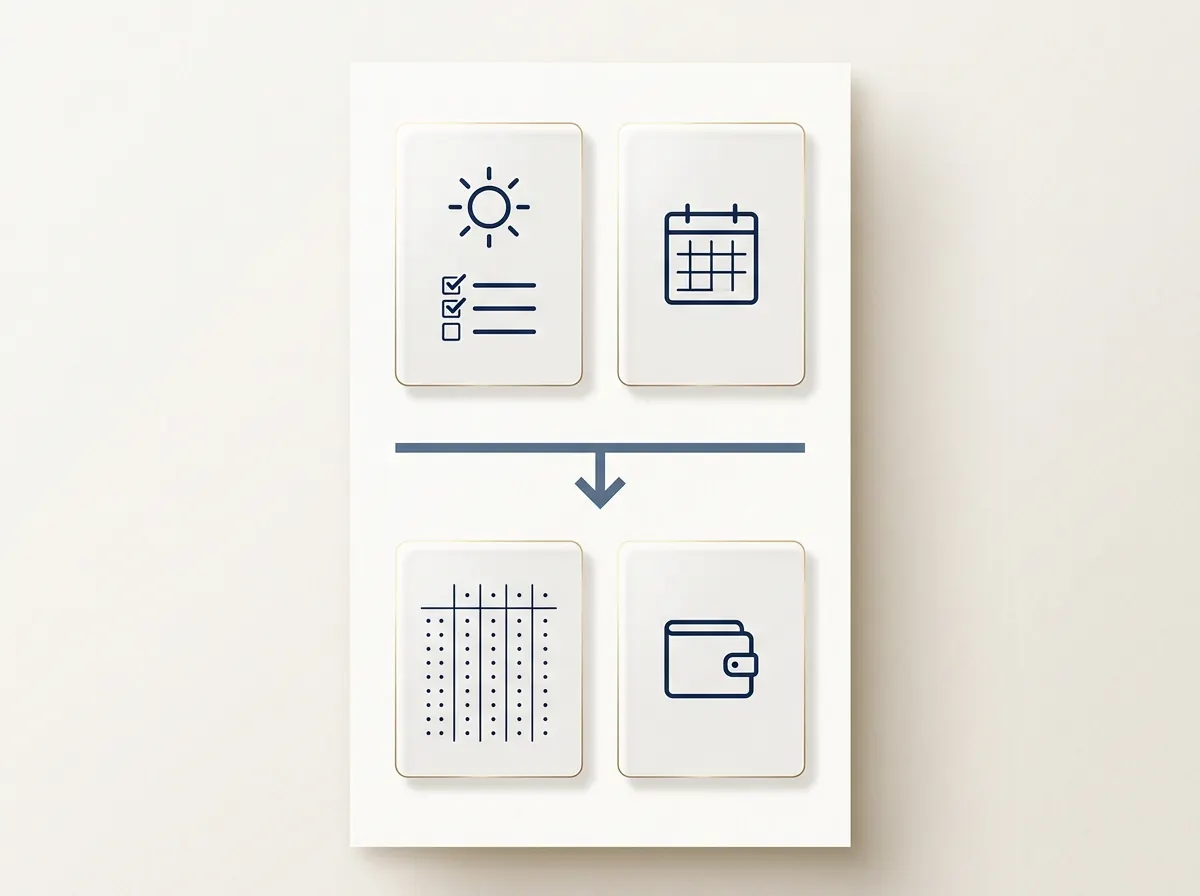
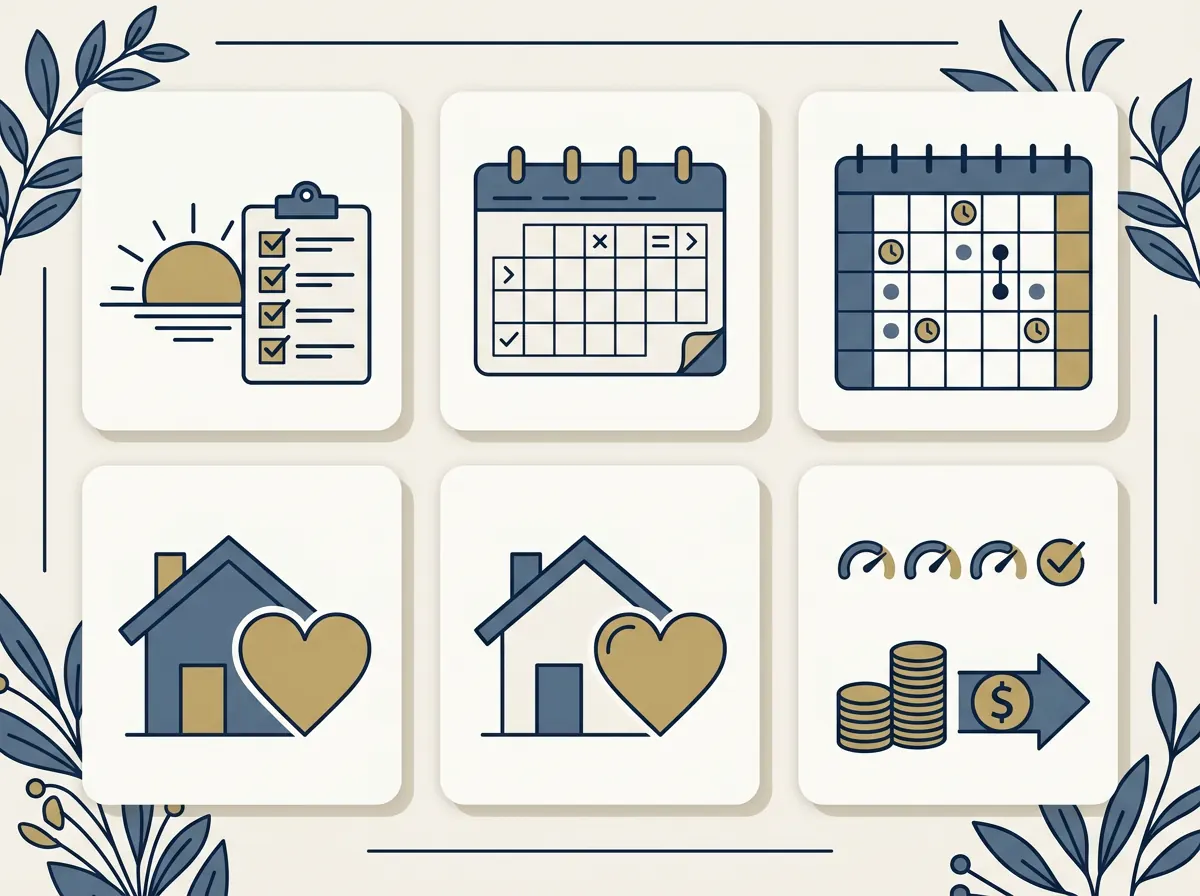 {width=512}
The five-zone map groups the delivered template’s dashboard pages and links by the job each supports. It is a layout recommendation, not a measured user result.
Start with two questions: what do I need to see before work, and what do I only open sometimes? Put the first answer on the dashboard and link the second from a nearby area.
To build the page, create a new Notion page and give it a name you will recognize in the sidebar. Add a “Today” heading, then link to the weekly page and calendar. Add a short row of life-area links below. Keep each link descriptive, so “Weekly Plan” tells you more than “Open.” Before adding trackers, use the page for a few ordinary days. If you keep scrolling past a section without opening it, move that section down or remove it. A dashboard should reflect the week you have, not every possible version of it.
Put Today and This Week First
Today belongs near the top because it answers the question that brings you back to the planner. This week belongs close by because today's tasks make more sense beside the appointments and deadlines around them.
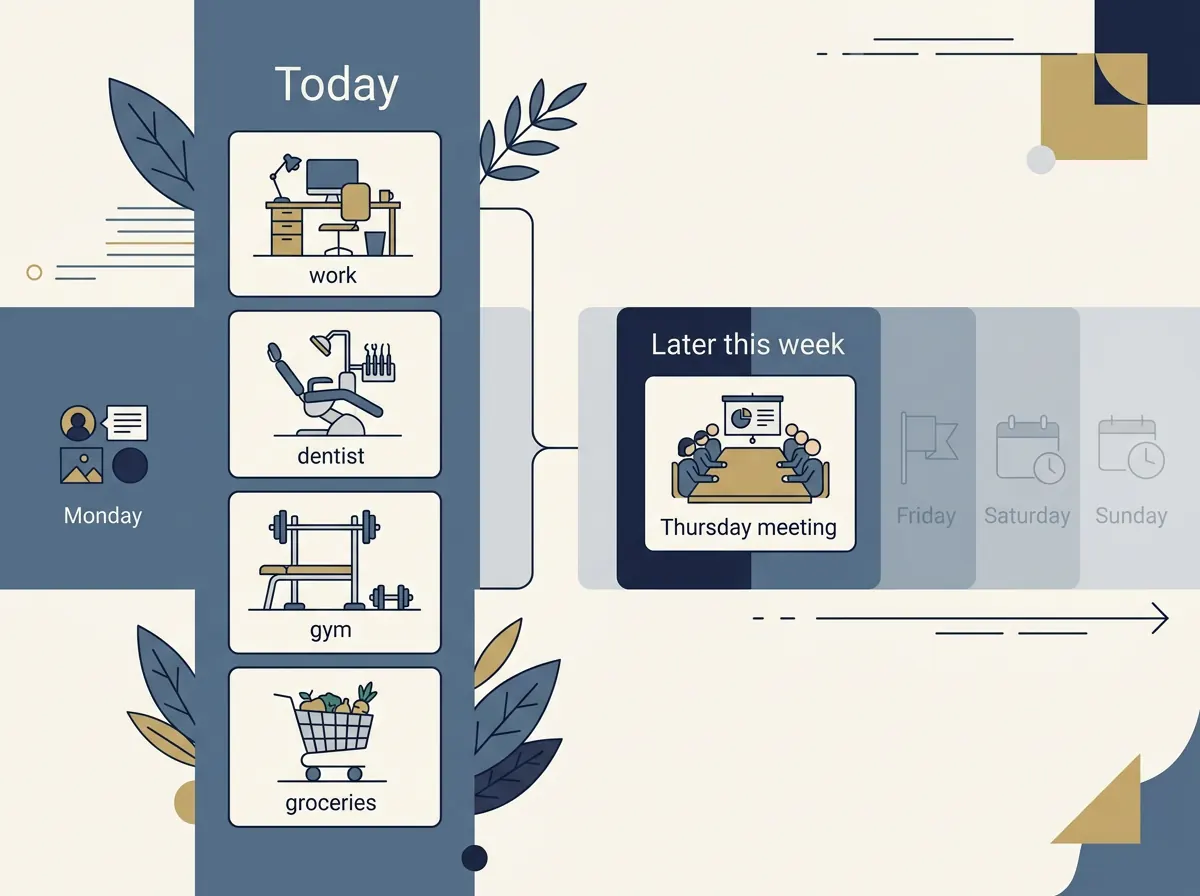
Imagine a Tuesday with a workday, a dentist appointment, a gym slot, and a grocery run. The first screen can show the next appointment and a short list of actions. The weekly page can hold the rest: a meeting on Thursday, groceries after work, and the gym times you expect to keep. If the grocery run moves, change it in the place that owns the plan instead of copying it onto several pages.
Keep appointments and tasks distinct. An appointment has a time and place; an action may only need a due date or a place on the list. A calendar view helps you see when something happens. A task list helps you see what still needs doing. If you duplicate every item across both, you create another small system to maintain.
 {width=512}
A plain first screen can do the job: a “Today” heading, a short list, and clear links to the calendar and week page. Add a quote block, widget, or image only if it helps you find something or makes the page easier to return to. If you want to compare where widgets fit, see our guide to Notion widgets by job.
Keep the Master Calendar and Day, Week, and Month Pages in Agreement
Use the calendar as the place to check dated plans, then use day, week, and month pages to view those plans at different distances. A month view helps you notice a crowded stretch. A week view helps you balance commitments. A day page helps you act on the next few items.
The key is avoiding separate copies that drift apart. If a dentist appointment changes, update its source and check that your other views reflect the change. When a dashboard links to the right page, it stays useful without trying to hold every detail itself. Notion's database view guide explains how the same source can appear in different layouts, such as a calendar or list, with its own filter or sort settings.
A Google Calendar link is a separate connection. The Ultimate Notion Planner includes a manual Google Calendar link. Its day, week, and month pages show synced Notion views. The template does not provide two-way Google Calendar sync.
Move Occasional Trackers Off the First Screen
Put a tracker on the dashboard when it helps you make a decision today. Move it to its own page when you only review it now and then. A weekly habit tracker may deserve a link near the week plan. A finance tracker you update monthly can live under Finances. This keeps the dashboard focused while leaving those pages easy to find.
The same rule works for life areas. Group links by the words you already use, such as Home, Health, Work, or Money. The Ultimate Notion Planner's contents include Lifestyle, Wellness, Health & Fitness, Finance, and Productivity pages. A category should make a page easier to find, not become another list you feel obliged to maintain.
Check the page on the device where you use it most. Notion's mobile workspace guide explains how to navigate pages and open nested pages in the app. A wide layout with several columns may take more scrolling on a phone, so put the most-used links first and keep secondary links lower down. Notion's appearance settings let you use the system setting, Light, or Dark on desktop and mobile. The appearance is an account preference, not a separate theme for each planner page.
 {width=512}
If the page feels busy, remove a section before adding another. A link to a page is often enough. You can still reach the detail when it is time to update it.
Regular Planner Page vs Notion's Database Dashboard View
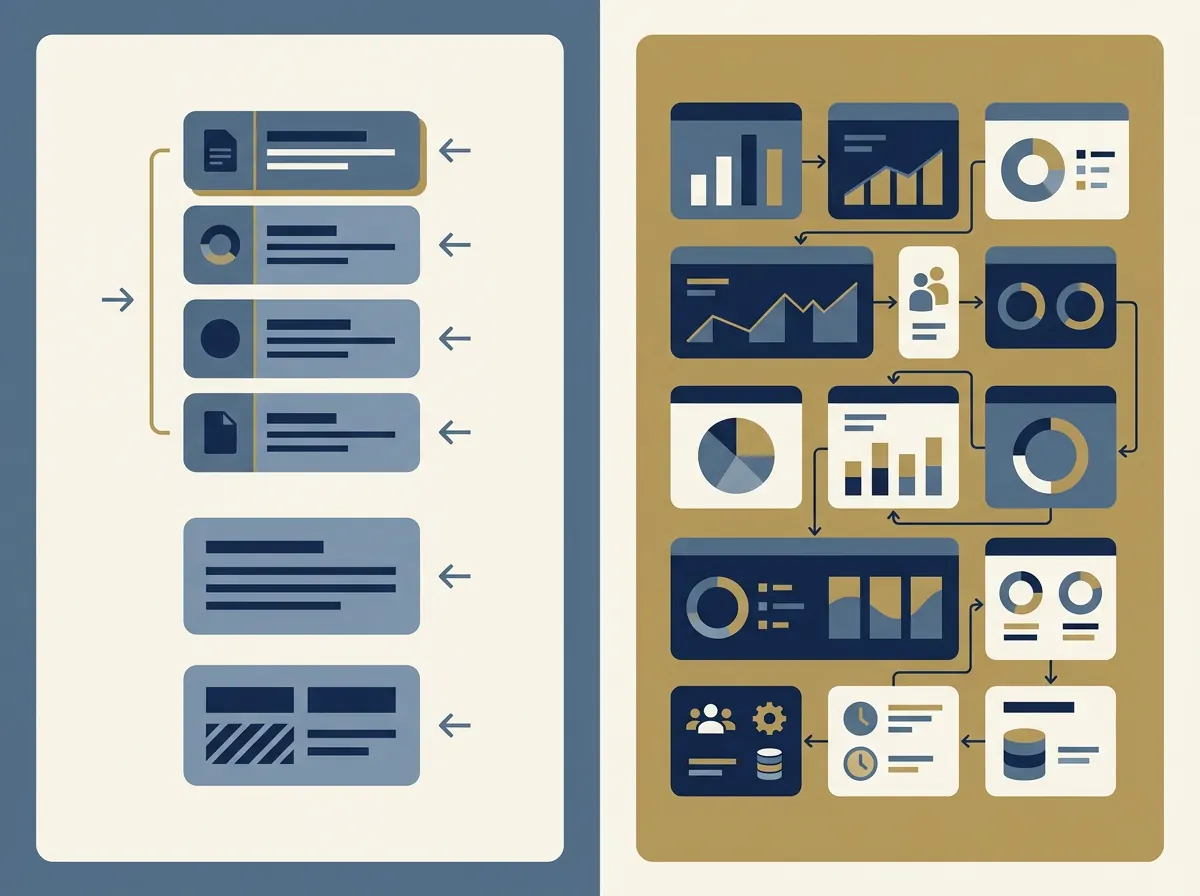
Choose a regular page hub when you want straightforward links and a clear route into your planner. Choose Notion's database Dashboard view when you already use databases and want to arrange several of their views in one layout.
| Setup | What it does | Good fit when | Watch for |
|---|---|---|---|
| Regular page hub | Holds links, headings, and blocks | You want a simple home page | It will not automatically become a database view |
| Database Dashboard view | Arranges database views as widgets | You want several database views together | Widgets depend on the source databases and your edit access |
| Template dashboard | Gives you a prepared layout and pages | You would rather start from an existing structure | Check what it includes and what you still need to customize |
Notion Help says a database Dashboard view can combine widgets from one or more databases. It also states that changing the layout requires edit access to the database. This is useful if your workspace already has structured information and you want a compact control panel. If you only need links to a calendar and a few pages, the extra setup may not buy you much.
 {width=512}
Start with a page hub. If you keep opening the same database views one by one, try the native Dashboard view. Check its limits and permissions first. For a broader tool choice, compare planning options by the job you need them to do.
Why Trust This Article
Ultimate Notion Planner is sold by Cosmo Suite, and this page describes its own template as well as general Notion features. We checked Notion's official help pages for database dashboards, database views, mobile workspaces, and appearance settings on 2 Nov 2026. The Tuesday example is fictional. It illustrates a layout and does not describe a customer test. Read our editorial policy or send a correction through the contact page.
How the Ultimate Notion Planner Fits In
The Ultimate Notion Planner includes a central dashboard hub and master calendar, daily, weekly, and monthly planning pages, goal and habit tracking, and wellness templates. It also includes finance and productivity trackers, light and dark themes, customizable widgets, a setup guide, and a YouTube tutorial. The dashboard links to a prepared set of pages for someone who wants to plan inside Notion without assembling every page first.
If that is what you want, the Ultimate Notion Planner gives you a starting structure to duplicate and customize. Keep the first screen focused on today and the calendar, then open the other pages as needed. Its Google Calendar connection is a manual link, while the planner's own Notion views are synced. If you want to build every part yourself or need a native two-way calendar connection, a different setup may suit you better.
Frequently asked questions
What should a personal Notion dashboard include?
Link to today, this week, your calendar, and the areas you open often. Leave detailed trackers on their own pages until you need to update them.
How do I make a Notion dashboard?
Make a page, name it, then add links to the pages and views you return to. Put today's tasks and next events near the top; weekly and monthly planning can sit below.
What is the difference between a Notion page and a Dashboard view?
A regular page can hold links and content blocks. Notion's database Dashboard view arranges database views as widgets. Start with a page hub when you want a simple set of links.
Can I make my Notion dashboard dark?
Yes. In Notion, choose the system appearance or set it to Light or Dark. On desktop, open Settings, Preferences, then Appearance. The choice applies across the workspaces on your account.
Can I use a Notion dashboard on my phone?
Yes. The mobile app lets you navigate to pages and open nested pages. Put your most-used links first, then check the layout on your phone. A wide desktop page may take more scrolling on a small screen.
Should every tracker go on my Notion dashboard?
Only add a tracker to the first screen when you check it often or need to act on it today. Keep occasional details on their own pages, with a link from the relevant life area.