Best Calendar App for Planning a Week: 4 Picks by Job
best calendar app: compare Google, Apple, TickTick, and Todoist for shared events, weekly planning, and task views. Pick one that fits your week.
By Ultimate Notion Planner by Cosmo Suite · Editorial policy
Published · 8 min read
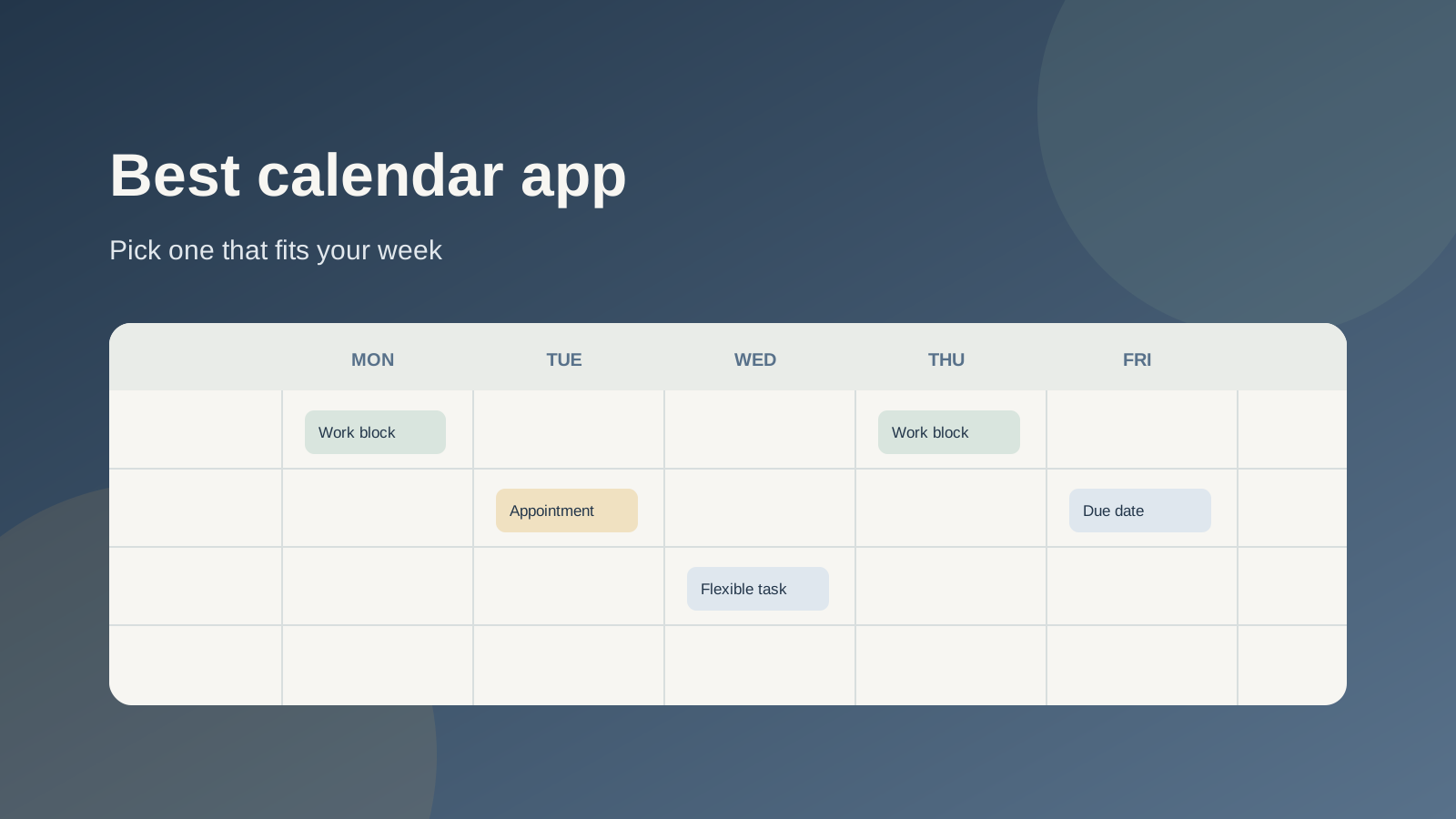
If your week is split between a work calendar, family appointments and a task list, the best calendar app is usually the one you already open. Google Calendar is a solid shared-events choice; Apple Calendar fits an Apple-centered week; TickTick and Todoist suit people who want tasks beside dates.
Start with the job you need done. A calendar holds appointments and time. A task app helps you remember work that still needs a date. A scheduling link lets other people book a meeting. Those jobs overlap, but they are not the same thing.
This guide compares four options by fit, free-plan limits and the work they handle. It also shows a quick way to try one before moving your whole week.
Quick Answer
In brief, start with the calendar connected to your current week. Add a task view only if work keeps disappearing from it.
- Use Google Calendar for shared events, Apple Calendar for an Apple-centered setup, and TickTick or Todoist when tasks need calendar context.
- Check whether the weekly view you want is included in the free plan.
- Try the app with a few real items from next week before you move anything.
A calendar and a weekly plan have different jobs
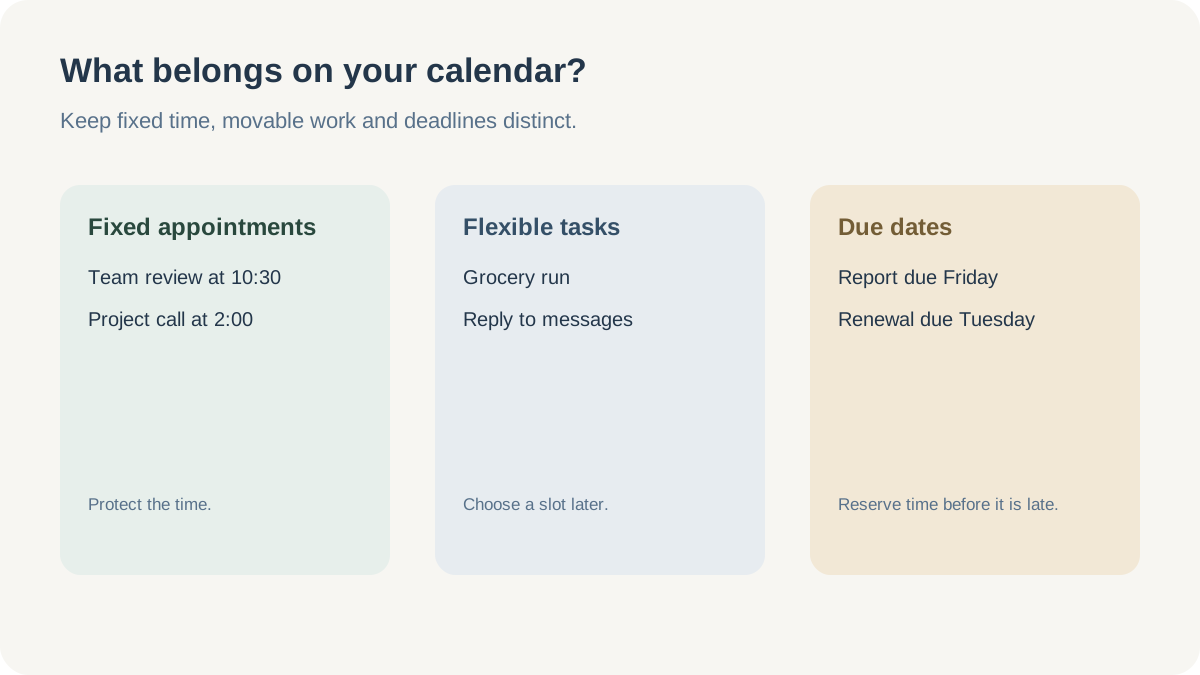
A calendar answers “when?” Your weekly plan also answers “what can move?” A project review has a fixed time. A home repair call can usually shift. A report due Friday needs a place in the week, even if it has no exact hour yet. A calendar app is software that organizes dated events and shows when time is busy. A task app is a place to keep work to do, with or without a date. A scheduling link is a booking page that lets another person choose a meeting time.
When every item is treated like a meeting, the calendar fills up and becomes hard to read. Tasks in a separate list can disappear from view. Pick an app that keeps fixed events clear and makes loose work easy to find. Most app lists start with features. Start with the item you keep losing in your week.
For some people, one calendar is enough. Others want a planning page alongside it, where their goals and tasks can sit near the week view. If you want that second layer, a Notion planner organized around month, week and day pages can hold the plan while your calendar remains the source for appointments. The Ultimate Notion Planner is one ready-made option.
Which One, for Whom
Use the main job to narrow the choice. The apps below cover a calendar-first week, an Apple setup, and two task-first options.
| App | Best fit | What it does well | Check first |
|---|---|---|---|
| Google Calendar | Shared appointments and a mixed-device household | Create events, invite people, share calendars | It is easiest when the people you share with use Google accounts |
| Apple Calendar | A week already managed on iPhone, iPad and Mac | Holds multiple calendar accounts in the Apple Calendar app | Check your setup if you use Windows or Android most of the day |
| TickTick | Tasks and calendar views in one app | A free plan plus paid calendar views and task tools | Premium lists at $49.99 per year; confirm current price in your region |
| Todoist | A task list that also needs calendar context | Calendar integration appears in Today and Upcoming views | The full calendar layout is limited to Pro and Business |
The short version: use Google or Apple for appointments, TickTick if you want tasks and dates together, and Todoist if the task list is still the main event. A free plan may be enough for the basic flow. Test the exact view you want before paying or importing years of data. For instance, if you only need one shared family calendar and a personal task list, you may not need a task app with several calendar layouts.
Google Calendar for a shared personal week
Choose Google Calendar when most of your week is made of events and you need to coordinate with other people. Google’s official iPhone and iPad app listing describes shared calendars and switching between a phone and computer under one account. That answers the iPhone question too: you can use the Google Calendar app on an iPhone, even if you usually open the calendar on a computer.
This works well for a household that already uses Google accounts. Make one calendar for shared appointments, choose the right permission and keep private events on your personal calendar. For example, put a school meeting on the shared calendar and leave your own private appointment on your personal one. If someone rarely opens Google Calendar, the shared setup will not help much. People need to check it.
Google Calendar is also a good base if you use another app for planning tasks. You can keep appointments in Google and link to a planning page or task list. This guide to personal calendar alternatives covers options for readers who want a different calendar service.
Apple Calendar if your week stays on Apple devices
Apple Calendar is a sensible default if you plan on an iPhone, iPad or Mac and want events from different accounts in one place. Apple’s iPhone guide documents adding accounts such as iCloud, Google, Microsoft Exchange and Yahoo, then choosing which calendars to display.
Your events do not all need to be stored in iCloud. Apple Calendar can show more than one calendar account. It fits well if your devices are Apple. If you mostly use Android or Windows, first check how you will create and edit events there.
For a shared household, keep the setup simple. Use one calendar for events everyone needs, then make sure each person can add or change what they should. If you are deciding between a calendar and a notes-based setup, compare how the week view works before you commit to a new place for appointments.
TickTick or Todoist when tasks need dates
Pick a task app if remembering and scheduling work is harder than seeing your meetings. TickTick and Todoist both put tasks near calendar information, but their plan limits differ.
TickTick’s current upgrade page lists a free plan at $0 and Premium at $49.99 per year. It lists a basic calendar view in the free plan and multiple calendar views in Premium. If the weekly view is the reason you are considering it, check that the exact layout you want is available before you build your routine around the free version.
Todoist’s calendar integration help page, last updated 21 October 2026, says you can see Google or Outlook events beside tasks in Today and Upcoming on all three plans. The calendar layout, with tasks in a weekly or monthly grid, is available on Pro and Business. Connecting a calendar and using that layout are separate features.
Choose TickTick if you want a task manager with multiple calendar views and are comfortable checking its current Premium price. Choose Todoist if your task lists are already there and you mainly need calendar events alongside them. If you only need a weekly list with a few due dates, try the free plan first.
Calendly is for booking, not planning
Calendly helps when other people need to choose a meeting time from your availability. Its help center describes event types as reusable booking pages. It checks connected calendars for busy times and adds new meetings to your calendar.
Calendly books meetings into open slots on a connected calendar. Use Google Calendar, Apple Calendar or another calendar to plan the rest of your week. If you searched for “apps similar to Calendly” because you need to manage appointments, start with a calendar app. If people need to book calls without a long email exchange, a scheduling tool fits that job.
Test a calendar before moving your week
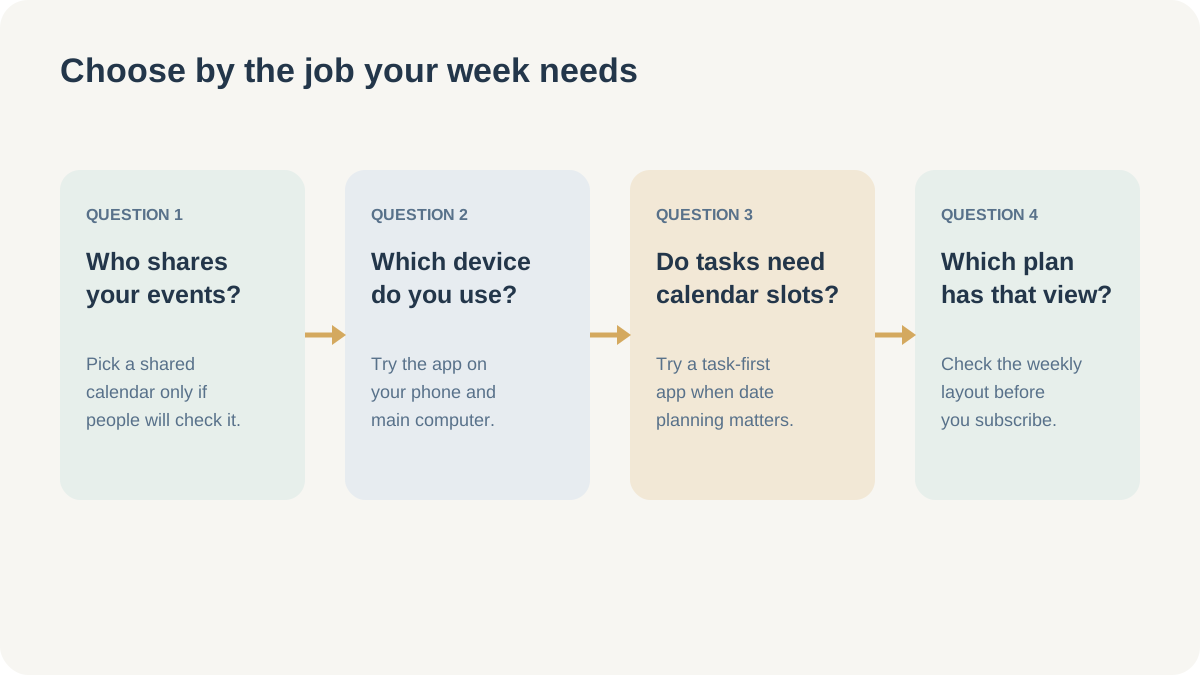
Give the app a short trial with the next seven days. Do not import your entire history yet. Add one fixed appointment, one shared event, one task with a due date and one task that can move. Then check the week on your phone and computer.
Ask four questions:
- Can you see fixed appointments and flexible tasks without confusing one for the other?
- Can the people who need the shared events see and edit them at the right level?
- Does the weekly view you need work on your main device, not just the desktop preview?
- Is that view included in the plan you expect to use?
If one answer is no, keep your current calendar and try the next option. Moving events between apps is easy to underestimate; a one-week test tells you more than a long feature list.
If the calendar passes but your tasks still need a home, compare it with a Notion planner that keeps month, week and day pages together before changing your calendar setup.
Why Trust This Article
Cosmo Suite publishes the Ultimate Notion Planner, so we have a commercial interest in planning tools that can work beside Notion. This article compares calendar and task apps on their own jobs. We checked the linked official help and feature pages on 26 October 2026. Prices and plan limits can change, so verify them before subscribing.
Our editorial method was to read the official pages linked above and sort each app by the job it describes: personal events, shared use, dated tasks or booking. We did not test sync speed or rate reliability.
How the Ultimate Notion Planner Fits In
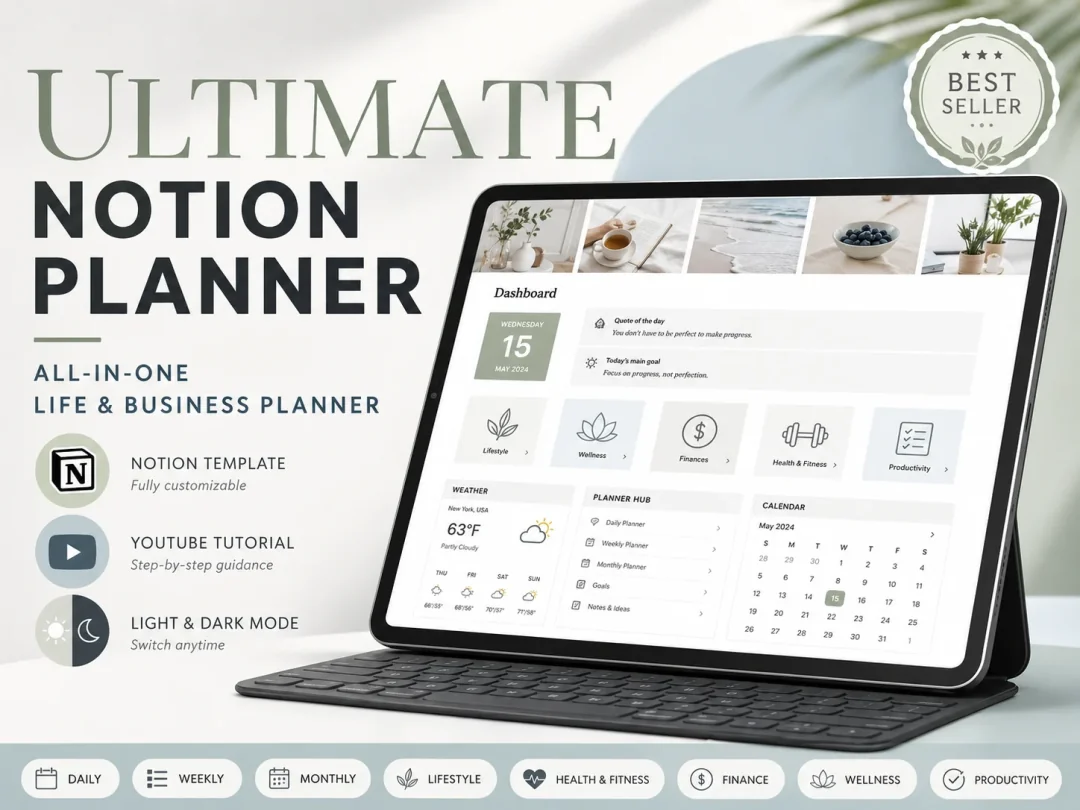
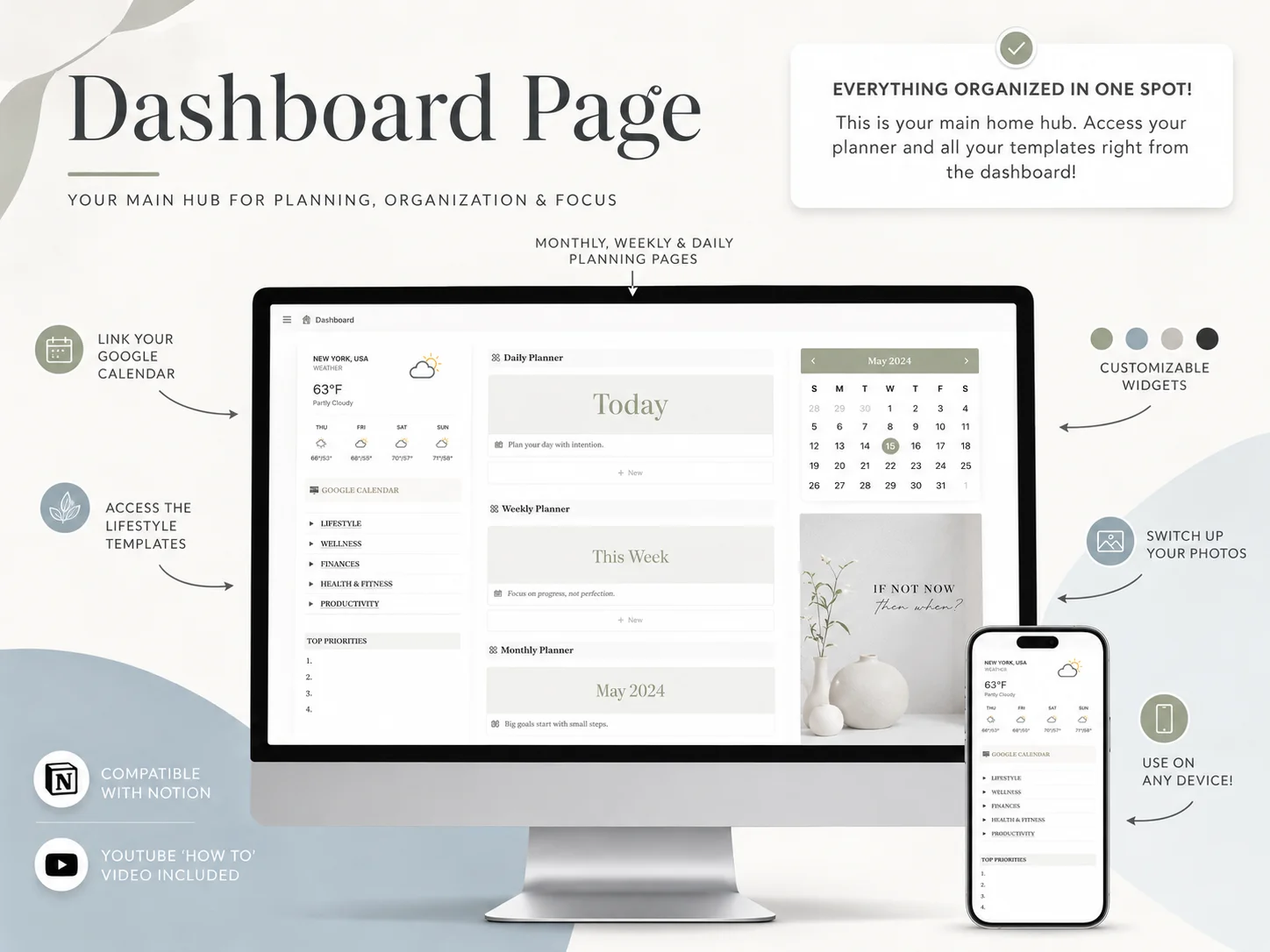
The Ultimate Notion Planner is a Notion template for people who want planning pages beside their calendar. It includes a central dashboard and master calendar, daily, weekly and monthly planning pages, plus goal, habit, wellness, finance and productivity trackers. Notion views sync across those planner pages. If you are checking whether the free Notion plan can hold a planner, see the current personal-use limits.
Its Google Calendar connection is a manual link, not a two-way sync. Keep Google Calendar, Apple Calendar or another app as the place where appointments live. Use the template when you also want a dashboard and planning pages to organize the week. See the Ultimate Notion Planner if that setup fits; it costs $9 once. A calendar-first planner walkthrough also shows how month, week and day pages fit together.
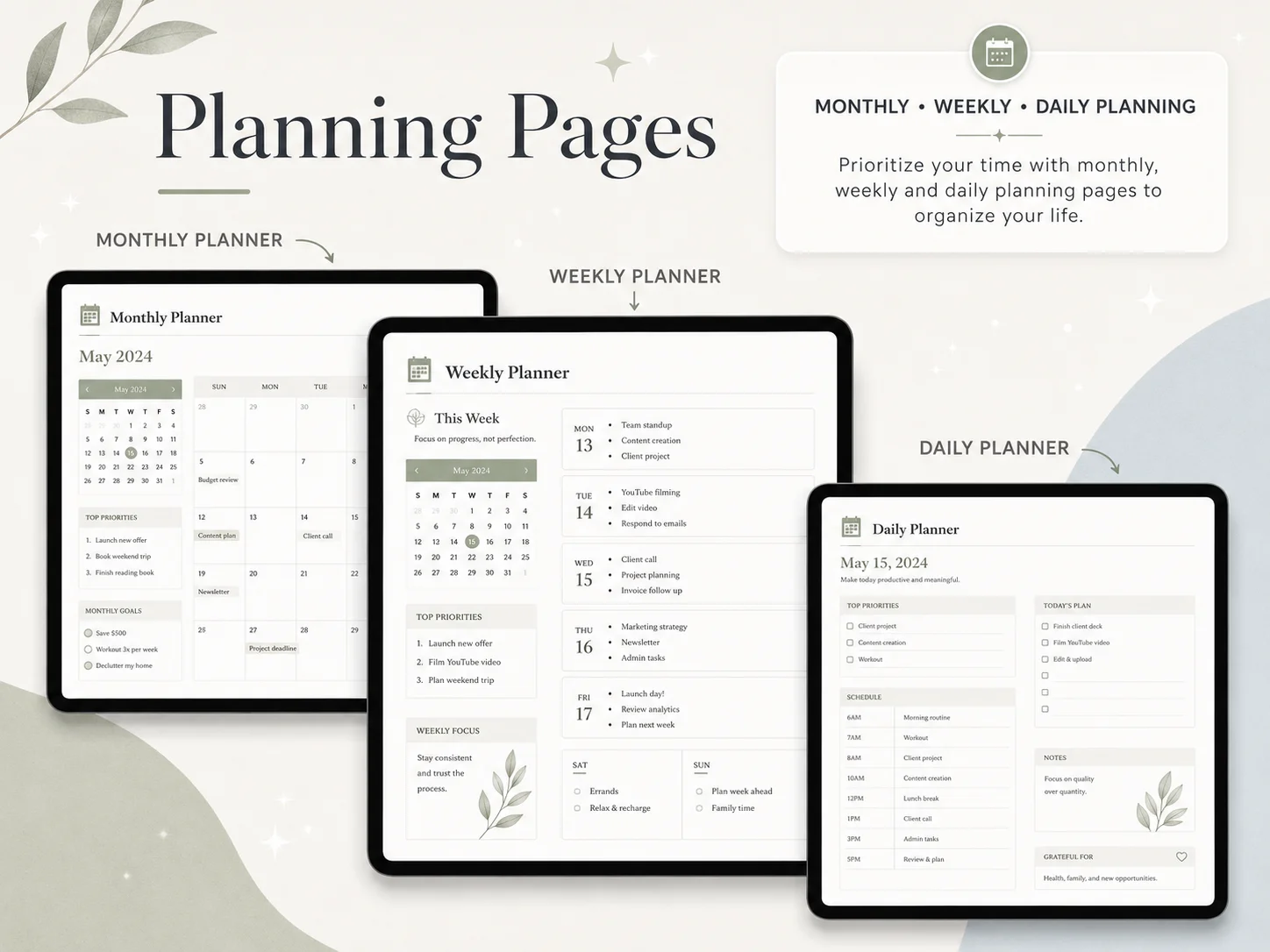
If you prefer one task list and a calendar, use a task app. If you want a wider planning space alongside your calendar, the calendar-first Notion planner walkthrough shows how that arrangement works.
Frequently asked questions
What is the best calendar app for planning a week?
It depends on where your week already lives. Google Calendar is a practical start for shared events, Apple Calendar suits an Apple-centered setup, and TickTick or Todoist put dated tasks beside appointments. Try your normal week before moving anything.
Is there a good free calendar app?
Yes. Start with a calendar already on your phone or in the account you use, such as Google Calendar or Apple Calendar. TickTick and Todoist also have free plans. Some views and limits vary by plan, so check what comes with the version you expect to use.
Which calendar app is best for sharing with family?
Google Calendar is a sensible first check if your household already uses Google accounts. You can share calendars and choose what others can do. Apple Calendar can work for an Apple-centered household too. Agree on one shared calendar and check who can edit it.
Can I put tasks and events in one calendar app?
Yes. TickTick and Todoist put tasks near calendar views, while Google Calendar centres on events. Check the free-plan limits before moving. Some apps include a basic calendar view and charge for broader layouts.
Is Calendly a calendar app like Google Calendar?
No. Calendly gives people a booking page with times you make available, then checks a connected calendar for conflicts. Use it when other people need to book meetings. Keep a calendar app for your personal week and tasks.
Can a Notion planner replace my calendar app?
Usually, no. The Ultimate Notion Planner is a Notion template with dated tasks and planning pages. It links manually to Google Calendar, while its planner pages use synced Notion views. That does not provide two-way Google Calendar syncing.