Google Calendar Color Coding: A Simple System That Stays Useful
Google Calendar color coding works best when each color has one job. Set a small, readable system for work, personal plans, and events that need action.
By Ultimate Notion Planner by Cosmo Suite · Editorial policy
Published · 7 min read
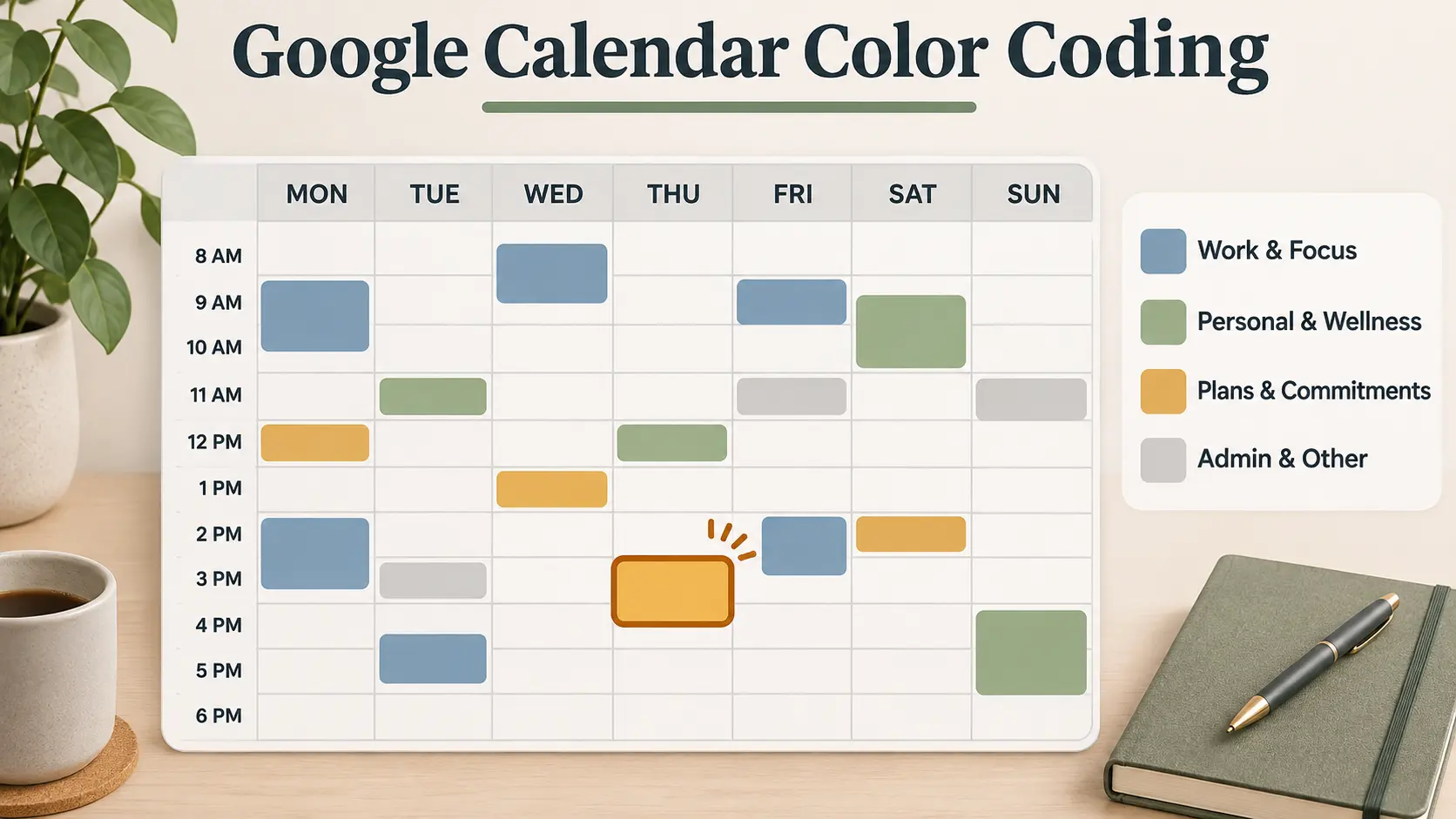
Color helps you scan a week with work meetings, an appointment, and errands. Too many colors make the grid loud without telling you what matters. Give each color one job.
For a useful Google Calendar color-coding system, start with three or four meanings you need to spot quickly. Use calendar colors for broad areas of your life, and change an event's color only when that event needs special attention. Then check the week view on the device you use most. If you cannot explain a color's meaning in a few words, remove it.
Quick Answer
Google Calendar color coding is a way to group calendars or flag individual events by color. Start with three categories, such as work, personal plans, and shared plans. Assign each category one meaning, check the week on your phone, and add another color only when it changes a decision. Keep a text cue in event names when someone needs the meaning without seeing the color.
If you plan in Notion too, the Ultimate Notion Planner puts daily, weekly, and monthly pages beside a manual Google Calendar link. The link opens your calendar; it does not provide two-way sync.
Pick a Meaning Before You Pick a Color
Start with the question you want the week view to answer. Usually you need to see where your time goes. You do not need a separate color for every kind of appointment.
Write down three broad categories. Try work, personal, and shared or family plans. If health and home shape your week more, use those instead. The labels should fit your schedule. No palette works for everyone; stable meanings matter more than the color names.
Choose colors you can tell apart in your usual view. Two close shades will slow you down if you need to study them. If you use dark mode, check the colors there before assigning a full calendar. Some appearance choices vary by device and setting.
Keep the labels in a note for the first week. For example:
| Color meaning | Put these here | What it helps you notice |
|---|---|---|
| Work | Meetings, shifts, work deadlines | How much of the week work occupies |
| Personal | Appointments, exercise, errands | Which plans need space outside work |
| Shared | Plans involving another person or household | What needs coordination |
| Action needed | An event that needs preparation or a reply | What to handle before it starts |
Three categories cover many calendars. “Action needed” is optional. If you use it, set a clear rule. A dentist appointment can stay under personal; the form you must complete before it can carry the action-needed color. Save that signal for events that need preparation.
Set Up a Small System in 10 Minutes
Set up a first pass in about 10 minutes. That is a planning estimate. Google does not offer a timed setup feature, and the work will vary with your calendar.
- Look at one ordinary week. Use the week view and notice which events you already scan for. Do not reorganize months of history first.
- Name three categories. Pick categories that answer different questions. “Work” and “client meeting” may be too similar if the second does not change your next action.
- Assign a color to each calendar. On a computer, find the calendar in the left list, open its options, and choose a color. Calendar color is a good default for a broad group of events.
- Use event colors sparingly. Google Calendar lets you choose a color for an individual event on a computer. Reserve that choice for an event that needs to stand out from its calendar.
- Review the week on your phone. Check that the color differences still help at the smaller size. If two categories look alike, merge them or choose clearer colors.
Google's event-color instructions show how to change an individual event's color from its menu on a computer. Its calendar setup instructions cover changing a calendar's color from the calendar list. These are separate controls: changing the calendar color sets a broad default, while an event color calls attention to a particular item.

Choose Calendar Colors or Event Colors
Use a calendar color when a group of events belongs together. Use an individual event color when one item deserves a different visual signal. Mixing these two jobs is a common reason the calendar gets hard to read.
| Control | Best for | Example |
|---|---|---|
| Calendar color | A recurring area such as work or family | All events on a work calendar share one color |
| Event color | One event that needs a separate signal | A work deadline that needs preparation |
| No special color | Ordinary items in their normal group | A routine check-in stays in the work color |
If every event gets its own color, the colors stop grouping anything. Start by coloring calendars. Add event colors only when you can state the reason, such as “I need to prepare for this one” or “This plan needs coordination.”
The distinction also matters for sharing. Google says people cannot see the color you set on an event unless they have permission to make changes on your calendar. Do not rely on an event color as a message to guests. Put instructions in the event details or communicate them directly.
Use a Text Cue Alongside Color
Color is a quick visual cue, but it should not carry the whole meaning of an event. The W3C accessibility guidelines say color must not be the only visual means of conveying information. In a calendar, that means a guest should not have to know that amber means “bring the form.” Put that instruction in the title or details too.
The same habit helps when you switch themes, use a smaller screen, print the week, or share it with someone whose display makes two colors hard to distinguish. A short prefix such as “Prep:” or a descriptive calendar name gives the event a second signal. You do not need to label every ordinary event twice. Add text when the distinction affects what someone needs to do.
Make Colors Work Across Devices
Color can look different on a computer and phone because the controls vary by device. Google's appearance settings guide says event color-set and density settings are available on a computer. The event color set also requires a light background. In dark theme, that color-set control is unavailable.
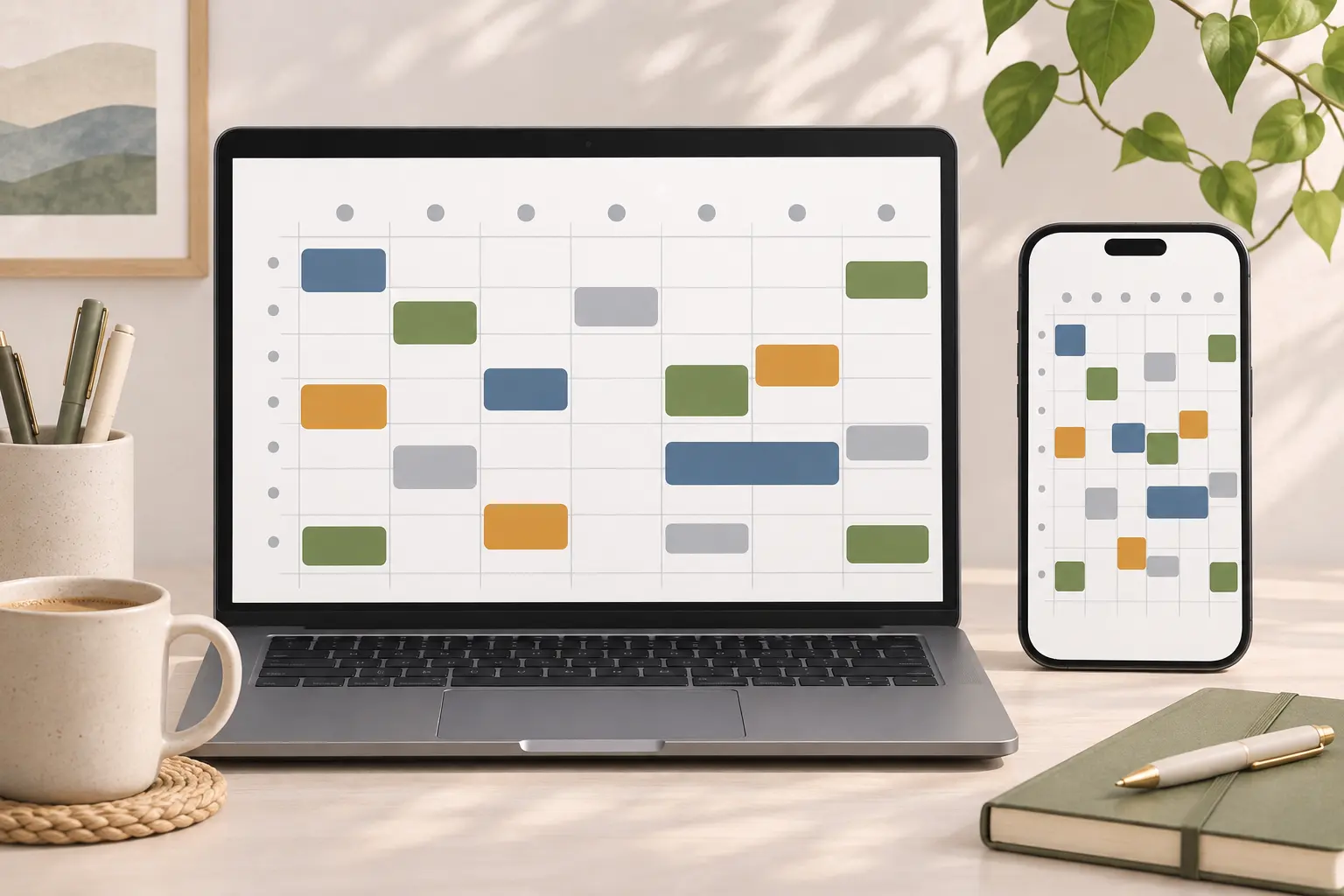
Check the same week on your computer and phone. The useful question is whether you can read it where you usually plan. If two categories blend together on the phone, merge them or choose clearer colors. Memorizing subtle differences gets old quickly.
If you use colors to support access needs, keep a second cue in the event title or calendar name. A color alone may not be enough for every display, theme, or person viewing a shared calendar. A short prefix such as “Prep:” or a clear calendar name gives the event another signal.
Keep the System from Growing
Use the system to decide what to do next, not to create another organizing project. When a new kind of event appears, try the closest existing category. Add a new one only if it answers a separate question and will come up again.
Once a week, scan the next seven days and ask:
- Can I tell work from personal plans at a glance?
- Is any color doing two conflicting jobs?
- Did I mark routine events as special without a reason?
- Do I know what I need to prepare for?
Merge colors that do not help. If “health” only appears as one appointment every few months and you do not make a different planning decision from it, it can remain in personal. If a regular care schedule shapes your week, its own calendar may be useful.
Keep the categories steady for a few weeks before changing them. A calendar that changes meaning every Monday forces you to relearn its signals. The goal is a quiet visual cue, not a perfect taxonomy.
When One Calendar Is Not Enough
Separate calendars help when you need to hide or share a whole category, or switch a group of events off in week view. Creating calendars just to get more colors adds maintenance. Each one is another place to remember when you add an event.
If your main problem is deciding what fits, use a short routine with the Google Calendar view. Add fixed commitments first, then tasks that need time, and leave some open space. The colors show the shape of your week. You still choose what to drop.
For a broader look at choosing a calendar around your week, see our guide to the best calendar app for planning a week. If you already use Notion for plans, you can also keep a Notion planner beside your calendar. The Ultimate Notion Planner includes a manual Google Calendar link alongside its planning pages. It does not provide two-way Google Calendar sync.
Why Trust This Article
Cosmo Suite sells the Ultimate Notion Planner. We checked Google's calendar-color instructions on November 8, 2026. Google documents calendar colors, individual event colors, and computer-only appearance settings. The category examples here are an editorial planning method, not a Google recommendation or a claim that color alone improves productivity. Read about our team and our editorial policy, or contact us with a correction.
How the Ultimate Notion Planner Fits In
If you want a weekly view plus places for daily and monthly planning, the Ultimate Notion Planner brings those pages into one Notion template. It also includes a manual Google Calendar link, so you can open the calendar alongside the planner. That link is not two-way sync, and the template does not replace Google Calendar's own event-color controls.
The template may suit you if you already plan in Notion and want one place for the week. If all you need is color coding, start with Calendar's built-in controls. Another template will not help if the system has too many categories.

Frequently asked questions
Can Google Calendar be color coded?
Yes. You can change a calendar's color and set a different color on individual events. On a computer, use the event's options to choose its color.
How do I categorize my Google Calendar with colors?
Give each color one meaning, such as work, personal plans, or action needed. Apply the rule consistently, then check the week view to see whether the colors help you decide what to do.
Can I change the color of one Google Calendar event?
Yes. On a computer, right-click an event and choose a color. The event color can differ from the color assigned to its calendar.
Can other people see the color I set on an event?
Not always. Google says people cannot see an event color you set unless they have permission to make changes on your calendar.
Why do Google Calendar colors look different?
Calendar color controls depend on the view and device. Google documents some appearance settings as computer-only, and its event color set requires a light background. Check the same week on the device you use most.
How many colors should I use in Google Calendar?
Start with three or four meanings. Add another only when it answers a different planning question. A color that does not change what you do is probably extra.
Sources
Keep reading
Calendar and Scheduling
Notion Calendar: What It Is, What It Costs, and How It Fits a Planner
Notion Calendar is a free app that sits beside Notion, not inside it. See what it does, which calendars it connects, where it stops, and when to skip it.
· 8 min read

Calendar and Scheduling
Subscription Fatigue: Which Planning Apps Are Worth Paying For?
Subscription fatigue can make planning apps feel like a pile of renewals. Compare current prices, find overlapping jobs, and keep only tools your week uses.
· 7 min read