Notion Digital Planner vs PDF Planner: Which Fits Your Week?
Notion digital planner vs PDF planner: compare calendars, phone use, editing and setup to choose a format that fits the way you plan your week.
By Ultimate Notion Planner by Cosmo Suite · Editorial policy
Published · 7 min read
If you plan between a phone and a laptop, a digital planner has to do more than look tidy on one screen. You may capture an appointment on the move, then want to see it beside work and home tasks when you sit down to plan the week. A calendar-first Notion planner is one ready-made option; the comparison below helps you decide if that format fits.
A Notion digital planner is a better fit when you want the same dated items arranged as a calendar, weekly list, and daily page. A PDF planner is often a better fit when you want fixed pages to write on or annotate. The useful question is whether the format makes your next planning action easy on the device you actually use.
Quick Answer
- Pick Notion when you want dated items to appear in more than one view and can work inside the Notion app.
- Pick a PDF when you prefer a fixed page, handwriting, or a simple file that does not need a linked planner structure.
- Test both with one ordinary week before transferring your whole planning system.
What “Digital Planner” Can Mean
The phrase can describe two different things. A Notion digital planner is a set of pages and views in a Notion workspace. A PDF planner is a document opened in a PDF reader, where the available actions depend on that reader and on how the PDF was made.
A PDF can be viewed on a phone, and a Notion page can be opened on a computer, so the screen matters less than how the information is stored and changed. A Notion database can show its dated entries in different views, while a PDF starts as a page layout that you annotate, type into, or print. Notion documents its iOS and Android apps and the ways its mobile experience differs from desktop. (Notion Help Center: Notion for mobile)
Notion's calendar view uses a Date property to place database items on a calendar. The same database can have other views, such as a list or board, so you can change how you look at the items without re-entering them. (Notion Help Center: Calendar views, database views)
Which One, for Whom
Use this table to choose by the job you need the planner to do. The answer can be different for weekly planning and for journaling.
| If you want to… | Notion digital planner | PDF planner |
|---|---|---|
| See dated plans on a calendar | A database calendar view can show dated items | Depends on the PDF layout and reader |
| Change the layout | Switch among views of the same database | Usually move between designed pages |
| Handwrite or mark up a page | Possible with device tools, but not the main format | Often a natural fit when the reader supports annotation |
| Keep entries connected across pages | Views can display the same database items | Usually requires links, duplicate entries, or a planner designed for navigation |
| Start with minimal setup | Learn a few Notion basics or duplicate a template | Open a file in a compatible reader |
Check the actual template or file before buying, because features vary by creator and by app. We explain our review approach on the editorial policy page.
Where a PDF Planner Is Better
A PDF planner may suit you better when the page itself is the point. If you like writing directly on a weekly spread, drawing arrows, or printing a page for a desk, a document can be easier to understand than a workspace with multiple views.
It can also feel simpler when your planning does not need to change much after you write it down. You open the file, go to the page, and use whatever editing or annotation tools your PDF reader provides. Check the reader and the specific file before you rely on them for a routine.
The trade-off is that a page designed for one week does not automatically behave like a shared set of dated items. If you move an appointment, you may need to update each place where you wrote it. Some digital planners add navigation links or fillable fields, but inspect the specific file rather than assuming every PDF works the same way.
Best for: people who like fixed page layouts, handwriting, printing, or a planning routine that changes little after setup.
Where Notion Is Better
Notion is useful when you want the same planning information to appear in multiple layouts. Put a task or appointment in a database with a date, then view it on a calendar or in a list. The calendar view depends on the item having a Date property; Notion's help page explains how to add that view to an existing database. (Notion Help Center)
Imagine you add a dentist appointment for Thursday and a grocery task for Friday. In a calendar-first setup, the appointment can show in the dated view and the task can stay on a checklist. If the appointment moves, you edit its date once. Not every planner template is built this way, so before choosing one, check whether its month, week, and day pages actually share the same source of dates.
The cost of that flexibility is a small learning curve. You need to know where to add an item and which view to open. A phone is convenient for checking or capturing a task; rearranging a busy week may be easier on a larger screen.
For a practical setup, see how to set up a Notion planner around one calendar. If you are deciding whether the app itself costs anything, read whether Notion is free.
Check the Calendar Before You Choose
"Works with my calendar" can mean several things, so check the exact connection you need. A calendar view inside Notion shows dated items in a database. Notion Calendar is a separate app that can connect calendar accounts and Notion databases. A planner template might also include a link that opens Google Calendar, which is not the same as two-way sync.
Notion's help documentation says you can add a Notion database to Notion Calendar to see important dates together and update database dates from there. That is a Notion Calendar feature. Not every Notion template supplies an automatic two-way connection. (Notion Help Center)
Before you commit, answer three questions:
- Do I need my existing appointments visible beside my planner tasks?
- Do I need to edit those appointments from the planner, or only open my calendar?
- Does this specific template provide that behavior, or will I need another app or setup step?
If two-way calendar editing is essential, confirm the current Notion Calendar features and connected account support on Notion's help pages. If a link is enough, do not pay for a more complex setup just because the word "sync" appears in a product description.
Test the Format on a Normal Week
Do a short trial with one week before migrating recurring plans, notes, and old tasks. Keep the test ordinary: work, one appointment, one errand, and one personal plan.
For Notion, add one dated item, open it in the calendar view, then find it from the weekly or daily page. On your phone, check whether the page is readable and whether adding a task takes a few taps or becomes a chore.
For a PDF, open the file on the device where you plan to use it. Write or type one appointment, save it, reopen it, and see if the result is still where you expect. If you use more than one device, test the handoff between them. A file that is pleasant on a tablet may be awkward on a narrow phone screen.
Try the same small week in both formats: two fixed appointments, one task that can move, and one note you will need again. In Notion, check whether the moved task updates where you expect and whether the note is easy to find. In the PDF, move the task, save the document, and check whether the other entries remain legible. You can repeat this comparison with any template or planner file, since templates and PDF apps differ.
Keep whichever format makes it easier to answer: what is fixed, what can move, and what do I need to do next? A planning system should reduce repeated entry, and maintaining it should not become a second job.
Why Trust This Article
Cosmo Suite sells the Ultimate Notion Planner, so the product section reflects that commercial interest. We checked the Notion Help Center pages listed above on 15 November 2026. The comparison describes format-level trade-offs; individual PDF files, readers, and Notion templates differ. Verify the features you need in the specific app or template before you pay. Read more about who publishes this site and how to request a correction on our contact page.
How the Ultimate Notion Planner Fits In
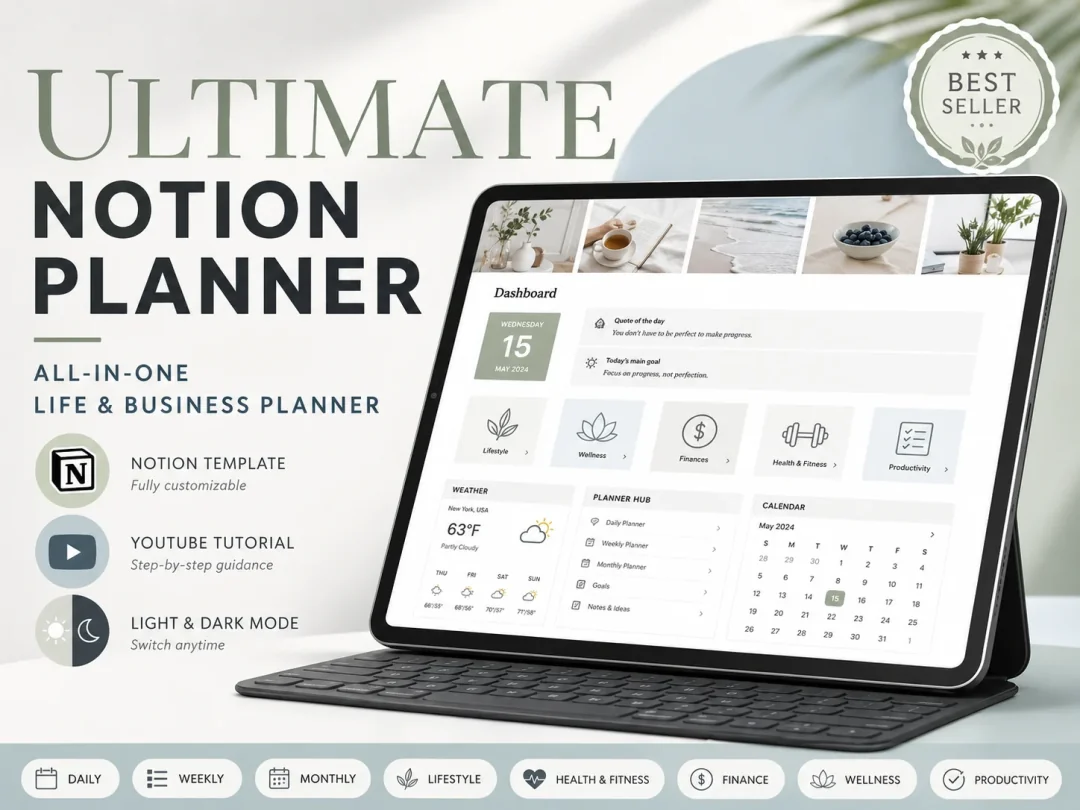
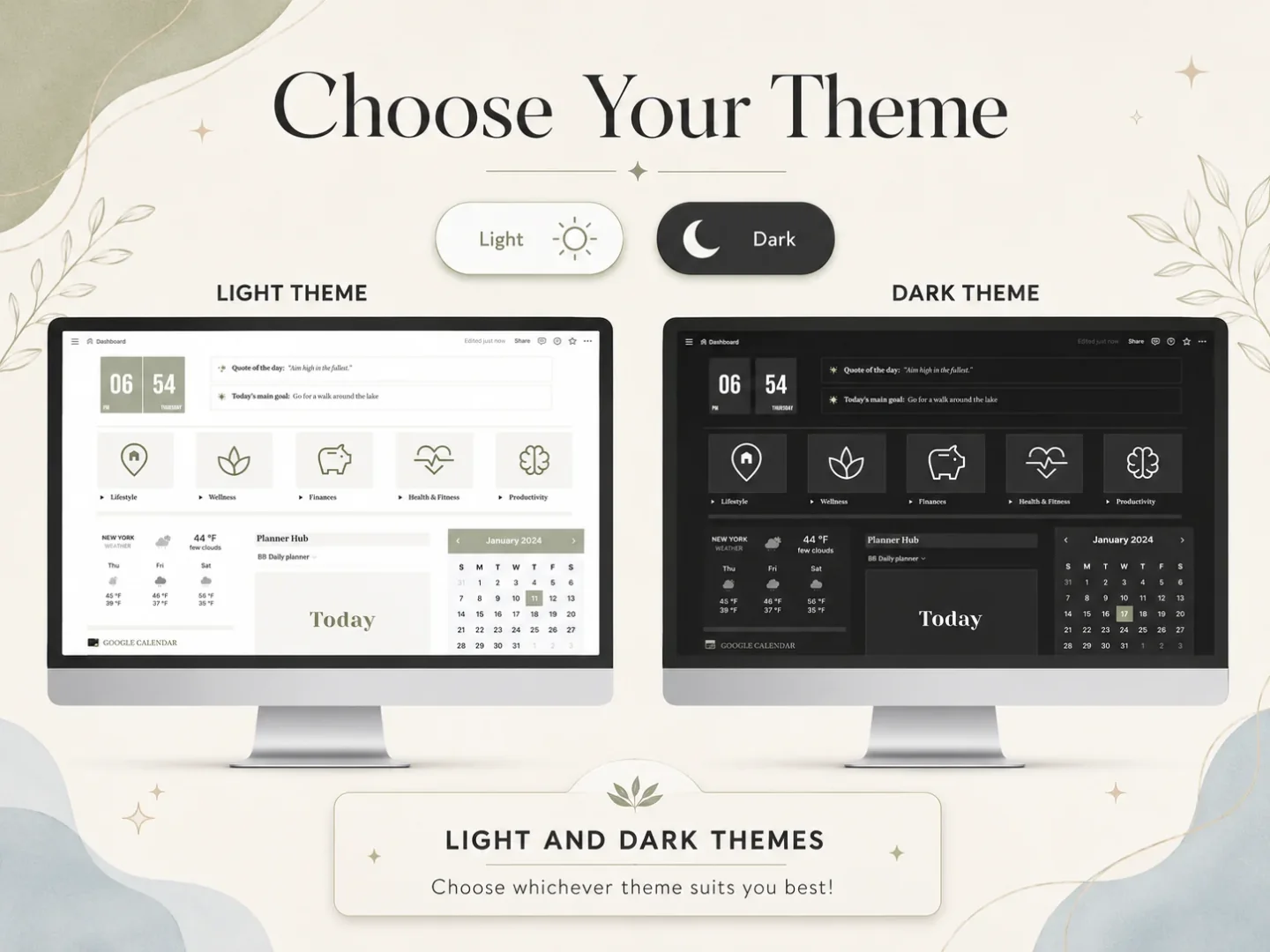
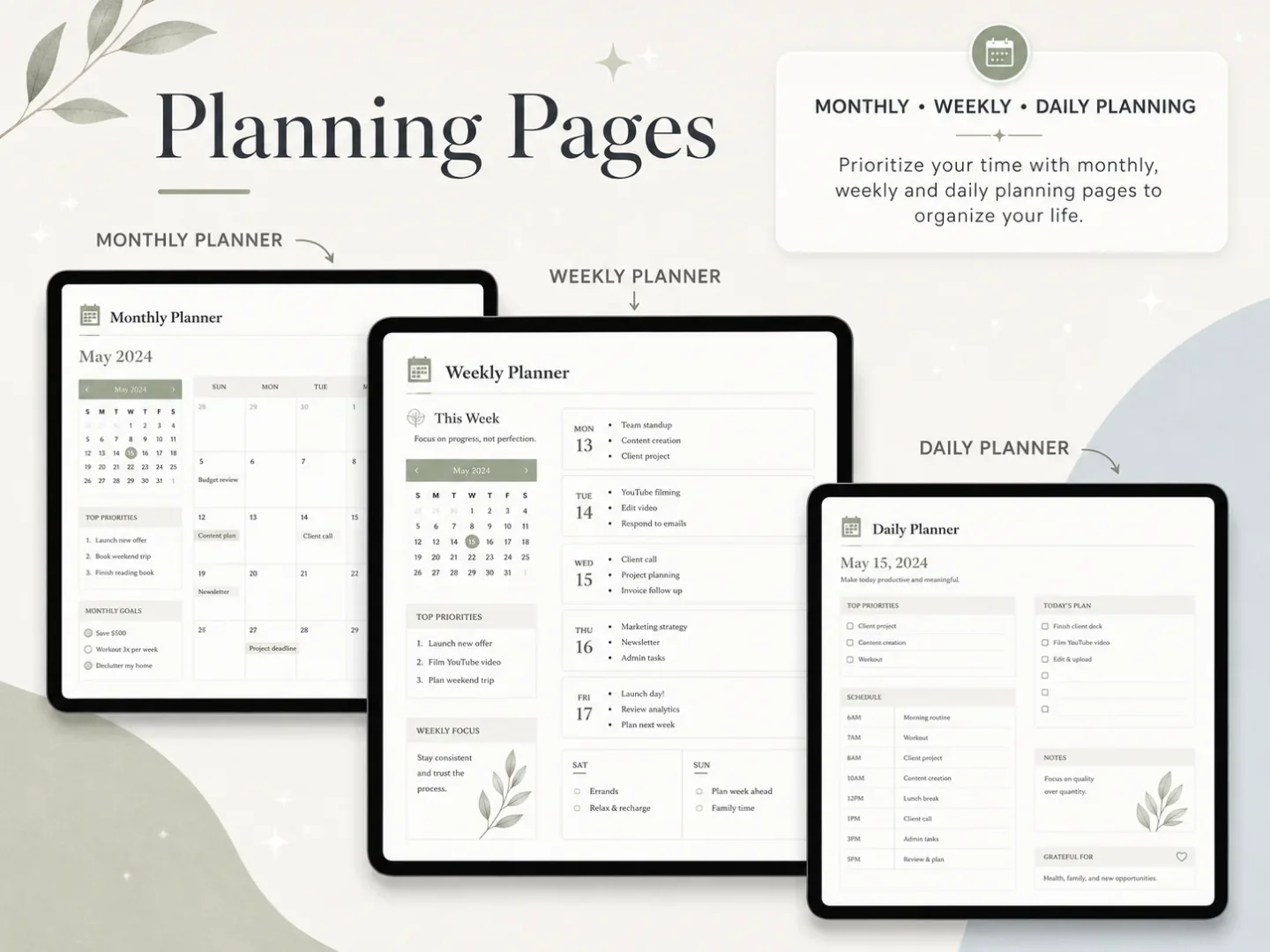
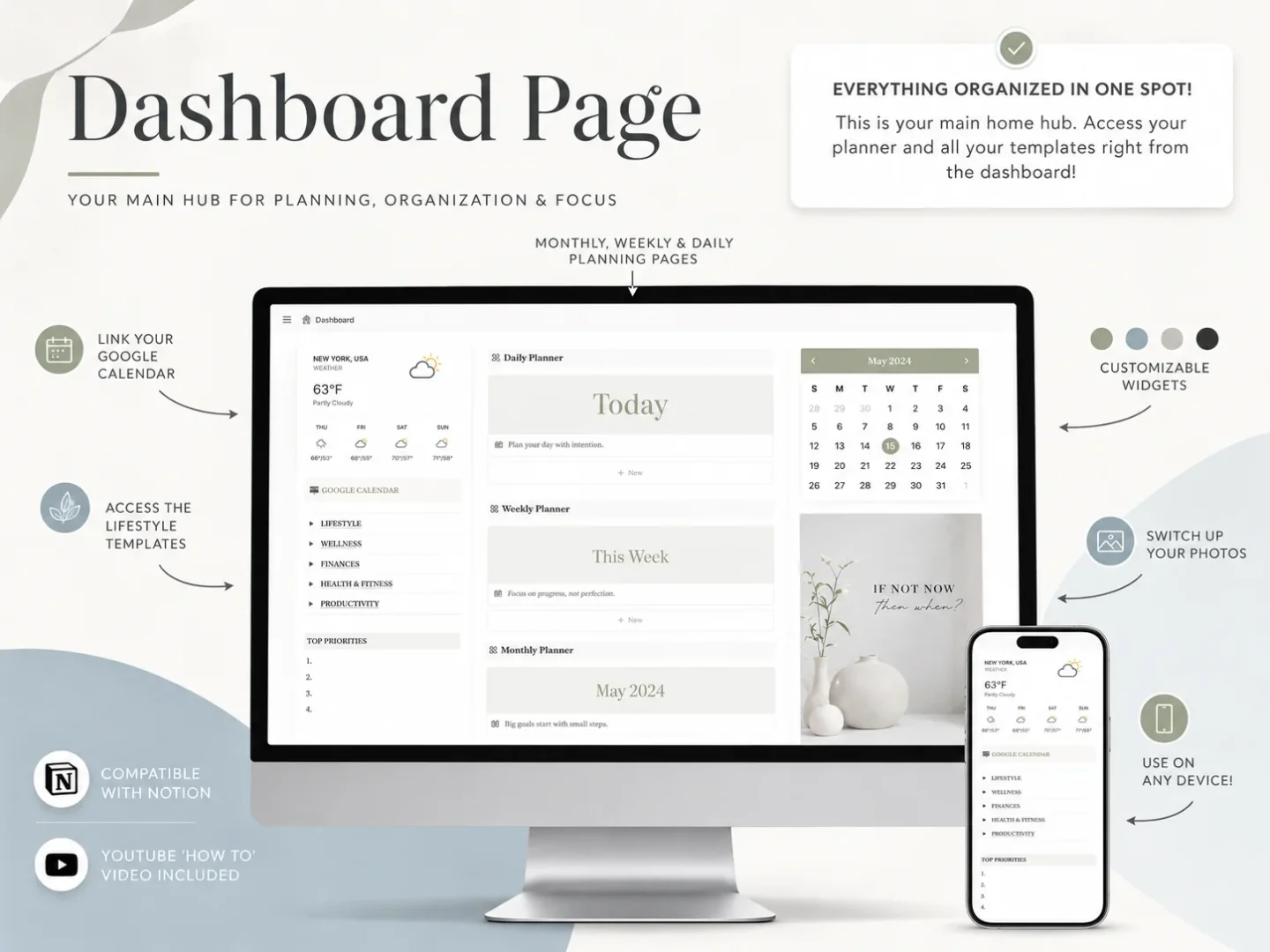
The Ultimate Notion Planner is for someone who prefers connected planning pages in Notion and wants a starting layout ready to duplicate. Its contents include a central dashboard and master calendar, daily, weekly, and monthly planning pages, goal and habit trackers, finance and productivity trackers, light and dark themes, customizable widgets, a setup guide, and a YouTube tutorial.
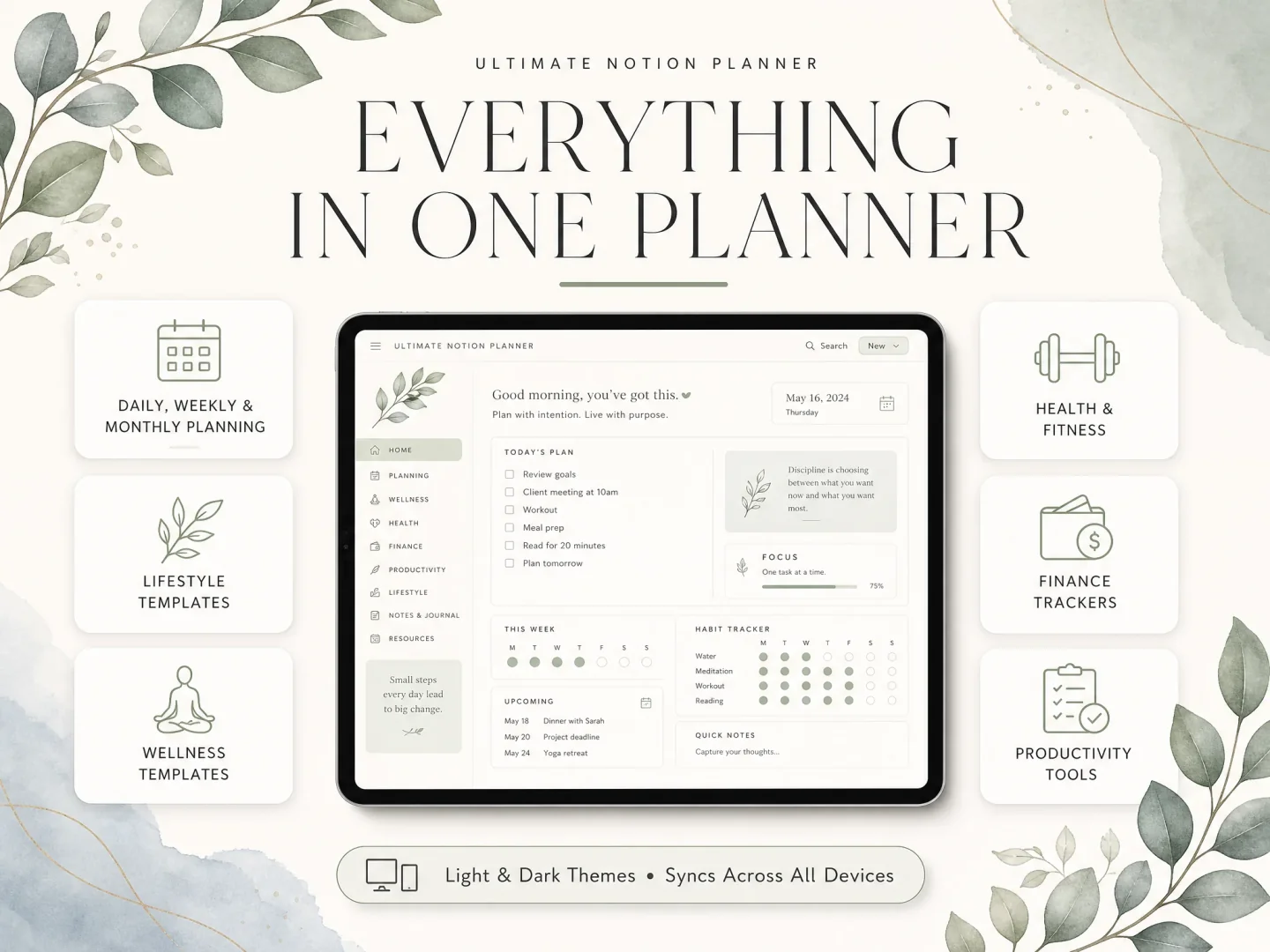
Its Google Calendar connection is a manual link on the dashboard, alongside Notion views synced across the planner pages. It does not provide two-way Google Calendar sync on its own. The template costs $9 once and is used inside a Notion account. If those trade-offs fit your week, see the Ultimate Notion Planner. For a more detailed look at its connected pages, start with the Notion planner setup guide.
Frequently asked questions
Is a Notion digital planner better than a PDF planner?
It depends on how you plan. Notion suits people who want dated items shown in calendar, list, and other database views. A PDF planner suits people who prefer writing or annotating fixed pages. Try the format you will open consistently, not the one with the longest feature list.
Can I use a Notion digital planner on my phone?
Yes. Notion has iOS and Android apps, and its help center notes that you can read, edit, and comment on Notion content from mobile. A phone is handy for checking a date or adding a task; a larger screen is usually easier for rearranging a full week. Check current device requirements before choosing.
Can a Notion planner sync with Google Calendar?
A Notion planner template does not create two-way Google Calendar sync by itself. This planner includes a manual Google Calendar link, while its Notion views show the same planner items in different layouts. Notion Calendar is a separate option for connecting calendars and Notion databases.
Can I write on a PDF planner?
Usually, yes, if your PDF app supports annotation or form fields. The exact tools depend on the app and the PDF. You can also print a PDF and write by hand. Check whether you can edit, erase, and reuse pages the way you expect before building a routine around it.
Do I need to know Notion to use a digital planner there?
No advanced setup is required to start with a duplicated template, but you will need to learn a few basics: open pages, add items, and switch views. A guided setup can shorten that learning curve. If you want every page to stay fixed, a PDF may feel simpler.
How do I choose a digital planner for several devices?
Start with the device where you capture plans, then check how the same item appears on your other devices. For Notion, test adding a dated item on mobile and finding it in the calendar view. For a PDF, test handwriting or typing, saving, and reopening the same file elsewhere.
Sources
Keep reading
Notion Planning
How to Set Up a Notion Planner Tonight (Built Around One Calendar)
Notion planner setup in about 45 minutes: month, week and day pages on one calendar, what Google Calendar really syncs, and when the free plan is enough.
· 9 min read
Notion Planning
Notion Dashboard: What to Include in a Personal Planner
Notion dashboard setup for a busy week: put today’s plan and calendar first, then link to the pages you check less often, including trackers and life areas.
· 8 min read