Notion vs OneNote for Planning a Week: Which Fits?
Notion vs OneNote: Compare a real weekly plan, calendar views, recurring tasks, notes, free plans, and when OneNote is the better fit for you.
By Ultimate Notion Planner by Cosmo Suite · Editorial policy
Published · 8 min read

If your week is a mix of appointments, errands, and notes, both Notion and OneNote can hold the details. They arrange them differently. Notion is easier when you want dated items to appear in a calendar and a task list. OneNote is better when you want an open page for handwriting, sketches, meeting notes, or a checklist beside your notes.
For a week planned around dates, choose Notion. For a week organized as notes you shape yourself, choose OneNote. This comparison looks at calendar views, recurring tasks, note-taking, cost, and a sample week. We checked the apps' current official help and pricing pages on November 11, 2026. It is a feature comparison, not a hands-on speed test. If you already know you want a ready-made Notion layout, the Ultimate Notion Planner is one option.
In short, Notion fits a week built around dated tasks and calendar views. OneNote fits a week built around flexible notes, handwriting, and sketches. Both have free options, so start with the way you want to see your week.
Quick Answer
- Choose Notion when the same dated list should appear in calendar and other views.
- Choose OneNote when flexible pages, handwriting, and Microsoft note-taking tools matter more than a calendar grid.
- Both have free options. A planner template is optional; your choice should turn on how you look at the week.
How Do Notion and OneNote Organize a Week?
Notion is a workspace where dated items can appear in multiple views. Microsoft OneNote is a digital notebook where you arrange notes in notebooks, sections, and pages. That difference is more useful than a long feature checklist.
| Planning need | Notion | OneNote | Better fit |
|---|---|---|---|
| Calendar view | A database with a Date property can display a calendar view | Weekly pages can be arranged by hand; calendar view is not a core notebook view | Notion |
| Freeform notes | Pages with blocks and layouts | Flexible page canvas for typed or handwritten notes | OneNote |
| Repeating weekly items | Repeating database templates can create entries on a schedule | A recurring checklist can be copied or paired with another task tool | Notion |
| One person's starting cost | Free plan available | Free app available | Tie |
| Microsoft 365 context | Separate workspace | Fits into Microsoft's note-taking and Office ecosystem | OneNote |
| Best starting point | Dated tasks, plans, and views | Notes, meeting pages, and sketches | Depends on your week |
Notion takes less manual upkeep when dates and views should stay connected. OneNote gives you more freedom to put notes on a page. If you want a deeper look at Notion's planning setup, see our Notion planner guide.

When Is Notion Better for Dated Tasks and Calendar Views?
Notion is the stronger choice when you want one list of dated items to appear in more than one layout. Add a date to a database item, then use a calendar view to see when it falls. The same items can also be shown as a table or another view, as described in Notion's calendar documentation.
That setup works for appointments, deadlines, and tasks you want to review across a week. Move an item once, and its date is reflected wherever that database is shown. Notion's repeating database templates can create repeated entries daily, weekly, monthly, or yearly. That is useful for a weekly review or a recurring planning page.
The trade-off is setup. You need to create a database, add a date property, choose a view, and decide what information belongs on each entry. If you start from a blank workspace, the flexibility can turn into a small construction project. A template can give you a starting structure. Our Notion vs Obsidian comparison looks at a similar choice between calendar-first planning and notes-first work.
When Is OneNote Better for Notes, Sketches, and Meeting Pages?
OneNote works well when the weekly plan lives alongside detailed notes. Microsoft describes its structure as notebooks containing sections and pages. You can use a page as a meeting record, add a checklist, paste reference material, or sketch next to typed text.
This is handy when the main job is capturing information, not sorting many dated items. A notebook page can hold the meeting agenda, decisions, and next steps in one place.
For a week view, you can create a page for each week and list dates yourself. That can feel natural if you enjoy writing on a blank page. It also means you maintain the layout: moving an appointment between weeks or seeing all dates together takes manual editing. If you need an actual date grid, keep a calendar app alongside OneNote.

Do Recurring Tasks and Reminders Need Different Tools?
Notion can create a new database entry from a repeating template. Microsoft's support materials describe OneNote as a place to organize notes and make to-do lists, while Outlook and Microsoft To Do provide task management features. For reminders that need a due date and a notification, check Microsoft To Do in Outlook rather than treating a OneNote checkbox as a reminder.
There is a practical distinction here: a checked box records completion on a page, while a task app can organize tasks around dates and reminders. Which tool matches the job? In Notion, repeating entries help put a fresh review or routine on the calendar. In OneNote, you can keep the checklist beside its notes and use Outlook or To Do for alerts.
If you want recurring tasks and a weekly overview inside one workspace, Notion is the simpler fit. If your week is mostly meetings and meeting notes, OneNote plus Outlook may fit better. Avoid maintaining the same due date in several places. Pick one source for deadlines, or a change in one app will not automatically update your other list.
What Do the Free Plans Include?
Both options can start at no cost for personal use. Notion lists its Free plan at $0 per seat each month. Its pricing page says a single-member workspace can add as many pages and blocks as it likes; its limits differ for workspaces with multiple members. Check the current Notion pricing page before deciding whether a paid plan matters to you.
Microsoft offers OneNote as a free app. Microsoft 365 subscriptions include other apps and services, so the value depends on whether you already need that bundle. Do not compare a full Microsoft 365 subscription with Notion's free plan unless you need the other included products too.
For a personal weekly plan, start with the free version of each and try the same five items: one appointment, one deadline, one recurring task, a note, and an errand. If dates are difficult to scan in OneNote, Notion's calendar view may be worth the setup. If you keep reaching for a blank page in Notion, OneNote may suit you better. Our guide to whether Notion is free explains the single-person plan in more detail.
How Would the Same Tuesday Look in Both Apps?
Imagine Tuesday has a 9:00 work start, a dentist appointment at 12:30, a gym visit after work, and groceries on the way home. You also need to remember what the dentist said about a follow-up appointment.
In Notion, make four dated items and view them on the calendar. Add a note or checklist for the dentist details. If the appointment moves to Thursday, change the date on its item and use the calendar view to check the new day.
In OneNote, make a Tuesday page, write the times and errands, then keep the dentist notes under the appointment. The page keeps the plan and detail together. If you move the visit, edit the page and update your calendar app if you keep one.
The difference shows up when plans change. Notion keeps the date attached to an item that can appear in different views. OneNote keeps a flexible page that you can rearrange. For a running record of conversations and ideas, the OneNote page is convenient. For scanning several days at once, the dated Notion list is easier to maintain.
Now imagine you also want a weekly review every Friday. In Notion, a repeating database template can create a fresh review entry each week, as Notion's repeating-template guide explains. In OneNote, you could keep a review checklist on a page and copy it for the next week; use Microsoft To Do for a dated reminder. Which would you rather repeat: a dated database entry or a page you can shape around your notes?

When Is OneNote the Better Choice?
OneNote is the better choice when your planning depends on information that does not fit neatly into rows. Meeting notes, rough sketches, pasted reference material, and handwritten annotations can sit together on the page. The notebook, section, and page structure is familiar if you already organize work that way.
It can also be the practical choice if you already use Microsoft apps and want notes near that work. You can keep the calendar in Outlook and the notes in OneNote, then avoid rebuilding a familiar system just to get a different calendar view.
Choose OneNote if writing is the center of your plan. Choose Notion if dates, lists, and views are the center. A person who wants both can split the jobs, as long as each deadline has one home.
Why Trust This Article
Cosmo Suite sells the Ultimate Notion Planner, so we have an interest in Notion being a fit. This comparison uses official Notion and Microsoft help and pricing pages checked on November 11, 2026. We did not run a timed product test. Features and prices can change, so confirm them on the linked vendor pages. Read our editorial policy for how we check articles, learn who we are, or use the contact page to report a correction.
How Does the Ultimate Notion Planner Fit In?
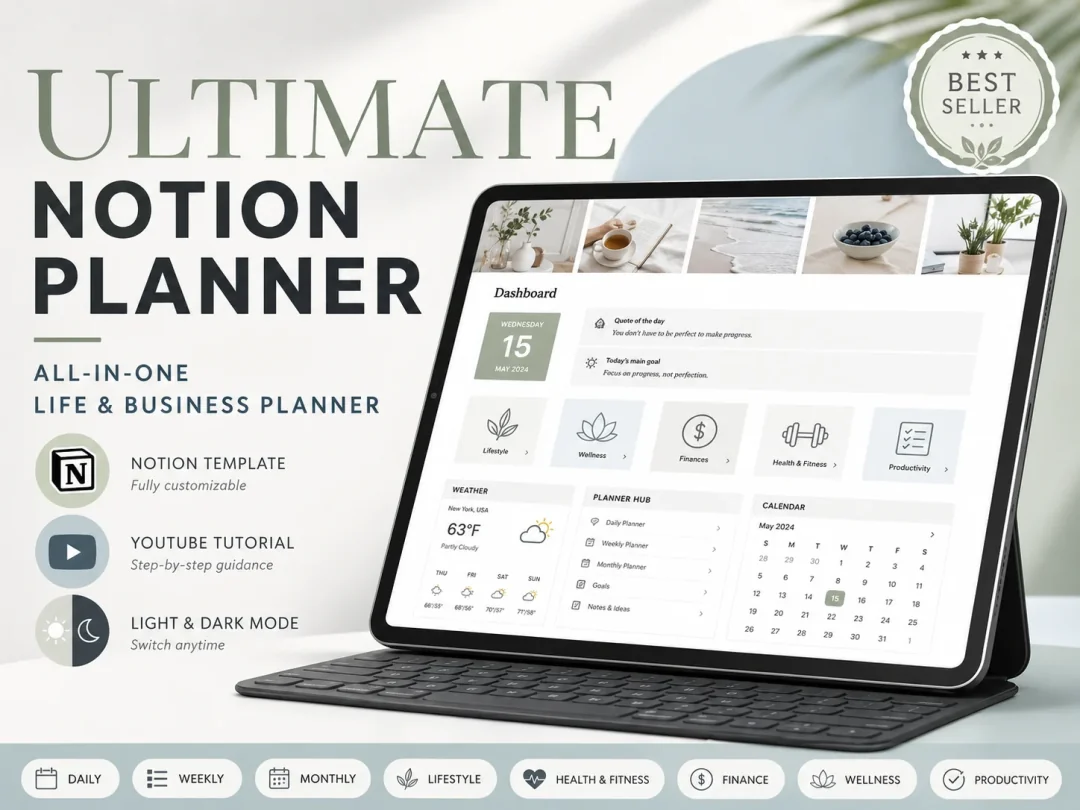
If you choose Notion and want a ready-made weekly structure, the Ultimate Notion Planner includes a central dashboard and calendar, daily, weekly, and monthly planning pages, and a master to-do list. It also includes events and appointments, goal and habit tracking, finance and productivity trackers, light and dark themes, and a setup guide with a YouTube tutorial. It is a template you duplicate into your own Notion account. The Google Calendar connection is a manual link, not a two-way sync.
The planner costs $9 once, according to the product details, and works inside Notion's free plan. If a connected set of month, week, and day pages would save you setup, see the Ultimate Notion Planner. If you prefer OneNote's open pages, stay with the tool that already fits your notes.
Frequently asked questions
Is Notion or OneNote better for planning?
Notion suits a week you want to see as dated tasks and calendar views. OneNote suits a week you want to write, sketch, and keep as flexible notes.
Can OneNote make a weekly calendar?
You can create a weekly page in OneNote, but its notebook, section, and page structure does not provide a database calendar view. Use Outlook or another calendar for date-grid scheduling.
Can I use Notion for free?
Yes. Notion's Free plan is $0 per seat each month, and its pricing page says a single-member workspace can add as many pages and blocks as it likes.
Is Microsoft OneNote free?
Microsoft offers OneNote as a free app. Some Microsoft 365 plans include additional Office apps and services, so check Microsoft's current plan details if you need those.
Can I use OneNote and Notion together?
Yes. Keep meeting notes, sketches, and reference material in OneNote, then use Notion for dated tasks and a calendar view. Choose one place as the source for each deadline.
Does Notion sync with Google Calendar?
The Ultimate Notion Planner has a manual Google Calendar link and Notion calendar views. The link is not a two-way sync with Google Calendar.
Sources
Keep reading
Notion vs Other Apps
Notion vs Obsidian for Planning Your Week: Which One Fits?
Notion vs Obsidian, judged only for planning a week: calendar views, recurring tasks, phone use and three-year cost, plus when Obsidian is the better pick.
· 8 min read

Notion vs Other Apps
Notion Alternatives for Planning a Week: 4 Picks by Job
Notion alternatives for personal planning, compared by job: task lists, daily routines, calendar control and AI planning, with US prices checked 28 Oct 2026.
· 9 min read

Notion vs Other Apps
Notion vs Evernote: Which One Fits Your Week?
Notion vs Evernote for a personal week: dated plans, notes, current prices and free plan limits, plus the same Tuesday planned in both apps.
· 9 min read